

• Regeln für den Video-Bereich:

    In den Börsenbereich gehören nur Angebote die bereits den Allgemeinen Regeln entsprechen.

    Einteilung

    - Folgende Formate gehören in die angegeben Bereiche:
    - Filme: Encodierte Filme von BluRay, DVD, R5, TV, Screener sowie Telesyncs im Format DivX, XviD und x264.
    - DVD: Filme im Format DVD5, DVD9 und HD2DVD.
    - HD: Encodierte Filme mit der Auflösung 720p oder darüber von BluRay, DVD, R5, TV, Screener sowie Telesyncs im Format x264.
    - 3D: Encodierte Filme von BluRay, die in einem 3D Format vorliegen. Dies gilt auch für Dokus, Animation usw.
    - Serien: Cartoon/Zeichentrick, Anime, Tutorials, Dokumentationen, Konzerte/Musik, Sonstiges sind demnach in die entsprechenden Bereiche einzuordnen, auch wenn sie beispielsweise im High Definition-Format oder als DVD5/DVD9/HD2DVD vorliegen. Ausnahme 3D.
    - Bereich Englisch: Englische Releases gehören immer in diesen Bereich.
    - Bereich Talk: Der Bereich, in dem über die Releases diskutiert werden kann, darf, soll und erwünscht ist.


    Angebot/Beitrag erstellen

    - Ein Beitrag darf erst dann erstellt werden, wenn der Upload bei mindestens einem OCH komplett ist. Platzhalter sind untersagt.
    - Bei einem Scenerelease hat der Threadtitel ausschließlich aus dem originalen, unveränderten Releasenamen zu bestehen. Es dürfen keine Veränderungen wie z.B. Sterne, kleine Buchstaben o.ä. vorgenommen werden. Ausnahme Serienbörse:
    - Bei einem Sammelthread für eine Staffel entfällt aus dem Releasename natürlich der Name der Folge. Beispiel: Die Simpsons S21 German DVDRip XviD - ITG
    - Dementsprechend sind also u.a. verboten: Erweiterungen wie "Tipp", "empfehlenswert", "only", "reup", usw. / jegliche andere Zusatzinformation oder Ergänzung, welche nicht in obiger Beschreibung zu finden ist.

    Aufbau des Angebots und Threadtitel

    Der Titel nach folgendem Muster erstellt zu werden. <Name> [3D] [Staffel] [German] <Jahr> <Tonspur> [DL] [Auflösung] <Quelle> <Codec> - <Group>
    Beispiel: The Dark Knight German 2008 AC3 DVDRip XviD - iND
    Beispiel: The Dark Knight 2008 DTS DL BDRip x264 - iND
    Beispiel: The Dark Knight 2008 AC3 DL BDRip XviD - iND
    Beispiel: The Dark Knight German 2008 AC3 720p BluRay x264 iND
    Beispiel: The Dark Knight 2008 DTS DL 1080p BluRay x264 iND
    Beispiel: Die Simpsons S01 German AC3 DVDRip XviD iND
    Beispiel: Die Simpsons S20 German AC3 720p BluRay x264 iND
    Beispiel: Sword Art Online II Ger Sub 2014 AAC 1080p WEBRip x264 - peppermint
    Entsprechend sind also u.a. verboten: Sonderzeichen wie Klammern, Sterne, Ausrufezeichen, Unterstriche, Anführungszeichen / Erweiterungen wie "Tipp", "empfehlenswert", "only", "reup", usw. / jegliche andere Zusatzinformation oder Ergänzung, welche nicht in obiger Beschreibung zu finden ist
    Ausnahmen hiervon können in den Bereichen geregelt sein.

    Die Beiträge sollen wie folgt aufgebaut werden:
    Überschrift entspricht dem Threadtitel
    Cover
    kurze Inhaltsbeschreibung
    Format, Größe, Dauer sind gut lesbar für Downloader außerhalb des Spoilers zu vermerken
    Nfo sind immer Anzugeben und selbige immer im Spoiler in Textform.
    Sind keine Nfo vorhanden z.B. Eigenpublikationen, sind im Spoiler folgende Dateiinformationen zusätzlich anzugeben :
    Quelle
    Video (Auflösung und Bitrate)
    Ton (Sprache, Format und Bitrate der einzelnen Spuren)
    Untertitel (sofern vorhanden)
    Hosterangabe in Textform außerhalb eines Spoiler mit allen enthaltenen Hostern.
    Bei SD kann auf diese zusätzlichen Dateiinformationen verzichtet werden.

    Alle benötigten Passwörter sind, sofern vorhanden, in Textform im Angebot anzugeben.
    Spoiler im Spoiler mit Kommentaren :"Schon Bedankt?" sind unerwünscht.


    Releases

    - Sind Retail-Release verfügbar, sind alle anderen Variationen untersagt. Ausnahmen: Alle deutschen Retail-Release sind CUT, in diesem Fall sind dubbed UNCUT-Release zulässig.
    - Im Serien-Bereich gilt speziell: Wenn ein Retail vor Abschluss einer laufenden Staffel erscheint, darf diese Staffel noch zu Ende gebracht werden.62
    - Gleiche Releases sind unbedingt zusammenzufassen. Das bedeutet, es ist zwingend erforderlich, vor dem Erstellen eines Themas per Suchfunktion zu überprüfen, ob bereits ein Beitrag mit demselben Release besteht. Ist dies der Fall, ist der bereits vorhandene Beitrag zu verwenden.
    - P2P und Scene Releases dürfen nicht verändert oder gar unter einem iND Tag eingestellt werden.


    Support, Diskussionen und Suche

    - Supportanfragen sind entweder per PN oder im Bereich Talk zu stellen.
    - Diskussionen und Bewertungen sind im Talk Bereich zu führen. Fragen an die Uploader haben ausschließlich via PN zu erfolgen, und sind in den Angeboten untersagt.
    - Anfragen zu Upload-Wünschen sind nur im Bereich Suche Video erlaubt. Antworten dürfen nur auf Angebote von MyBoerse.bz verlinkt werden.


    Verbote

    - Untersagt sind mehrere Formate in einem einzigen Angebotsthread, wie beispielsweise das gleichzeitige Anbieten von DivX/XviD, 720p und 1080p in einem Thread. Pro Format, Release und Auflösung ist ein eigener Thread zu eröffnen.
    - Grundsätzlich ebenso verboten sind Dupes. Uploader haben sich an geeigneter Stelle darüber zu informieren, ob es sich bei einem Release um ein Dupe handelt.
    - Gefakte, nur teilweise lauffähige oder unvollständige Angebote sind untersagt. Dies gilt auch für eigene Publikationen, die augenscheinlich nicht selbst von z.B. einer DVD gerippt wurden. Laufende Serien, bei denen noch nicht alle Folgen verfügbar sind, dürfen erstellt und regelmäßig geupdatet werden.
    - Untersagt sind Angebote, welche nur und ausschließlich in einer anderen Sprache als deutsch oder englisch vorliegen. Ausnahmen sind VORHER mit den Moderatoren zu klären.


    Verstoß gegen die Regeln

    - Angebote oder Beiträge, die gegen die Forenregeln verstoßen, sind über den "Melden"-Button im Beitrag zu melden.
  • Bitte registriere dich zunächst um Beiträge zu verfassen und externe Links aufzurufen.

*** Bestes IPTV *** bester Preis *** gratis Test ***


Englische Tutorials

The Ultimate Microsoft Excel Data Analytics Course
478233676ebrrcur.jpg


The Ultimate Microsoft Excel Data Analytics Course
Last Updated 07/2022
MP4 | Video: h264, 1280x720 | Audio: AAC, 44.1 KHz, 2 Ch
Genre: eLearning | Language: English + srt | Duration: 85 lectures (8h 29m) | Size: 5.8 GB


This course will teach you advanced Excel techniques all aimed at helping you make sense of the numbers in your business


What you'll learn
Learn and Understand Data Manipulation using Excel
Learn How to Create Formulas to Help you Analyze Data
Learn and Understand Data Cleansing
Learn and Understand Tables in Excel
Learn various ways to model data for businesses
Build impressive tables and combine datasets using Excel's built-in functionality
Learn basics of Pivot Tables and Charts
Clean and prepare your data
Create a basic Excel Pivot Table and format numbers in it
Use multiple fields and dimension, and methods of aggregation
Create Pivot Charts based on Pivot Table data
Learning Power Query, Power Map and Power Pivot

Requirements
You have an attitude to learn while having fun :)
Basic Excel knowledge is helpful but not required

Description
Welcome to this course. Microsoft Excel is one of the easiest to use data analysis tools you will ever come across. We need to analyze data these days since we live in a very data-driven world. Therefore, data is important in any business, whether you are looking for trends or forecasting future business needs. As there is a lot of importance placed on data analysis, you must have the relevant skills to analyze data effectively. Microsoft Excel has a battery of supplied functions to answer statistical, engineering and financial needs. In addition, it can display data as line graphs, histograms and charts, and with a very limited three-dimensional graphical display. Its simplicity and powerful features has made it the go to tool for all your data needs. Complex operations with Excel, such as creating charts and graphs, visualization, and analyzing data make it a great tool for managers, data scientists, financial data analysts, and those who work closely with data. Learning data analysis and will help you bring your data skills to the next level.

We'll start with the basic topics in Microsoft Excel. Then we will create workbooks; enter data into; explore page setup and print options; work with rows, columns, and cells; learn how the Cut, Copy, and Paste option works; understand functions and formulas; and also get introduced to PivotTables, logical, and lookup formulas. After this, we will move towards advanced concepts such as lookup and advanced lookup functions, financial functions including calculating interest and depreciation, statistical functions, learning how to connect to other workbooks and datasets outside of Excel, and creating awesome visualizations using sparklines and data bars. You will gain an in-depth understanding of more advanced Excel features that delve into high-level consolidation, analysis, and reporting of financial information.

In this course, you'll learn

Learn and Understand Data Manipulation using Excel

Learn How to Create Formulas to Help you Analyze Data

Learn and Understand Data Cleansing

Learn and Understand Tables in Excel

Learn various ways to model data for businesses

Build impressive tables and combine datasets using Excel's built-in functionality

Learn basics of Pivot Tables and Charts

Clean and prepare your data

Create a basic Excel Pivot Table and format numbers in it

Use multiple fields and dimension, and methods of aggregation

Create Pivot Charts based on Pivot Table data

Learning Power Query, Power Map and Power Pivot

At the end of this course, you'll learn the skills required to be able to clean the data, put it in the Pivot Table, analyse the data efficiently, and keep it updated with a single click.

Who this course is for
This course is for anyone who works with Microsoft Excel even if you've never used data analytics, Pivot Table and Pivot Charts

theultimatemicrosofte3aev8.jpg


The Dynamics of Microsoft Excel Workbook, Charts, PivotTable

4757152ab6e3w6ca9.jpg


The Dynamics of Microsoft Excel Workbook, Charts, PivotTable
Last Updated 08/2022
MP4 | Video: h264, 1280x720 | Audio: AAC, 44.1 KHz, 2 Ch
Genre: eLearning | Language: English + srt | Duration: 161 lectures (22h 18m) | Size: 10.1 GB


The Practical Guide to EXCEL (2021, 2016, 2013) - Conditional Formatting, PivotTable, Analyze Data, 2D/3D Charts. Maps


What you'll learn
Learn Excel from scratch to a comfortable professional
Harness the power of Macros to automate your tasks
You'll learn how to create a Funnel Chart, Combo Chart, Pareto chart, Histogram, Treemap, Box and Whisker Charts, Sunburst charts and more
Explore the dynamics of Pivot Table and Pivot Chart
Maximize the customization of 3D and 2D charts
How to Protect your Excel files and worksheets properly.
Automate data entry with Auto-Fill and Flash-fill.
Organize and structure data for easy analysis (Find through wildcard, Sort, Filter, Search & Replace, etc)

Requirements
Excel 2013, Excel 2016, Excel 2019, Office Excel 365 software
A computer and the zeal to learn at your pace

Description
You are welcome to this Excel course. You will be guided step by step on how to be confident Microsoft Excel.

In this course you will

Learn how to work with Excel Workbook from scratch (absolute beginner) to a comfortable user

Learn how to create Excel Macro - Absolute referencing vs Relative referencing

Be able to create a Macro button

Automating Charts with Macros

Create Header and Footer within your Excel Worksheet

Learn how to use printing setup and page setup in Excel

Be able to use the conditional formatting tool to present data

Maximize the customization of 2D and 3D charts

Organize and structure data for easy analysis (Find through wildcard, Sort, Filter, Search & Replace, etc)

Formatting 3D Bar Chart, 3D pie Chart elements

Use slicer tools to makes charts operate in a dynamic way

Use the Analyze Data Tool in Office 365

Converting table to range and removing duplicates

Learn how to use printing setup and page setup in Excel

Be able to Freeze and unfreeze panes

Explore the dynamics of Pivot Table and Pivot Chart

Explore the dynamics of Excel Table and applying sorting and filtering tools

Understand how to use the slicer tools and timeline filter tools

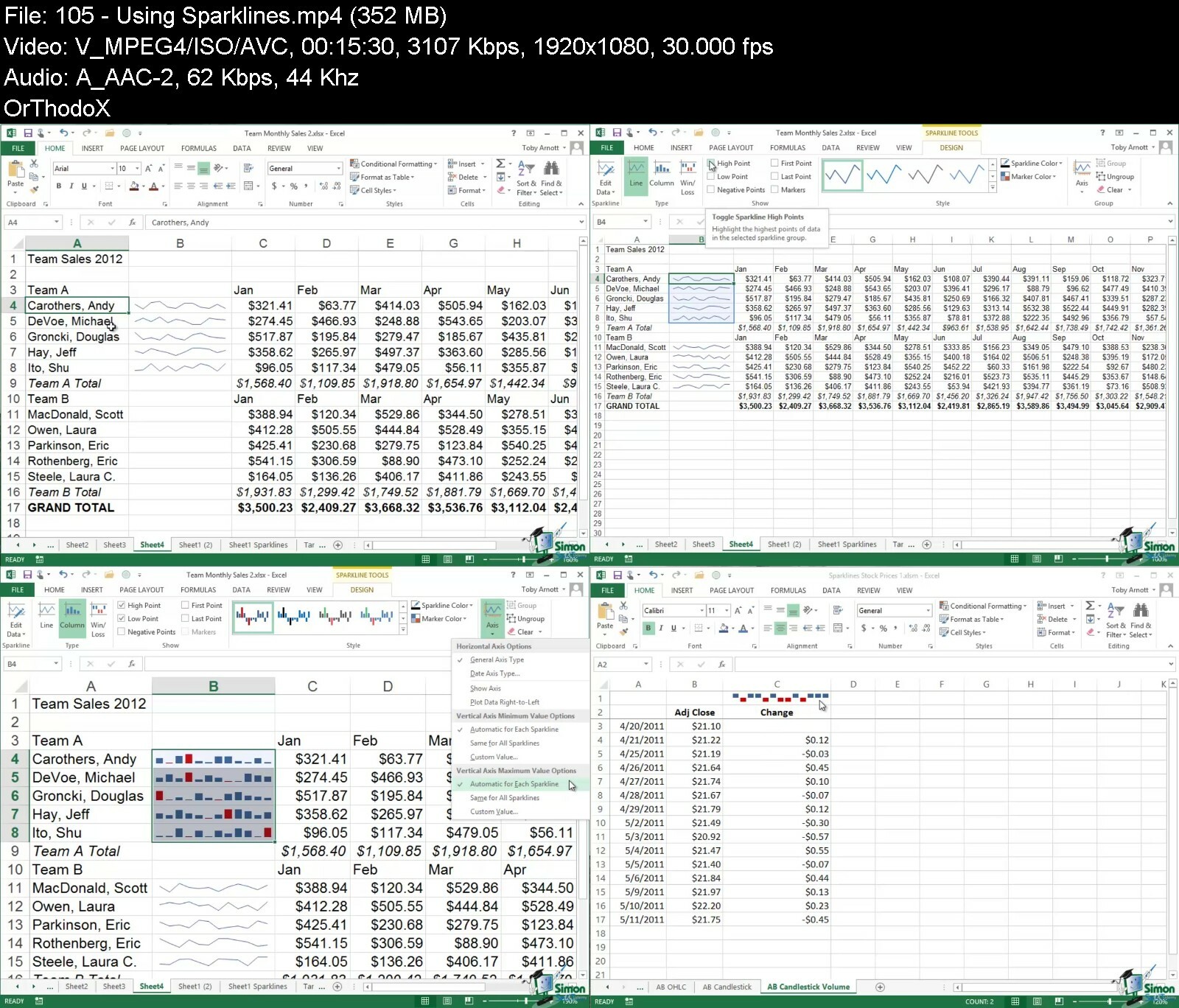
Understand the dynamics of Sparklines - columns, win/loss, Line

Be able to create a Map Chart with multiple levels of geographic details

Create 3D Map with Time Line

Learn how to create a Funnel Chart, Combo Chart, Pareto chart, Histogram, Treemap, Box and Whisker Charts, Sunburst charts and more

Automate data entry with Auto-Fill and Flash-fill.

Be able to work with smart art, take screenshots and manipulate shapes and edit images

Learn how to transpose data - that is switching the columns and rows in Excel

Who this course is for
This course is for absolute beginners. Intermediate Excel users are not exempted.
Understanding the dynamics of Excel Charts, Pivot Table, Maps can land you a Data Analyst job. So if you want to go that route, this Excel course is for you


thedynamicsofmicrosof3rd66.jpg


Ultimate Microsoft Project 2016 Course - Beginner To Expert

gesweukdbbowicu14jowl9hdix.jpg


Ultimate Microsoft Project 2016 Course - Beginner To Expert
Last updated 1/2022
MP4 | Video: h264, 1920x1080 | Audio: AAC, 44.1 KHz
Language: English | Size: 9.10 GB | Duration: 19h 0m

18 Hours of Training + 18 PDUs. The Most Convenient Way to Learn MS Project 2016 Inside And Out-Quickly


What you'll learn
Consolidating multiple projects.
Learn to effectively split projects into sub-projects.
How to track costs.
Effective use of budgets.
Manage cost rate changes.
Import and exporting of project data.
Includes exercise files.
Learn valuable new skills for complex projects at work
Discover how to work with costs, deadlines, and overcome scheduling issues
Learn critical paths
Setting up tasks and tracing their paths
Discover how to use subtasks, dependencies, deadlines, and resources
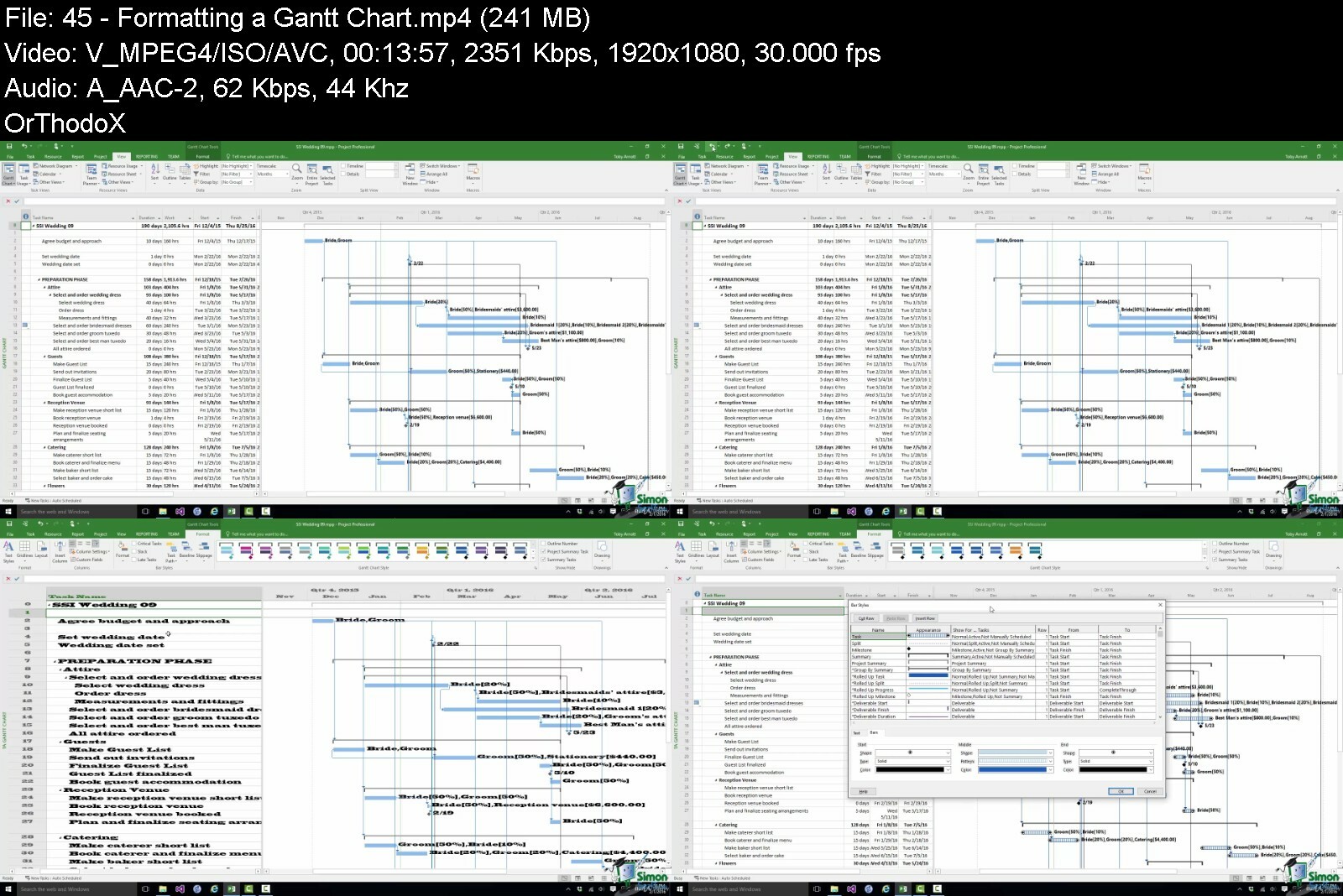
How to format a Gantt chart
Resource allocation
Leveling
Interim plans and baselines
Safeguards and restrictions
Learn how to use Project 2016 on a touch device
How to measure a project against a baseline project
How to save your project as a template for future projects
Utilize calendars and timelines in MS Project 2016
Assign resources to a task
Discover how to manage cost rate changes
Use of outline codes and WBS codes
How to use macros the speed up use and work more efficiently

Requirements
Microsoft Project 2016

Description
**Course includes practice exercise files, LIFETIME access and is covered by the Udemy money-back guarantee**** Claim 18.75 PDUs**Learn Project 2016 Inside and Out with This 2-Course Training Bundle*Includes 2 complete courses: The Project 2016 Beginner Course & The Project 2016 Advanced Course*Includes 18 hours of high-quality training by your professional trainer*Taught by a Certified Project Manager with real project management experience*Practice along using exercise files*Watch and learn with demo project files Progresses logically from the beginning with an easy intro to advanced topics*Printable course transcriptions to follow along and take notesKeep Track of Projects from Start to Finish With Microsoft's Comprehensive Program*Microsoft Project is Microsoft Corporation's project management software. Over the years since its initial development, MS Project has become one of the most widely used project management applications in existence. It provides assistance to project managers and coordinators by organizing plans, resources, tasks, budgets, workloads, and much more, all while keeping track of a project's overall progress from start to finish. Knowledge of Microsoft Project can be an invaluable tool for anyone whose work requires the orchestration of long-term projects and plans. Contents and Overview for the 9-Hour Project 2016 Beginner Course*This course starts right at the very beginning. It doesn't assume you know anything about Microsoft Project, so beginners will feel right at home.*The first video lesson introduces you to the software. You'll learn how to get your own copy of Project 2016, see what's new in version 2016 and explore the structure of this course.*The second chapter takes on the basics you need to begin using Project 2016. It first discusses the Help section where you can get answers and tutorials for any question that comes up. This chapter also discusses creating a Workspace, using Toolbars, Ribbons, and the Status Bar.*Continue on as you learn how to use Touch, Task basics, and Project Options. By now you will have become proficient with Project 2016. The chapters that follow lead learners through all the various aspects of managing a project. These more advanced topics carry you through Tracking Costs, Tracking the Project, Budgeting, and Reporting.*Each topic is explained with its own professional video that shows you in detail how to properly use the function. Nine hours of insightful video give you an in-depth understanding of each topic. 63 individual lessons are included. Upon completion of the course, you'll have an excellent mastery of Microsoft Project 2016.

Contents and Overview for the 9-Hour Project 2016 Advanced Course*Even difficult features and activities are made easy. This course keeps things understandable and logical to follow. It starts with an overview of the course structure and how to get the most out of the training.*Chapter 2 launches into Consolidation and Resource Sharing, giving you advanced insight into how to create efficiency with staff and materials. This is often where major savings begin for a business or organization that uses MS Project.*Chapter 3 shows you how to set up recurring tasks to save lots of time and effort. Chapter 4 instructs you how to set up custom fields, an advanced activity that lets you customize MS Project for your company or project.*Chapter 5 delves into Outline Codes and WBS codes. It's important to note each chapter is concluded with an exercise. This gives you the opportunity to practice applying concepts and actions in real-life situations.*Chapter 6 lets you master all advanced aspects of the Costs section of MS Project 2016. This gives you the ability to control cost across multiple projects to bring them all in under budget.*Subsequent chapters show you how to customize a number of aspects of MS Project, create a variety of helpful reports and how to use macros.

* Includes quizzes, exercise files, demo files and certificate of completion** Updated July 2017: English close captions added** Updated June 2017. Course transcripts now available.*What People Are Saying:*★★★★★ "I think the course is very comprehensive for beginners to Microsoft Project. Even if you are familiar with most of the common Microsoft Office programs, the guidelines presented serve as a very useful refresher." -Johan Deosaran*★★★★★ "Wonderful Examples and able to follow along nicely with clear descriptions and lay out. I am finally able to understand the basic usage of MS Project 2016." -Terri Leedy

Overview

Section 1: Introduction to Project 2016 Beginner Course

Lecture 1 Course Introduction

Lecture 2 WATCH ME: Essential Information for a Successful Training Experience

Lecture 3 DOWNLOAD ME: Course Exercise Files

Lecture 4 DOWNLOAD ME: Course Demo Files

Lecture 5 Downloadable Course Transcripts

Lecture 6 Acquiring Project 2016

Lecture 7 Course Structure

Lecture 8 What's New in Project 2016

Section 2: Project Beginner: Workspace, The Ribbon and Help

Lecture 9 The Project 2016 Workspace

Lecture 10 Online Help

Lecture 11 Ribbon and Toolbars

Lecture 12 Status Bar

Lecture 13 Keyboard Shortcuts and Tips

Section 3: Project Beginner: Using Touch

Lecture 14 Overview of Principles

Section 4: Project Beginner: Project Options

Lecture 15 Overview of Project Options

Section 5: Project Beginner: Task Basics

Lecture 16 Entering Tasks

Lecture 17 Opening and Closing Projects

Lecture 18 Exercise 1

Lecture 19 Task Properties

Section 6: Project Beginner: Subtasks

Lecture 20 Subtasks

Lecture 21 Exercise 2

Section 7: Project Beginner: Dependencies, Deadlines and Milestones

Lecture 22 Linking and Unlinking Tasks

Lecture 23 Setting Constraints and Deadlines

Lecture 24 Setting Milestones

Lecture 25 Exercise 3

Section 8: Project Beginner: Resources

Lecture 26 Filling Up the Resource Sheet

Lecture 27 Resource Assignment Basics

Lecture 28 Adding Resources to Tasks

Lecture 29 The Basics of Scheduling

Lecture 30 Resource Leveling Basics

Lecture 31 Leveling Options

Lecture 32 Exercise 4

Section 9: Project Beginner: Views and Timelines

Lecture 33 Views - Part 1

Lecture 34 Views - Part 2

Lecture 35 Timelines

Section 10: Project Beginner: Costs

Lecture 36 Setting Cost for Tasks

Lecture 37 Exercise 5

Lecture 38 Adding Cost Resources

Lecture 39 Setting Up Budget Cost

Section 11: Project Beginner: Baselines and Critical Paths

Lecture 40 Measuring a Project Against a Baseline

Lecture 41 Working with Critical Path

Lecture 42 Exercise 6

Lecture 43 Changing Baselines

Section 12: Project Beginner: Tables

Lecture 44 Modifying Task and Resource Tables

Section 13: Project Beginner: Gantt Chart

Lecture 45 Formatting a Gantt Chart

Section 14: Project Beginner: Notes

Lecture 46 Applying Notes to Tasks or Resources

Section 15: Project Beginner: Printing and Spellchecking

Lecture 47 Modifying Print Options and Printing your Current View

Lecture 48 Spellchecking Your Project

Section 16: Project Beginner: Tracking Progress

Lecture 49 Tracking Progress - Part 1

Lecture 50 Tracking Progress - Part 2

Lecture 51 Exercise 7

Section 17: Project Beginner: Reporting

Lecture 52 Reporting - Part 1

Lecture 53 Reporting - Part 2

Lecture 54 Exercise 8

Section 18: Project Beginner: Tracking Costs

Lecture 55 Recording Costs

Section 19: Project Beginner: The Organizer

Lecture 56 Using the Organizer to Manage Views

Section 20: Project Beginner: Saving Projects

Lecture 57 Save As Options

Section 21: Project Beginner: Project Security

Lecture 58 Password Protect an MPP file

Section 22: Project Beginner: Project Templates

Lecture 59 Saving your Project as a Template

Section 23: Project Beginner: Calendars

Lecture 60 Calendars - Part 1

Lecture 61 Calendars - Part 2

Lecture 62 Exercise 9

Section 24: Project Beginner: Scheduling Issues

Lecture 63 Task Inspector

Lecture 64 Task Paths

Lecture 65 Team Planner

Section 25: Project Beginner: Conclusion

Lecture 66 Additional Topics and Closing

Section 26: Project Advanced: Introduction

Lecture 67 Introduction to Project 2016 Advanced Course

Lecture 68 WATCH ME: Essential Information for a Successful Training Experience

Lecture 69 DOWNLOAD ME: Course Exercise Files

Lecture 70 DOWNLOAD ME: Course Demo Files

Lecture 71 Downloadable Course Transcripts

Lecture 72 Course Structure

Section 27: Project Advanced: Consolidation and Resource Sharing

Lecture 73 Introduction to Consolidation and Resource Sharing

Lecture 74 Resource Sharing

Lecture 75 Project Consolidation

Lecture 76 Exercise 1

Lecture 77 Practical Sharing and Consolidation - Part 1

Lecture 78 Practical Sharing and Consolidation - Part 2

Section 28: Project Advanced: Recurring Tasks

Lecture 79 Setting Up Recurring Tasks

Section 29: Project Advanced: Custom Fields

Lecture 80 Creating a Custom Field

Lecture 81 Calculated Custom Field - Part 1

Lecture 82 Calculated Custom Field - Part 2

Lecture 83 Exercise 2

Section 30: Project Advanced: Outline Codes and WBS Codes

Lecture 84 What are Outline Numbering and WBS Codes

Lecture 85 Problems in Outline Numbering and WBS Codes

Lecture 86 Outline Codes

Lecture 87 Exercise 3

Section 31: Project Advanced: Costs

Lecture 88 Fixed Task Costs

Lecture 89 Cost Accrual

Lecture 90 Budget Costs

Lecture 91 Cost Rates and Rate

Lecture 92 Overtime

Lecture 93 Variable Material Costs

Lecture 94 Exercise 4

Section 32: Project Advanced: Custom Tables

Lecture 95 Customization of Tables

Lecture 96 Management of Custom Table Definitions

Section 33: Project Advanced: Custom Views

Lecture 97 Use of Custom Views

Section 34: Project Advanced: Sorting, Filtering, and Grouping

Lecture 98 Sorting

Lecture 99 Filtering

Lecture 100 Grouping

Lecture 101 Exercise 5

Section 35: Project Advanced: Reports

Lecture 102 Reporting Overview

Lecture 103 Creating and Customizing Reports - Part 1

Lecture 104 Creating and Customizing Reports - Part 2

Lecture 105 Creating and Customizing Reports - Part 3

Lecture 106 Creating and Customizing Reports - Part 4

Lecture 107 Targeted Reporting - Part 1

Lecture 108 Targeted Reporting - Part 2

Lecture 109 Exercise 6

Lecture 110 Comparing Projects

Section 36: Project Advanced: Visual Reports

Lecture 111 Visual Reporting using Excel

Lecture 112 Visual Reporting using Visio

Section 37: Project Advanced: Earned Value Analysis

Lecture 113 Earned Value Analysis Basic Terminology

Lecture 114 Example of Earned Value Analysis

Lecture 115 Exercise 7

Section 38: Project Advanced: Import and Export

Lecture 116 Importing Data to Project

Lecture 117 Exporting Data from Project

Lecture 118 Exercise 8

Section 39: Project Advanced: Macros

Lecture 119 Recording a Macro

Lecture 120 Writing a Macro

Lecture 121 Macro Security

Lecture 122 Exercise 9

Section 40: Project Advanced: Conclusion

Lecture 123 Closing

Lecture 124 Claim PDUs

Section 41: Congratulations!

Lecture 125 BONUS Lecture

Users new to Microsoft Project 2016 and those upgrading from previous software versions,Anyone new to the project management role,New project managers,Anyone who wants to learn project management and Microsoft Project,Project Managers and other business professionals who are familiar with Microsoft Project 2013 (or previous versions) and are looking to deepen their knowledge with more advanced skills.,Experienced Project Managers or those who are familiar with MS Project 2016 or 2013


ultimatemicrosoftprojy3i7v.jpg


Microsoft Excel 2019 for Beginners By Widhi Muttaqien

ynaauq2prjoe3bloswwsjz3fx6.jpg


Microsoft Excel 2019 for Beginners By Widhi Muttaqien
Published 07/2022
Genre: eLearning | MP4 | Video: h264, 1280x720 | Audio: AAC, 44.1 KHz
Language: English | Size: 5.83 GB | Duration: 88 lectures • 10h 35m


What you'll learn
The basics of Excel
Graphics and Charts
Data processing techniques
Table and PivotTable
Conditional formatting
Printing and exporting
And many more


Requirements
Basic skills for operating a computer.
Have Microsoft Excel 365 or 2019 already installed.

Description
Are you new to Microsoft Excel? Or just looking for a good refresher? In this online course, you will learn Microsoft Excel from the very basics until you can master all aspects of the software.

What you will learn

There are tons of things that you will learn in this online course. It would be too long to explain all of them in this short description text. To see the details, you can check the curriculum section of this course. I will only explain some of them briefly here.

In the first chapter, you will get to know the basics of Microsoft Excel, such as how to work with files, exploring the user interface, how to navigate, and so on.

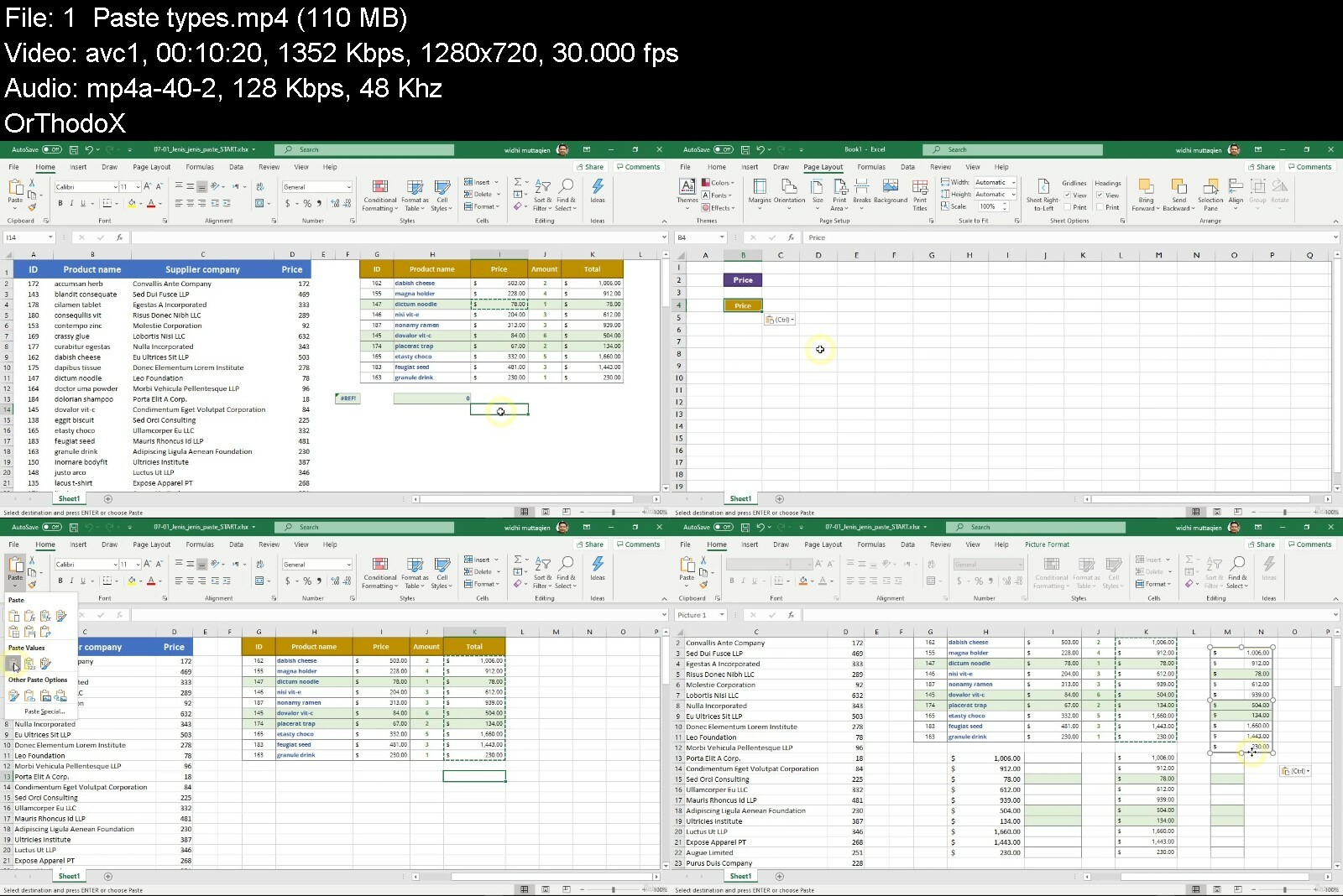
Then you will learn the basics of working with data in Excel, such as using AutoFill, using formulas, understanding different types of copy-and-paste, learn to use various types of cell references, from the simplest to the complex ones, and so on.

Next, you will learn the ins and outs of data presentation in Excel. From formatting basic texts, numbers, cells, borders, effects, styles, and so on. Then learn various techniques for structuring the table.

In the next section, you will learn about various things related to graphics. Such as inserting and managing image files, creating shape and text box objects, creating SmartArt, creating Charts, and also Sparklines.

In the next chapter, we will discuss advanced data processing techniques. We will discuss things like notes, comments, find and replace techniques, data sorting, filters, Freeze Pane, and so on.

Then after that, we will discuss in detail everything related to tables, pivot tables, and how to combine the two features. We'll also cover a variety of conditional formatting features from the basic examples to more complex ones.

And in the final chapter, we will cover different techniques related to printing and exporting, such as defining print areas, managing headers and footers, data protection, exporting to PDF or XPS, etc.

So, join this course now! And become the master of Excel.

Who this course is for
Beginners who want to learn Microsoft Excel from scratch.
Employees who want to improve their career by leveraging Excel.
Students and academics who need effective tools to support research.
Managers or CEOs who need to perform data analysis and present them effectively.


microsoftexcel2019fori9ijs.jpg


Microsoft Excel Skill for Data Analyst

466164480b072c84.jpg


Microsoft Excel Skill for Data Analyst
Published 09/2022
MP4 | Video: h264, 1280x720 | Audio: AAC, 44.1 KHz, 2 Ch
Genre: eLearning | Language: English | Duration: 144 lectures (16h 15m) | Size: 8.7 GB


Master everything you need to know to use Microsoft Excel like a Pro. Build Dashboard and Inventory Management system


What you'll learn
Learn how to use Microsoft Excel like an expert
Learn how to help companies make better decision with data using Microsoft Excel
Learn how to use function to analyze data
Analyze data with Pivot Table in Microsoft Excel
Learn how to create better charts in Excel
Learn all the tricks you need to get better

Requirements
Microsoft Excel, 2013, 2016, 2019, office 365 and above
Analytics mindset
Dedication

Description
Scratch the surface of Microsoft of Excel to the Advanced level and become relevant in the Data ANALYTICS Industry

Why Should I Take this course?

This Excel course covers all you need to know in Microsoft Excel to the Advance level.

It is for you even if you don't have a piece of prior knowledge about Microsoft EXCEL.

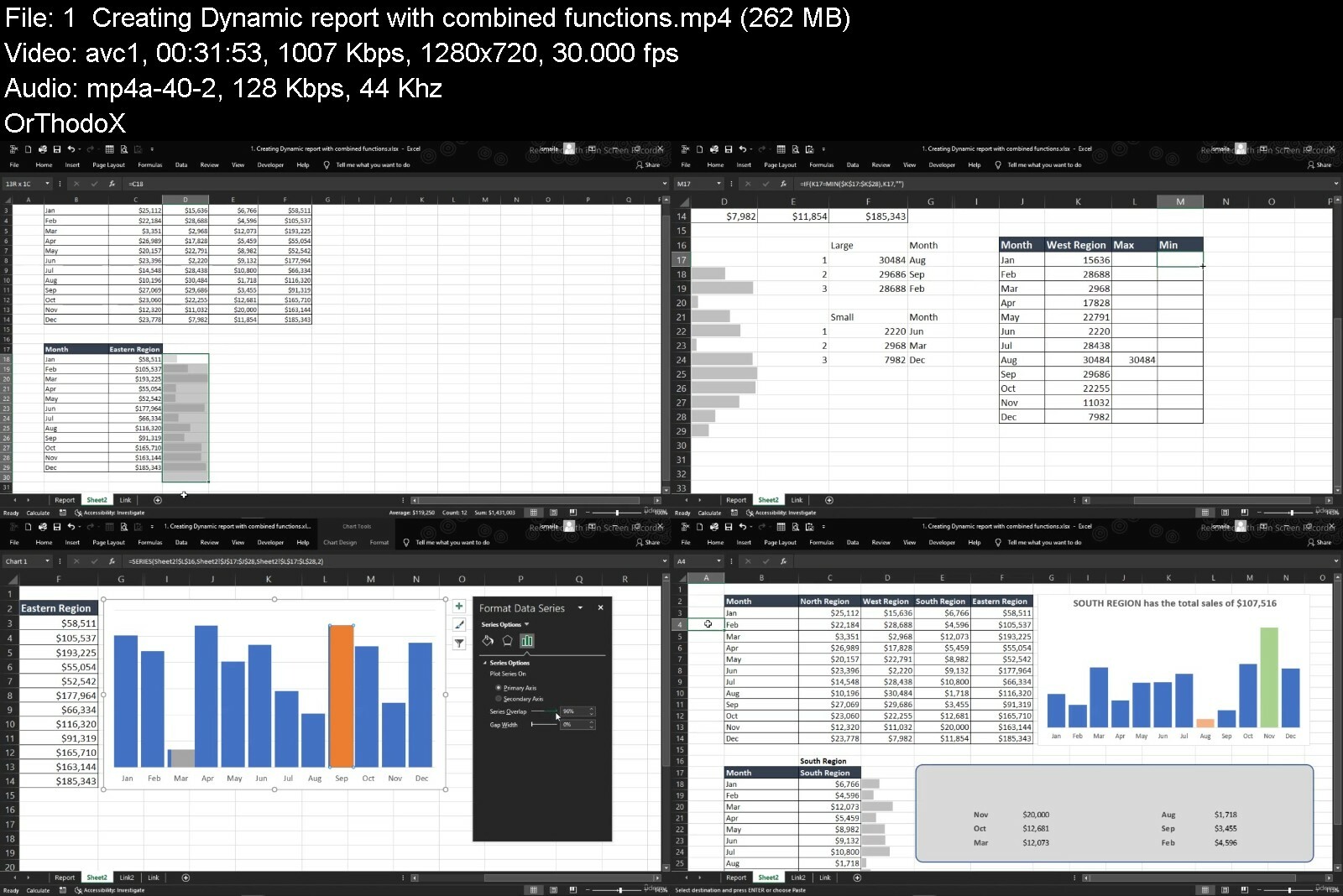
We are not just going to teach you basic functions and formulas but also help you learn how to combine Microsoft EXCEL functions to create amazing projects like Reports, Dashboards, and Inventory Management Systems plus other ways to practically use Functions and Formulas in Excel.

This course is prepared to help you gain industry knowledge on how Excel is used daily to make decisions in an organization.

What you will Learn

v Learn how to think like an advanced Excel user and write powerful and dynamic formulas and functions in Excel from the scratch.

v Master some tips you won't find in any other courses

v How to apply formulas and functions in your project

v Create your own formulas that go according to Microsoft Excel rules

By the end of this course, you will go out there and confidently say to Employers that you are an Excel Expert without shaking of mind.

Our aim is to make you believe in yourself as we are going to take you by hand step by step on how to navigate Microsoft Excel like a pro.

After this course, you will never have problems creating dynamic and easy-to-update Excel Reports and you will create a very elegant, clean, interactive, and outstanding dashboard.

To get started all you have to do is to sign up and get the Resources file downloaded to your system. The resources are in a zip file, unzip it and join us in the class as we take you step by step on what you need to know about Microsoft Excel. See you There!

Who this course is for


microsoftexcelskillfoxqeg3.jpg


The Ultimate Microsoft Excel 2013 Training Bundle - 19 Hours

7hpsyfyn670eosw6dclx3gbesb.jpg


The Ultimate Microsoft Excel 2013 Training Bundle - 19 Hours
Last updated 1/2022
MP4 | Video: h264, 960x720 | Audio: AAC, 44.1 KHz
Language: English | Size: 12.07 GB | Duration: 19h 22m

The Drop-Dead Simple Method to Mastering Microsoft Excel 2013, Without Books, in Less Time Than You Thought


What you'll learn
Practice with included exercise files.
Data entry, cell formatting, working with multiple worksheets and the "Ribbon" interface.
Tips for mouse and touch screen users.
Graphs and charts using templates or custom designs.
SkyDrive and other tools for sharing work.
Pivot tables and slicing.
Working with flash fill.
Working with dates and times.
Averages, percentiles, and LINEST functions.
Calculating depreciation.
Inserting and formatting tables.
Sparklines and data bars.
Pivot charts.

Requirements
Microsoft Excel 2013

Description
Microsoft Excel is, by a long way, the most widely-used spreadsheet software out there, and the 2013 edition is the most powerful and versatile version yet. Packed with new features and design changes, Microsoft Excel 2013 has plenty to offer for any company.
Whether you're new to Excel, or just looking to update your knowledge to the latest version, you'll find that the Ultimate Microsoft Excel 2013 Training Bundle will help you put together stunning and impressive spreadsheets with ease, helping you to stand out in the workplace and impress your boss.
This bundle includes:
19.5 hours of video tutorials Over 100 individual video lectures 2 quizzes with 90 test questions Certificate of completion
Courses included with this Bundle:
Microsoft Excel 2013 Beginners/Intermediate Training
During this 10-hour Online Excel 2013 Training, you'll learn to create Excel spreadsheets with ease. Our expert instructor will show you Excel 2013 features to navigate you through the program. Starting with the basics, you'll discover how to enter and format data in the quickest manner possible. Next you'll be introduced to the power of Excel's functions and formulas to help you calculate data and derive useful information. To help you present it all in a visually appealing format, your instructor will then walk you through how to create sophisticated charts and graphs, and publish them online. Finally, you'll learn to analyze and review worksheets for data discrepancies so you can prevent problems before they arise.
Turn your long lists of numbers into slick, engaging visuals that bring data to life. Whether you need to create budgets, financial projections, invoices, calendars, schedules, or lists, our elaborate Excel 2013 Tutorial will give you the skills you need to stand out at work.
Learn Microsoft Excel 2013 - Advanced
Colorful charts, sleek graphs, and cutting-edge databases that offer insight into financial information are a breeze when you learn the secrets of creating sophisticated spreadsheets in our Learn Excel 2013 - Advanced course. That's because you'll get the tools you need to master Excel's powerful data functions in this information-packed 9-hour video training class.
Your expert instructor will kick the course off by leading you through graph and chart basics. Then, you'll explore Excel's array of detailed formatting tools and discover how to make these work for you when graphing and charting financial information. Next, you'll explore the roles played by trends, relationships, and differences in charts, and how to work with sparklines for data visualization and data bars. The course will also take you through detailed discussions of pivot tables, bubble charts, radar charts, and more.
Where else can you find so many extra tools to help you gain advanced skills in Excel 2013?!?!
So start learning today.
What People Are Saying

★★★★★ "I love it! He takes the time to explain how and why the operation is performed, gives you examples, and allows your brain time to absorb." -Barbie E. Deen

★★★★★ "I am actually quite well versed in Excel but decided to start with the beginner's portion of the course for 2 reasons: 1) I could listen along while I work to pick up tips &/or discover new features (I found at least 20); and 2) Assess the entirety of the course so that I could recommend it to friends/colleagues who have very basic Excel knowledge. Very good course." -Karen Hatt

★★★★★ "Excellent course. I first took the Simon Sez IT MS Project 2013 Bundle and really enjoyed the course. I learned a great deal from it. Since I liked it so much I decided to try the MS Excel 2013 course. I was quite pleased to find that Toby Arnott was the instructor again as he did a fantastic job with the Project courses. I think it was covered well. I recommend the course." -Derrick Bourgeois

★★★★★ "I found the lectures easy to understand even with the British accent. Simon's speech patterns enhanced my understanding of the lecture material. I have signed up for his Office 2013 courses because I know I will enjoy and understand the information given." -David W. Olsen★★★★★ "I am now a business analyst and I attribute my promotion directly to your courses. I'm much more savvy and confident with Excel. Thanks Simon."- Daniel Venti
Note: All videos are high-definition and are therefore best viewed enlarged and with the HD setting on.
** Updated July 2017: English close captions added

Overview

Section 1: Excel 2013 Beginners: Introduction

Lecture 1 Introduction to Excel 2013

Lecture 2 WATCH ME: Essential Information for a Successful Training Experience

Lecture 3 DOWNLOAD ME: Excel 2013 Exercise Files

Lecture 4 Downloadable Course Transcript

Lecture 5 What's New

Section 2: Excel 2013 Beginners: Using Touch

Lecture 6 Overview of Principles

Section 3: Excel 2013 Beginners: Getting Started

Lecture 7 Starting and Closing Excel; Workbook, Sheets, Cells, Rows, & Columns

Lecture 8 Templates; Creating, Opening, and Saving a Workbook

Section 4: Excel 2013 Beginners: Help

Lecture 9 Online, Offline, and Contextual Help

Section 5: Excel 2013 Beginners: Settings and Preferences

Lecture 10 Excel Options

Section 6: Excel 2013 Beginners: The Ribbon and Toolbars

Lecture 11 Ribbon Interface

Lecture 12 Quick Access Toolbar

Lecture 13 Mini Toolbar

Section 7: Excel 2013 Beginners: Backup and Recovery

Lecture 14 Create Backup Option; Auto-Recover and Autosave

Section 8: Excel 2013 Beginners: Enterting and Deleting Data

Lecture 15 Entering and Deleting Data

Lecture 16 Date Formats

Lecture 17 Formatting Cells; Editing and Deleting Data

Lecture 18 Fill

Lecture 19 Flash Fill

Section 9: Excel 2013 Beginners: Formatting a Worksheet

Lecture 20 Themes and Cell Styles

Lecture 21 Inserting, Deleting, Hiding and Adjusting Rows and Columns

Lecture 22 Wrap Text and Alignment

Lecture 23 Merging Cells; Applying Themes and Styles

Lecture 24 Borders

Section 10: Excel 2013 Beginners: Copy, Paste and Paste Special

Lecture 25 Copy, Cut and Paste

Section 11: Excel 2013 Beginners: Proofing

Lecture 26 Spell checking

Section 12: Excel 2013 Beginners: Managing Worksheets

Lecture 27 Moving, Copying, Inserting, Deleting and Locking Sheets; Multiple Worksheets

Section 13: Excel 2013 Beginners: Comments

Lecture 28 Inserting Comments

Section 14: Excel 2013 Beginners: Viewing and Printing

Lecture 29 Workbook Views, Zoom and Freeze

Lecture 30 Printing; Headers, Footers and Margins

Section 15: Excel 2013 Beginners: Formulas and Functions

Lecture 31 Overview of Formulas and Functions

Lecture 32 Cell References

Lecture 33 Names

Lecture 34 Finding Errors; New Excel Functions

Section 16: Excel 2013 Beginners: Working with Workbooks

Lecture 35 Multiple Workbooks and Windows; Comparing Workbooks

Section 17: Excel 2013 Beginners: Find and Replace

Lecture 36 Go to; Find and Replace Options

Section 18: Excel 2013 Beginners: Conditional Formatting

Lecture 37 Applying, Clearing and Managing Rules

Section 19: Excel 2013 Beginners: Graphing and Charting

Lecture 38 Chart Types; Chart Recommendation

Lecture 39 Basic Formatting

Lecture 40 Selecting Data, Positioning and Printing Charts

Section 20: Excel 2013 Beginners: File Types

Lecture 41 Saving Workbooks; PDF and CSV Formats

Section 21: Excel 2013 Beginners: Managing Data

Lecture 42 Sorting

Lecture 43 Filtering

Lecture 44 Tables

Section 22: Excel 2013 Beginners: Functions Case Study

Lecture 45 VLOOKUP

Lecture 46 Text Function

Lecture 47 Date and Time Functions

Lecture 48 Logical Functions

Section 23: Excel 2013 Beginners: Analyzing Data

Lecture 49 Financial Analysis Case Study - Part 1

Lecture 50 Financial Analysis Case Study - Part 2

Lecture 51 Quick Analysis Tool

Section 24: Excel 2013 Beginners: Shapes and Pictures

Lecture 52 Adding and Formatting Shapes, Picture, Clip Art, WordArt and SmartArt

Section 25: Excel 2013 Beginners: Sharing and Protecting

Lecture 53 Protecting Worksheets

Lecture 54 Protecting Workbooks

Lecture 55 Sharing and SkyDrive

Section 26: Excel 2013 Beginners: More Backstage View Options

Lecture 56 Trust Center; Export; Inspect Workbook

Section 27: Excel 2013 Beginners: Closing

Lecture 57 Summary; More Help

Section 28: Excel 2013 Advanced: Introduction

Lecture 58 Prerequisites of Excel 2013 Advanced Course

Lecture 59 WATCH ME: Essential Information for a Successful Training Experience

Lecture 60 DOWNLOAD ME: Excel 2013 Advanced Exercise Files

Lecture 61 Downloadable Course Transcript

Lecture 62 Course Review

Section 29: Excel 2013 Advanced: Functions

Lecture 63 List of Functions; Common Types of Arguments; Basic Use of Functions

Lecture 64 Advanced Aspects of Functions; Searching for a Function

Lecture 65 Autosum

Section 30: Excel 2013 Advanced: Personal and Professional Financial Functions

Lecture 66 Payment

Lecture 67 Future Value

Lecture 68 Principle Payment

Lecture 69 Depreciations

Section 31: Excel 2013 Advanced: Date and Time Functions

Lecture 70 How Dates and Times are Stored

Lecture 71 Dates and Times Calculation

Lecture 72 Exercise on Date and Time Functions; Date and Time Settings

Section 32: Excel 2013 Advanced: Statistical Functions for Description and Prediction

Lecture 73 Average

Lecture 74 Percentile

Lecture 75 Regression

Lecture 76 LINEST Function

Lecture 77 Example of Functions for Inferential Statistics

Section 33: Excel 2013 Advanced: Text Functions

Lecture 78 Text Function Case Study - 1

Lecture 79 Text Function Case Study - 2

Section 34: Excel 2013 Advanced: Lookup Functions

Lecture 80 Lookup and Reference Functions

Section 35: Excel 2013 Advanced: Logical Functions

Lecture 81 Logical Functions

Section 36: Excel 2013 Advanced: Connecting to External Data

Lecture 82 Connecting to Other Workbooks

Lecture 83 Connecting to Access Data

Lecture 84 Connecting to Web Data

Section 37: Excel 2013 Advanced: Tables

Lecture 85 Creating a Table and Changing Table Name; Filter; Removing Duplicates; Total Row

Lecture 86 Inserting Columns and Rows; Resizing Tables

Lecture 87 Table Reference

Lecture 88 Table Styles

Lecture 89 Table Selection

Section 38: Excel 2013 Advanced: Pivot Tables

Lecture 90 Basic Principles of Pivot Tables

Lecture 91 Presentational Side of Pivot Tables

Lecture 92 Filtering in Pivot Tables; Slices

Section 39: Excel 2013 Advanced: Data Analysis

Lecture 93 What if

Lecture 94 Scenario Manager

Lecture 95 Goal Seeker

Lecture 96 Solver

Section 40: Excel 2013 Advanced: Charts

Lecture 97 Area Charts

Lecture 98 Surface Charts

Lecture 99 Stock Charts - Part 1

Lecture 100 Stock Charts - Part 2

Lecture 101 Radar Charts

Lecture 102 Bubble Charts

Section 41: Excel 2013 Advanced: Graphs

Lecture 103 Regression and Scatter Chart

Section 42: Excel 2013 Advanced: Pivot Charts

Lecture 104 Creating Pivot Charts

Section 43: Excel 2013 Advanced: Sparklines

Lecture 105 Using Sparklines

Section 44: Excel 2013 Advanced: Web App

Lecture 106 Creating Workbooks using a Web App

Lecture 107 Sharing your Workbook

Section 45: Excel 2013 Advanced: Conclusion

Lecture 108 Closing

Anyone new to Microsoft Excel or upgrading from a previous version.


theultimatemicrosoftek9iqw.jpg


Ultimate Microsoft Access 2019 Bundle: Beginner - Advanced

u9ssaofcra7ogadxxo3scmnd8l.jpg


Ultimate Microsoft Access 2019 Bundle: Beginner - Advanced
Last updated 4/2022
MP4 | Video: h264, 1280x720 | Audio: AAC, 44.1 KHz
Language: English | Size: 6.22 GB | Duration: 15h 46m

Master Microsoft Access with this comprehensive beginner to advanced MS Access course


What you'll learn
Discover how to effectively link to other data sources.
Learn how to split a database by splitting the frontend and backend.
Explore the use of Visual Basic for Applications (VBA).
Practice what you learned with included exercise files
Sorting information and running queries
Creating tables and relationships
Navigating the Access 2019 interface
Design forms and generate reports
Learn valuable new skills for complex data projects at work
Supercharge your database projects
Discover how to into import data from Excel
Learn Queries, use validations, how to create and print reports
How to compact, repair and backup your database
How to create a linked table
Discover how to use the Query Wizard
Learn to use Model Dialog and Macros
Discover advanced options for the use of forms.
Dive into options for packaging your application for distribution.
Follow along as you learn to create and maintain macros.
Get helpful techniques that allow you to link, report, and package your data quickly.

Requirements
Microsoft Access 2019, 2016 or Access 365

Description
**This course includes practice exercises and LIFETIME access**Microsoft Access remains an amazing tool for when your data outgrows spreadsheets. Unlike many other database tools, it's far more user-friendly and ideal if you're not a developer.This huge-value Microsoft Access bundle is made up of two full MS Access courses, Access for Beginners and Access Advanced. If you are brand new to Microsoft Access, that's no problem. We start at the very beginning and take you on a journey to becoming an Access database superstar. We take a project approach to this course, which means you build your own project out as we go. By the end of this Access 2019 course, you will be using Advanced Access functions such as VBA and Macros and SQL.In the Microsoft Access Beginners course you will learn:Where to start in Microsoft Access and whether to use a template or notHow to modify Access to suit your needsAll about importing data and the datasheet viewHow tables work in Access and how to create relationships between themCreating forms and sub-forms that feed data into your tablesHow to run queries in AccessSetting up validations and calculations using expressions in AccessPrinting from AccessTo start to use macros and Modal DialogThe basics of the Access web appExporting and reporting in AccessIn the Microsoft Access Advanced course you will learn:All about Primary Keys and Indexes in AccessAbout customizing and filtering on the Datasheet ViewHow to link to other databasesAll about using ODBC and SQL ServerHow to split an Access database into front and back-endAll about Macros in Access including AutoExecHow to do basic VBA in Access including code and error handlingMore advanced techniques around creating forms in AccessAdvanced queries including "multiple where" criteria***Exercise and demo files included***This course includes:14+ hours of video tutorials100+ individual video lecturesExercise files to practice what you learnedCertificate of completionThis course is designed for students that are new to Microsoft Access, are upgrading from a previous version, or have a basic understanding and are looking to sharpen their skills. If you've been using Access for years but are convinced that you're not utilizing its full potential, then you need this course.If your Excel spreadsheets keep crashing with too much data, then it's time you got to know Microsoft Access. Let us show you how.Here's what our students are saying."This was a great course. I already had a base in some of these programs, but this has taken my understanding to a whole new level!"- Nathaniel Andrew Putnam"Great course!I've created some decent Access databases in years past but it was mostly self taught through reading and some early YouTube videos. There was much that I didn't know or comprehend that left my databases incomplete or didn't perform the way I wanted. This course explains all of the things I was missing.Tons of information provided and explained very well. Access is very powerful with so many options, properties, and such that it will take a beginner quite some time to become proficient but this course explains so much, with many examples that reinforce learning. Macros, SQL, and VBA, has been a big mystery for years...for me. The instructor walks you through the basics and now I have a foundation to pursue these topics further without hesitation.The instructor is pleasant to listen to and is very organized in the information given, both in order and detail."- David Keach"I am using access 2019 and this course is very informative. I want to say think you for taking your time and explaining each step. I recommend this course to everyone who wants to improve their access knowledge."- Adam HanekDid you know?Simon Sez IT teaches all sorts of software, including:- Microsoft Excel- Microsoft PowerPoint- Microsoft Word- Microsoft Project- Microsoft Outlook- QuickBooks- Photoshop Elements- Web Development Languages- And so much more!

Overview

Section 1: Access 2019 Beginners: Introduction

Lecture 1 Introduction to Access 2019

Lecture 2 WATCH ME: Essential Information for a Successful Training Experience

Lecture 3 DOWNLOAD ME: Course Exercise Files

Lecture 4 DOWNLOAD ME: Course Demo Files

Lecture 5 DOWNLOAD ME: Course Transcripts

Lecture 6 Acquiring Access 2019

Lecture 7 Structure of the Course

Section 2: Access 2019 Beginners: Getting Started with Access 2019

Lecture 8 Using Database Templates

Lecture 9 Creating, Saving and Opening Databases

Lecture 10 The Access Workspace and Backstage

Lecture 11 Online Help and Tell Me What You Want To Do

Section 3: Access 2019 Beginners: The Ribbon and Toolbars

Lecture 12 Working with the Ribbon

Lecture 13 The Quick Access Toolbar

Lecture 14 Contextual Menus

Lecture 15 The Status Bar

Section 4: Access 2019 Beginners: Keyboard Shortcuts and Key Tip

Lecture 16 Keyboard Shortcuts

Lecture 17 Key Tips

Section 5: Access 2019 Beginners: Access Options

Lecture 18 Exploring Access Options

Section 6: Access 2019 Beginners: Tables

Lecture 19 Creating a Table and Fields

Lecture 20 Indexed Field

Lecture 21 Lookup Wizard

Lecture 22 Numeric Fields

Lecture 23 Practice Exercise 01

Section 7: Access 2019 Beginners: Importing Data

Lecture 24 Importing Data from Excel

Lecture 25 Practice Exercise 02

Section 8: Access 2019 Beginners: Backup, Restore and Repair

Lecture 26 Backing up your Database

Lecture 27 Compact and Repair

Section 9: Access 2019 Beginners: Datasheet View

Lecture 28 Design in the Datasheet View

Lecture 29 Sorting and Filtering in Datasheet View

Lecture 30 Entering and Modifying Data in Datasheet View

Section 10: Access 2019 Beginners: Relationships

Lecture 31 Creating a Link Table

Lecture 32 Setting up Relationships

Lecture 33 Practice Exercise 03

Section 11: Access 2019 Beginners: Forms

Lecture 34 Creating a Form

Lecture 35 Modifying a Form

Lecture 36 Practice Exercise 04

Lecture 37 Forms in Layout View

Lecture 38 Forms in Design View

Lecture 39 Form Design

Lecture 40 Practice Exercise 05

Section 12: Access 2019 Beginners: Subforms

Lecture 41 Setting Up Subforms - Part 1

Lecture 42 Setting Up Subforms - Part 2

Lecture 43 Setting Up Subforms - Part 3

Lecture 44 Practice Exercise 06

Section 13: Access 2019 Beginners: Queries

Lecture 45 Creating a Query

Lecture 46 Joins

Lecture 47 Query Wizard

Lecture 48 Practice Exercise 07

Section 14: Access 2019 Beginners: Expressions

Lecture 49 Setting Up Validations

Lecture 50 Calculation using Expressions

Section 15: Access 2019 Beginners: Reports

Lecture 51 Basic Reports

Lecture 52 Report Design

Lecture 53 Complex Reports

Lecture 54 Practice Exercise 08

Section 16: Access 2019 Beginners: Printing

Lecture 55 Printing and Print Properties

Section 17: Access 2019 Beginners: More Data Types

Lecture 56 Yes/No, OLE Objects and Hyperlink Data Types

Section 18: Access 2019 Beginners: More About Forms

Lecture 57 Form Controls

Lecture 58 Form Themes

Lecture 59 Navigation Forms

Section 19: Access 2019 Beginners: Exporting

Lecture 60 Exporting an Access Database

Section 20: Access 2019 Beginners: Application Parts

Lecture 61 Adding Application Parts to a Database

Section 21: Access 2019 Beginners: More Access Options

Lecture 62 Additional Access 2019 Options

Section 22: Access 2019 Beginners: Info Tab

Lecture 63 Edit Database Properties and Encrypt with Password

Section 23: Access 2019 Beginners: Course Close

Lecture 64 Course Close

Section 24: Access 2019 Advanced: Introduction

Lecture 65 Course Overview and Content

Lecture 66 WATCH ME: Essential Information for a Successful Training Experience

Lecture 67 DOWNLOAD ME: Course Exercise Files

Lecture 68 Downloadable Course Transcripts

Section 25: Access 2019 Advanced: Primary Keys and Indexes

Lecture 69 Primary Keys and Indexing Rules and Guidelines

Lecture 70 More About Indexes

Section 26: Access 2019 Advanced: Using Datasheet View

Lecture 71 Setting-up Northwind Database

Lecture 72 Working in a Datasheet View

Lecture 73 Customizing Datasheet View and Advanced Sorting and Filtering

Lecture 74 Subdatasheets

Lecture 75 Exercise 01

Section 27: Access 2019 Advanced: Linking to Other Access Databases

Lecture 76 Linking Two Tables to Other Access Databases

Section 28: Access 2019 Advanced: Using ODBC and SQL Server

Lecture 77 Acquiring and Installing SQL Server Express

Lecture 78 Setting Up SQL Server Database

Lecture 79 Exercise 02

Section 29: Access 2019 Advanced: Splitting an Access Database

Lecture 80 Splitting an Access Database into Front-end and Back-end

Lecture 81 Converting Shared Table into Local Table; Moving Back-end Database

Lecture 82 Exercise 03

Lecture 83 Addressing Multi-user Issues when Sharing Data

Section 30: Access 2019 Advanced: Macros

Lecture 84 Basics of Macros

Lecture 85 Macros on Events; AutoExec

Lecture 86 More About AutoExec; Bypassing AutoExec

Lecture 87 Macro Security Settings

Lecture 88 Exercise 04

Section 31: Access 2019 Advanced: The Ribbon

Lecture 89 Customizing the Ribbon and Quick Access Tool

Section 32: Access 2019 Advanced: Visual Basic for Applications

Lecture 90 Convert Macros to VBA; VBA Editor and Property Windows

Lecture 91 VBA Modules; Running Code and Error Handling

Lecture 92 Creating Modules; Subs, Functions, Intellisense and Variables

Lecture 93 Scope, Variable Naming and Strings

Lecture 94 Standard Functions; Logical, Case and Loop Statements

Section 33: Access 2019 Advanced: Access Events Model

Lecture 95 Adding Events to Assets Database

Lecture 96 Exercise 05

Lecture 97 Common Events; Form and Report Events

Lecture 98 Switchboard and Navigation Form; Error Handling

Lecture 99 Exercise 06

Section 34: Access 2019 Advanced: Forms

Lecture 100 Formatting Bound and Control Form

Lecture 101 Split Forms; Macro Error Handling

Lecture 102 Creating Form with Tab

Lecture 103 Go To Combo Box and Its Properties

Lecture 104 Exercise 07

Section 35: Access 2019 Advanced: Advanced Use of Queries

Lecture 105 Basics of Queries

Lecture 106 Syntax of SQL Statements

Lecture 107 Use of Multiple Where Criteria & Select Statements Function

Lecture 108 Exercise 08

Lecture 109 Action Queries - Part 1

Lecture 110 Action Queries - Part 2

Section 36: Access 2019 Advanced: Packaging You Application

Lecture 111 Steps in Packaging Access Application

Lecture 112 Exercise 9

Section 37: Extras

Lecture 113 EXTRA RESOURCE: The Most Frequently Used Access Shortcuts - Infographic

Section 38: Conclusion

Lecture 114 Course Close

Anyone new to Microsoft Access,Experienced database managers or those who are familiar with Access 2016 or 2013,Users new to Microsoft Access 2019 and those upgrading from previous software versions,Anyone new to the data management role,Anyone who wants to learn data management and Microsoft Access


ultimatemicrosoftaccersd9c.jpg


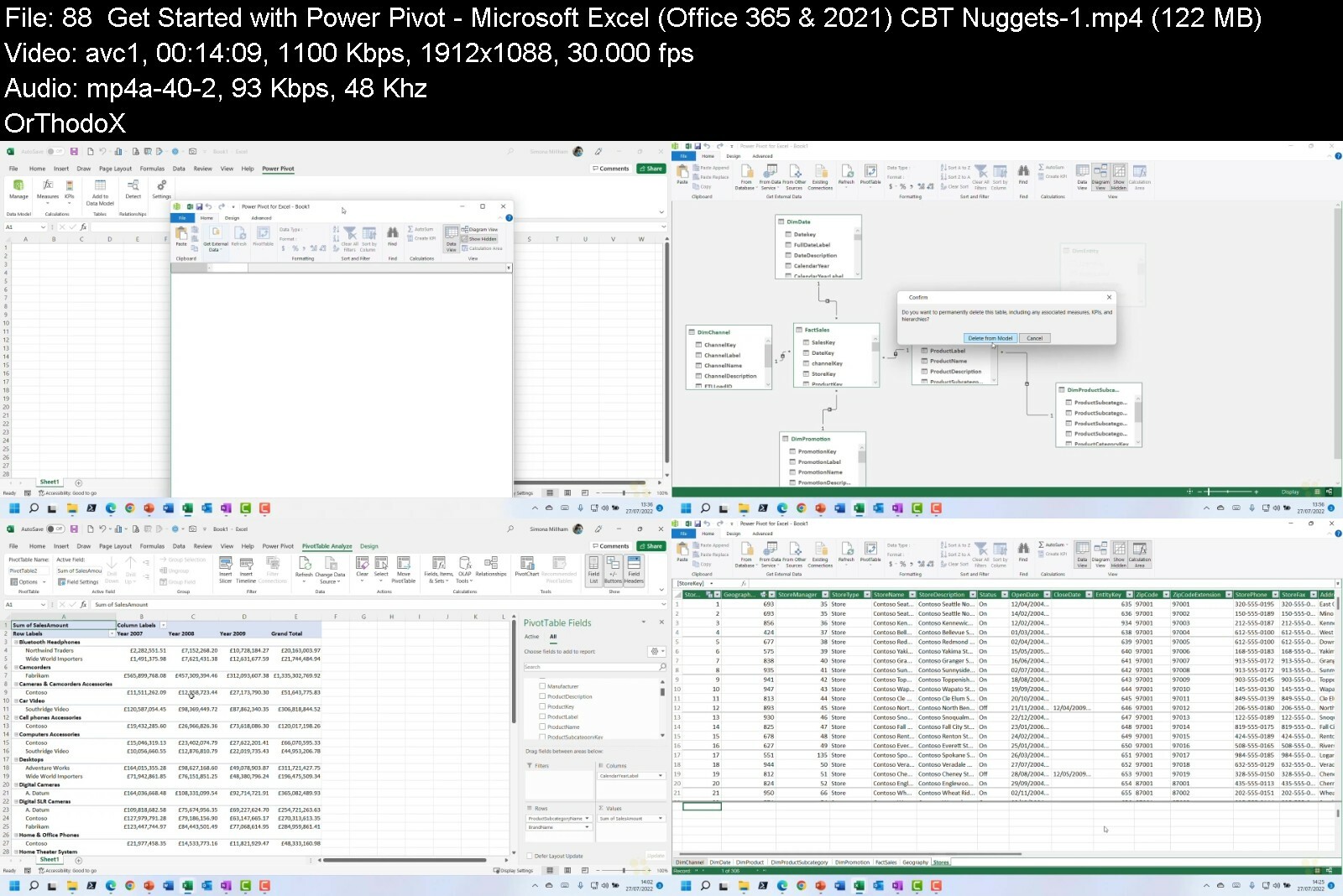
CBTNuggets - Microsoft Excel (Office 365 & 2021)

simonamillham21024x57o7crw.jpg


CBTNuggets - Microsoft Excel (Office 365 & 2021)
Released 25/08/2022
MP4 | Video: h264, 1920x1080 | Audio: AAC, 44.1 KHz, 2 Ch
Genre: eLearning | Language: English | Duration: 107 Lessons (14h) | Size: 5.1 GB


This intermediate Microsoft Excel (Office 365 & 2021) training teaches technical and non-technical professionals how to create spreadsheets in Excel that let you store data, manipulate data with formulas, and display data with graphs

It's easy to see how useful a good spreadsheet can be. But it's even easier to see how frustrating an ugly and confusing spreadsheet can be. When Microsoft Excel is in the hands of someone who knows what they're doing, it can be used as a powerful tool for productivity, collaboration, and storytelling.

Be the Excel guru on your team - someone who can create work schedules. Plan out complex projects. Track the income and expenses for entire companies. Take raw numbers and tell a compelling story.

Once you're done with this Microsoft Excel skills training, you'll know how to create spreadsheets in Excel that let you store data, manipulate data with formulas, and display data with graphs.

For supervisors, this Microsoft Excel training can be used to onboard new technical and non-technical professionals, curated into individual or team training plans, or as a Microsoft Excel reference resource.

Microsoft Excel (Office 365 & 2021): What You Need to Know
This Microsoft Excel (Office 365 & 2021) training covers Excel topics including

Opening, navigating, and using spreadsheets
Formatting cells to hold different types of information
Writing formulas that process your data for you
Using multiple sheets within the same spreadsheet
Graphing and visualizing your data

Who Should Take Microsoft Excel (Office 365 & 2021) Training?
This Microsoft Excel (Office 365 & 2021) training is considered foundational-level Excel training, which means it was designed for technical and non-technical professionals. This Excel skills course is designed for technical and non-technical professionals with three to five years of experience with Microsoft.

New or aspiring technical and non-technical professionals. A word to the wise: learn Excel early in your career. Nearly every organization relies on spreadsheets. The difference between those organizations is whether or not anyone knows what they're doing with them. Learn to format spreadsheets, store crucial information, and display interesting graphs with this Excel training.

Experienced technical and non-technical professionals. There's a difference between someone who's been creating Excel spreadsheets for several years and someone who's comfortable using all the bells and whistles Excel has to offer. It's the difference between "just another'' spreadsheet and a sophisticated presentation that can guide decision makers. Microsoft Excel training from CBT Nuggets allows you to level up your data analysis, visualization, and presentation skills.


microsoftexceloffice39riyn.jpg


Sap Pp (Production Planning)- Configuration & End User

ugfrrl0zzvqk2ypnpdupmymdkr.jpg


Sap Pp (Production Planning)- Configuration & End User
Last updated 9/2022
MP4 | Video: h264, 1280x720 | Audio: AAC, 44.1 KHz
Language: English | Size: 7.83 GB | Duration: 21h 22m

Become an SAP Production Planning expert within 30 hours & Gain practical experience from a business perspective.


What you'll learn
Understand the core concepts of PP module
Comprehensive knowledge on SAP PP module
Learn SAP PP from beginner to advanced level in a step-by-step manner
SAP PP Demand Management definition and functionality
SAP PP Master Data definition and associated functionality
Perform end to end transaction on SAP PP system
Obtain the opportunity to learn more complex things in SAP later (e.g. HANA)
Get a head start in the complex technologies of modern day SAP
Gain understanding of an ERP system
Understand the core concepts of PP module
Get a head start in the complex technologies of modern day SAP

Requirements
No prior knowledge is needed
No prior SAP experience is neccessary
Fresher or Production/Manufacturing department

Description
SAP*PP includes highly functional modules such as Materials Requirement Planning (MRP), Bill of Materials (BOM), Routings, Automatic material requisitions based on MRP, capacity planning, etc. for effective materials management. In short, the Production Planning module is fully integrated with other SAP*modules viz. SD*(Sales and Distribution), MM (Materials Management), FICO*(Finance and Controlling), PM (Plant Maintenance), LE*(Logistics Execution).You have come to the right place if you want to learn more about SAP in general and about Production Planning in particular. We will provide you with hands-on, practical SAP instruction from a business perspective in this course. Let me clarify. You will learn about the actual difficulties that businesses face from a business perspective. Hands-on training entails learning how to adapt procedures to address certain problems.PP Consultant is responsible for following activities:Understand Business from Production & Planning department perspectiveMap customer business processes in SAPTrain users for using SAP systemIntegrate PP module with other functional areas like Materials, Finance, Costing etcDesign/enhance operational and analytical reports for customer.What is the PP Consultant's future?Vertical advancement prospects for PP consultants include becoming a team lead, functional lead, project manager, programme manager, etc.can also cross-train into more complex modules like SAP S/4HANA - Manufacturing, APO, SCM, QM, PM, etc.

Overview
Section 1: Introduction

Lecture 1 Introduction

Section 2: Org. Structure and Intro to PP

Lecture 2 Org. Structure and Intro to PP

Section 3: Material Types

Lecture 3 Material Types

Section 4: Material Master

Lecture 4 Material Master

Section 5: MRP(Material Requirement Planning)

Lecture 5 MRP(Material Requirement Planning)

Section 6: Raw, semi and Finished Materials

Lecture 6 Raw, semi and Finished Materials

Section 7: Material Master

Lecture 7 Material Master

Section 8: BOM (bill of Material)

Lecture 8 BOM (bill of Material)

Section 9: BOM(bill of Material) and Config to controlling

Lecture 9 BOM(bill of Material) and Config to controlling

Section 10: COPA

Lecture 10 COPA

Section 11: Routing

Lecture 11 Routing

Section 12: Sales & operation Planning

Lecture 12 Sales & operation Planning

Section 13: Product Group

Lecture 13 Product Group

Section 14: Info structure and Planning Hierarchy

Lecture 14 Info structure and Planning Hierarchy

Section 15: Creation of Planning types and backups

Lecture 15 Creation of Planning types and backups

Section 16: Production planning & Control

Lecture 16 Production planning & Control

Section 17: SO Routines and Availability control

Lecture 17 SO Routines and Availability control

Section 18: Production to Delivery Cycle

Lecture 18 Production to Delivery Cycle

Section 19: MRP

Lecture 19 MRP

Section 20: Production Planning & Control Production Order

Lecture 20 Production Planning & Control Production Order

Section 21: Production Cycle continues

Lecture 21 Production Cycle continues

Section 22: Production order and GI

Lecture 22 Production order and GI

Section 23: Batch Management

Lecture 23 Batch Management

Section 24: Creating Batch, class and Characteristics

Lecture 24 Creating Batch, class and Characteristics

Section 25: Continuing Creating Batch, class and Characteristics

Lecture 25 Continuing Creating Batch, class and Characteristics

Section 26: Order type- dependent parameters

Lecture 26 Order type- dependent parameters

Section 27: Conclusion to SAP PP, G_L, Fi Posting

Lecture 27 Conclusion to SAP PP, G_L, Fi Posting

Anyone looking forward to start SAP career,College graduates wanting to get a break in SAP world,Anyone who wants to learn SAP and ERP skills with operations.,Anyone interested in SAP Production Planning functionality,This course is suited for everyone interested in SAP technology,Production or Procurement Planners,SAP PP Consultants or Managers or End Users,SAP Logistics Analysts & Consultants,SAP Functional Consultants,Business Analysts & Consultants


sapppproductionplannidxduz.jpg


Capm Exam Cram Session - Pmbok Guide, 6Th Edition

4pp6vdubvp6xcyke0mh71n7fnm.jpg


Capm Exam Cram Session - Pmbok Guide, 6Th Edition
Last updated 2/2019
MP4 | Video: h264, 1280x720 | Audio: AAC, 44.1 KHz
Language: English | Size: 5.42 GB | Duration: 6h 58m

CAPM Success! Everything you must know to pass the CAPM


What you'll learn
Final push to prepare to pass the CAPM exam
Discuss complete coverage of all exam objectives
Everything you must know to pass the CAPM

Requirements
Experience working with projects
Thorough understanding of project management
Desire to pass the CAPM exam

Description
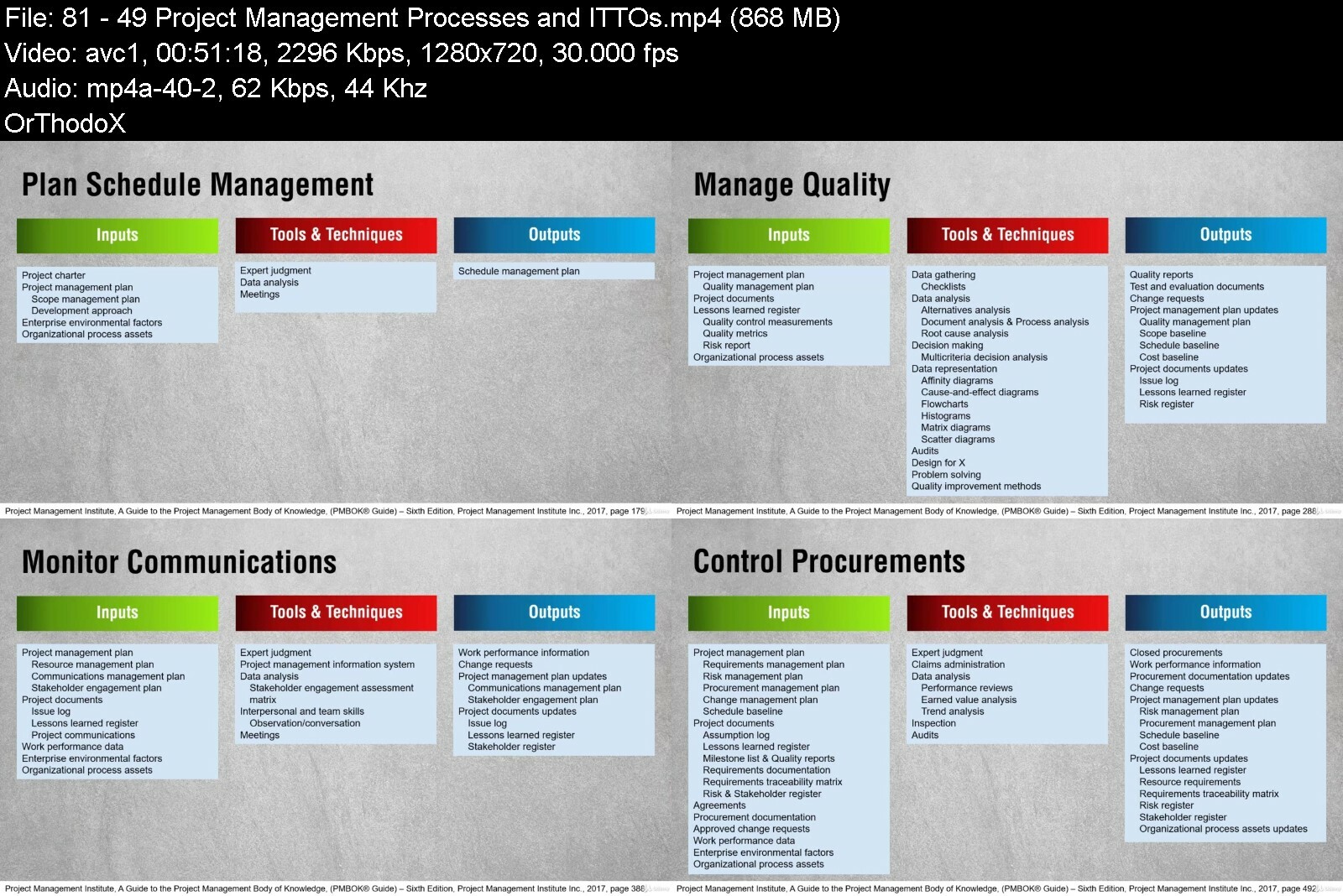
Ready to pass your CAPM exam but need a final boost to get you there? This is the course for you.This short, but accurate, CAPM*course*focuses on the most important processes you must know to pass your CAPM exam. Focus on these topics and you'll be in great shape for earning those four wonderful letters: CAPM. This course*covers the most essential components*of the PMI*CAPM exam. We'll*also review*all of the project management processes you should know for your CAPM exam. We've also included our popular CAPM Memory Sheets to help cram more efficiently.The CAPM Exam Cram includes a test-passing strategy that focuses on what you'll be tested on - not just what's in the PMBOK Guide, Sixth Edition. We've pared down the fluff and drilled it down into the exam objectives. If you're serious about passing the CAPM exam and need a final push for exam day - this is the seminar for you.In this CAPM Exam Cram session we include:A test-passing strategy for the CAPM examSpecific guidelines on what you need to know for CAPM exam successIn-depth explanations for CAPM topics like float, EVM, and chartingEvery CAPM exam topic explained and definedCAPM Memory Sheets to print and memorizeComplete walkthrough of the ITTOs135-practice exam questions30-day satisfaction guarantee

Overview

Section 1: Preparing to Pass the CAPM Exam

Lecture 1 CAPM Cram Session Course Overview

Lecture 2 CAPM Foundations

Lecture 3 How to Study to Pass the CAPM Exam

Lecture 4 Memory Sheets

Lecture 5 CAPM Foundations Wrap

Section 2: PMBOK Guide, Sixth Edition and the CAPM Exam

Lecture 6 PMBOK Guide, Sixth Edition Overview

Lecture 7 Organizations and Project Management

Lecture 8 Agile Project Management

Lecture 9 Tailoring Project Management Processes

Lecture 10 PMBOK Guide, Sixth Edition Wrap

Section 3: CAPM Terminology

Lecture 11 Project Management Terminology Overview

Lecture 12 Project Management Business Documents

Lecture 13 PMBOK Guide Terms

Lecture 14 Benefits Management Plan

Lecture 15 Governance and Project Management

Lecture 16 Organization Structures

Lecture 17 Project Management Offices

Lecture 18 Role of the Project Manager

Lecture 19 Project Management Values and Competencies

Lecture 20 Project Management Leadership Styles

Lecture 21 Politics and Power

Lecture 22 Project Management Terminology Wrap

Section 4: Project Integration Management

Lecture 23 Project Integration Management Overview

Lecture 24 Develop Project Charter

Lecture 25 Selecting Projects for Initiation

Lecture 26 Assumptions and Constraints

Lecture 27 Typical Project Management Plan

Lecture 28 Integrated Change Control

Lecture 29 Closing Activities

Lecture 30 Project Integration Management Wrap

Section 5: Project Scope Management

Lecture 31 Project Scope Management Overview

Lecture 32 Planning the Project Scope

Lecture 33 Creating the WBS

Lecture 34 Performing Scope Validation

Lecture 35 Controlling Project Scope

Lecture 36 Project Scope Management Wrap

Section 6: Project Schedule Management

Lecture 37 Project Schedule Management Overview

Lecture 38 Planning Schedule Management

Lecture 39 Developing the Project Schedule

Lecture 40 Creating Duration Estimates

Lecture 41 Finding Float

Lecture 42 Project Schedule Management Wrap

Section 7: Project Cost Management

Lecture 43 Project Cost Management Overview

Lecture 44 Creating Cost Estimates

Lecture 45 Developing the Project Budget

Lecture 46 Earned Value Management

Lecture 47 Project Cost Management Wrap

Section 8: Project Quality Management

Lecture 48 Project Quality Management Overview

Lecture 49 Planning Quality Management

Lecture 50 Controlling Project Quality

Lecture 51 Quality Management Charts

Lecture 52 Project Quality Management Wrap

Section 9: Project Resource Management

Lecture 53 Project Resource Management Overview

Lecture 54 HR Theories

Lecture 55 Planning Resource Management

Lecture 56 Developing the Project Team

Lecture 57 Managing the Project Team

Lecture 58 Project Resource Management Wrap

Section 10: Project Communications Management

Lecture 59 Project Communications Management Overview

Lecture 60 Planning Communications

Lecture 61 Communications Model

Lecture 62 Project Communications Management Wrap

Section 11: Project Risk Management

Lecture 63 Project Risk Management Overview

Lecture 64 Identifying Project Risks

Lecture 65 Performing Qualitative Analysis

Lecture 66 Performing Quantitative Analysis

Lecture 67 Responding to Positive and Negative Risks

Lecture 68 Project Risk Management Wrap

Section 12: Project Procurement Management

Lecture 69 Project Procurement Management Overview

Lecture 70 Reviewing Contract Types

Lecture 71 Determining Build or Buy

Lecture 72 Following the Procurement Workflow

Lecture 73 Closing the Project Contracts

Lecture 74 Project Procurement Management Wrap

Section 13: Project Stakeholder Management

Lecture 75 Project Stakeholder Management Overview

Lecture 76 Identifying Project Stakeholders

Lecture 77 Performing Stakeholder Analysis

Lecture 78 Reviewing Stakeholder Register and Engagement

Lecture 79 Project Stakeholder Management Wrap

Section 14: Ethics, Process ITTOs, and Course Wrap

Lecture 80 PMI Code of Ethics

Lecture 81 49 Project Management Processes and ITTOs

Lecture 82 CAPM Cram Session Course Wrap

CAPM exam candidates,Project managers and aspiring project managers


capmexamcramsessionpmahewv.jpg


MS Excel Beginners to Advanced Complete Course

41120165ff15lfx4.jpg


MS Excel Beginners to Advanced Complete Course
Published 09/2022
MP4 | Video: h264, 1280x720 | Audio: AAC, 44.1 KHz, 2 Ch
Genre: eLearning | Language: English | Duration: 86 lectures (11h 7m) | Size: 6.33 GB


In this A-Z Microsoft Excel course you'll learn everything including important formulas, pivot tables, macros, vba, etc


What you'll learn
Introduction to MS Excel
Entering Data & Editing Formulas
Modifying an Excel Worksheet
Printing an Excel Worksheet
Formula and References in Excel
How to Insert Shapes and Images into Excel Worksheet
Creating Charts & Graphs in Excel
Working with Basic Excel Functions
Excel Functions for Professionals
Statistical Functions Commonly used in Excel
VBA/Macros

Requirements
Basic accounting knowledge

Description
Do you want to become a master in your accounting career?

Then you are at the right place.

Welcome to our course Excel which is a complete package for your accounting career.

We have designed this course in such a way that you will be able to learn excel right from its basics to the advanced level.

There are also a few tips and tricks which can help you to have thorough knowledge about the excel software.

This course has been prepared by well-qualified instructors who have complete knowledge of the software. This course has got 5-Star Reviews from all over the world from more than 20000+ Students!!!!

So be a part of this journey and make yourself a Master in Excel.

What you will learn from this Course?

At the end of the course, you will be able to deal with a large amount of data, VBA, and also be able to apply text, numbers, math, lookup functions, statistical functions & reference functions very easily without any hesitation. You will find it easy to manage organizing tools in Excel like charts, pivot tables, etc.

Who should Enroll?

This course is designed for Individuals seeking jobs, college students, working professionals, data analysts, and anyone who is willing to gain knowledge about Excel applications.

For whom is this Course designed

Job Aspirants

Working Professionals

Marketing, Finance, Sales department Professionals

Any Graduates who want to learn Excel.

Students who want to aspire to their Career in the field of Data Science, Data mining & Data MIS.

Who this course is for
This course is for students who wants to become a master in accounting
Professionals who wants boost in their accounting career


msexcelbeginnerstoadvgvf4c.jpg


Excel VBA Basic to Super Advance Part2

477965085fb2d3ejs.jpg


Excel VBA Basic to Super Advance Part2
Published 07/2022
MP4 | Video: h264, 1280x720 | Audio: AAC, 44.1 KHz, 2 Ch
Genre: eLearning | Language: English + srt | Duration: 31 lectures (11h 6m) | Size: 5.35 GB


In-depth study of how to deal with 100s of files insider folders, text file data handling and SuperPowerful USERFORMS


What you'll learn
In this VBA Part2 ,We are focusing on three topics and 3 sections for you - File & Folder Handling ,USERFORMS,Error handlers with message /input boxes
It has two sections and knowledge of arrays, loops, if statments is must. You can check VBA Part1, if you want to learn all this.
You shall learn how to create files or folders , text files
Taking a deep dive into library called Scripting and learning the classes of this library like fiesystemobject, file, folder and text stream
You shall be able to pick data from hundreds of excel or text files and will be able to collate it under one roof and then do whatever is required.
Creating workbooks, text files, folders, jumping inside subfolders, putting conditions, modifying the data , whatever is required, you shall be able to do it.
You shall be able to learn how to create VBA Dashboards using UserForms. Its fully basic to advance course
You shall be able to understand why it is important to know error handlers like On Error Resume Next and Go to Err.
Also, how to create message and input box with real time examples

Requirements
VBA Knowledge is required since this is our Part2. Knowlege of variables, arrays, loops ,functions is required. One can watch VBA Part1 , if haven't before opting for this part2.
If you already know above topics then please go ahead and take admission in this course.

Description
In section1, We are Learning to deal with small or large data stored in excel workbooks or text files using a library called SCRIPTING which offers us amazing classes like FileSystemObject , Folder and Files and Textstream.

How to go inside a folder and pick the needed files and then do the things like compiling data from them or modifying the files or moving them or deleting them.

Learn how to use the file-dialogs so that user can choose any folder of his or her choice and work accordingly.

Not just folders or Excel files -we are also going to see what to do if we have to overwrite or append the data in text files. Yes, we can even control the text files using scripting library, Very useful especially when you are dealing with big data.

Skip the files while running loops which you do not want. Set the filters in the extensions using file dialogs. Learn all types of file dialogs like open dialog. save as dialog, folder dialog and also why and where we can use them.

Customization of file dialog buttons, titles to how to open multiple files with them to make more user friendly and robust program which can be run in any machine irrespective of the drives or folder paths they have.

Learn to manipulate text files using scripting library. We have everything discussed here from basic level to advance level when it comes to file and folder manipulations.

In section2, we have covered all form controls like labels, textboxes, combo, listbox, frame, option buttons, check boxes and many more.

From understanding the Userform control design and properties, you shall also see the magic of userform events which are very much required to create projects.

All of your doubts will be answered via email or forum in 24 hours.

in section3, you shall learn Error handlers like On error resume next and goto err.

You shall see what are the scenarios when we already know we can have errors - VBA Errors so if we want to ignore those errors and keep continuing running the vba code, how to do that and first of all, why in first place , I will like to ignore the errors.

We will then learn how to use and customize a message box and input box in vba with various examples.

Who this course is for
Excel data analytics, Those who like to automate data work in excel.
Those who want to create dashboards by using userforms of VBA.


excelvbabasictosupera2gfi5.jpg


Zurück
Oben Unten