

• Regeln für den Video-Bereich:

    In den Börsenbereich gehören nur Angebote die bereits den Allgemeinen Regeln entsprechen.

    Einteilung

    - Folgende Formate gehören in die angegeben Bereiche:
    - Filme: Encodierte Filme von BluRay, DVD, R5, TV, Screener sowie Telesyncs im Format DivX, XviD und x264.
    - DVD: Filme im Format DVD5, DVD9 und HD2DVD.
    - HD: Encodierte Filme mit der Auflösung 720p oder darüber von BluRay, DVD, R5, TV, Screener sowie Telesyncs im Format x264.
    - 3D: Encodierte Filme von BluRay, die in einem 3D Format vorliegen. Dies gilt auch für Dokus, Animation usw.
    - Serien: Cartoon/Zeichentrick, Anime, Tutorials, Dokumentationen, Konzerte/Musik, Sonstiges sind demnach in die entsprechenden Bereiche einzuordnen, auch wenn sie beispielsweise im High Definition-Format oder als DVD5/DVD9/HD2DVD vorliegen. Ausnahme 3D.
    - Bereich Englisch: Englische Releases gehören immer in diesen Bereich.
    - Bereich Talk: Der Bereich, in dem über die Releases diskutiert werden kann, darf, soll und erwünscht ist.


    Angebot/Beitrag erstellen

    - Ein Beitrag darf erst dann erstellt werden, wenn der Upload bei mindestens einem OCH komplett ist. Platzhalter sind untersagt.
    - Bei einem Scenerelease hat der Threadtitel ausschließlich aus dem originalen, unveränderten Releasenamen zu bestehen. Es dürfen keine Veränderungen wie z.B. Sterne, kleine Buchstaben o.ä. vorgenommen werden. Ausnahme Serienbörse:
    - Bei einem Sammelthread für eine Staffel entfällt aus dem Releasename natürlich der Name der Folge. Beispiel: Die Simpsons S21 German DVDRip XviD - ITG
    - Dementsprechend sind also u.a. verboten: Erweiterungen wie "Tipp", "empfehlenswert", "only", "reup", usw. / jegliche andere Zusatzinformation oder Ergänzung, welche nicht in obiger Beschreibung zu finden ist.

    Aufbau des Angebots und Threadtitel

    Der Titel nach folgendem Muster erstellt zu werden. <Name> [3D] [Staffel] [German] <Jahr> <Tonspur> [DL] [Auflösung] <Quelle> <Codec> - <Group>
    Beispiel: The Dark Knight German 2008 AC3 DVDRip XviD - iND
    Beispiel: The Dark Knight 2008 DTS DL BDRip x264 - iND
    Beispiel: The Dark Knight 2008 AC3 DL BDRip XviD - iND
    Beispiel: The Dark Knight German 2008 AC3 720p BluRay x264 iND
    Beispiel: The Dark Knight 2008 DTS DL 1080p BluRay x264 iND
    Beispiel: Die Simpsons S01 German AC3 DVDRip XviD iND
    Beispiel: Die Simpsons S20 German AC3 720p BluRay x264 iND
    Beispiel: Sword Art Online II Ger Sub 2014 AAC 1080p WEBRip x264 - peppermint
    Entsprechend sind also u.a. verboten: Sonderzeichen wie Klammern, Sterne, Ausrufezeichen, Unterstriche, Anführungszeichen / Erweiterungen wie "Tipp", "empfehlenswert", "only", "reup", usw. / jegliche andere Zusatzinformation oder Ergänzung, welche nicht in obiger Beschreibung zu finden ist
    Ausnahmen hiervon können in den Bereichen geregelt sein.

    Die Beiträge sollen wie folgt aufgebaut werden:
    Überschrift entspricht dem Threadtitel
    Cover
    kurze Inhaltsbeschreibung
    Format, Größe, Dauer sind gut lesbar für Downloader außerhalb des Spoilers zu vermerken
    Nfo sind immer Anzugeben und selbige immer im Spoiler in Textform.
    Sind keine Nfo vorhanden z.B. Eigenpublikationen, sind im Spoiler folgende Dateiinformationen zusätzlich anzugeben :
    Quelle
    Video (Auflösung und Bitrate)
    Ton (Sprache, Format und Bitrate der einzelnen Spuren)
    Untertitel (sofern vorhanden)
    Hosterangabe in Textform außerhalb eines Spoiler mit allen enthaltenen Hostern.
    Bei SD kann auf diese zusätzlichen Dateiinformationen verzichtet werden.

    Alle benötigten Passwörter sind, sofern vorhanden, in Textform im Angebot anzugeben.
    Spoiler im Spoiler mit Kommentaren :"Schon Bedankt?" sind unerwünscht.


    Releases

    - Sind Retail-Release verfügbar, sind alle anderen Variationen untersagt. Ausnahmen: Alle deutschen Retail-Release sind CUT, in diesem Fall sind dubbed UNCUT-Release zulässig.
    - Im Serien-Bereich gilt speziell: Wenn ein Retail vor Abschluss einer laufenden Staffel erscheint, darf diese Staffel noch zu Ende gebracht werden.62
    - Gleiche Releases sind unbedingt zusammenzufassen. Das bedeutet, es ist zwingend erforderlich, vor dem Erstellen eines Themas per Suchfunktion zu überprüfen, ob bereits ein Beitrag mit demselben Release besteht. Ist dies der Fall, ist der bereits vorhandene Beitrag zu verwenden.
    - P2P und Scene Releases dürfen nicht verändert oder gar unter einem iND Tag eingestellt werden.


    Support, Diskussionen und Suche

    - Supportanfragen sind entweder per PN oder im Bereich Talk zu stellen.
    - Diskussionen und Bewertungen sind im Talk Bereich zu führen. Fragen an die Uploader haben ausschließlich via PN zu erfolgen, und sind in den Angeboten untersagt.
    - Anfragen zu Upload-Wünschen sind nur im Bereich Suche Video erlaubt. Antworten dürfen nur auf Angebote von MyBoerse.bz verlinkt werden.


    Verbote

    - Untersagt sind mehrere Formate in einem einzigen Angebotsthread, wie beispielsweise das gleichzeitige Anbieten von DivX/XviD, 720p und 1080p in einem Thread. Pro Format, Release und Auflösung ist ein eigener Thread zu eröffnen.
    - Grundsätzlich ebenso verboten sind Dupes. Uploader haben sich an geeigneter Stelle darüber zu informieren, ob es sich bei einem Release um ein Dupe handelt.
    - Gefakte, nur teilweise lauffähige oder unvollständige Angebote sind untersagt. Dies gilt auch für eigene Publikationen, die augenscheinlich nicht selbst von z.B. einer DVD gerippt wurden. Laufende Serien, bei denen noch nicht alle Folgen verfügbar sind, dürfen erstellt und regelmäßig geupdatet werden.
    - Untersagt sind Angebote, welche nur und ausschließlich in einer anderen Sprache als deutsch oder englisch vorliegen. Ausnahmen sind VORHER mit den Moderatoren zu klären.


    Verstoß gegen die Regeln

    - Angebote oder Beiträge, die gegen die Forenregeln verstoßen, sind über den "Melden"-Button im Beitrag zu melden.
  • Bitte registriere dich zunächst um Beiträge zu verfassen und externe Links aufzurufen.

*** Bestes IPTV *** bester Preis *** gratis Test ***


Englische Tutorials

Webdriverio Bootcamp - [Completely Updated In June 2022]

jfl0ozllulga2fw1n0ev19pfvy.jpg


Webdriverio Bootcamp - [Completely Updated In June 2022]
Last updated 8/2022
MP4 | Video: h264, 1280x720 | Audio: AAC, 44.1 KHz
Language: English | Size: 18.28 GB | Duration: 31h 54m

Automation testing with the WebdriverIO next-generation framework using JavaScript & Node.js


What you'll learn
WebdriverIO in detail using JavaScript and NodeJS
How to create a highly advanced framework using WebdriverIO
The basics all the way to advanced subjects
Advanced reporting and continuous integration using Jenkins
Everything you need to know to write automation tests using WebdriverIO

Requirements
A basic understanding of programming would be useful (but not necessary)
A basic understanding of testing would be useful (but not necessary)

Description
************************************************************ The course has been completely updated in May 2022 ************************************************************OVER 5000 STUDENTS ENROLLED ON THIS COURSE TO DATEWhat is WebdriverIO?WebdriverIO is an open-source testing automation framework written in JavaScript and running on NodeJS. It is particularly useful for testing web applications. It supports both Behavior Driven Development (BDD) and Test Driven Development (TDD), making it a highly preferred choice for automation testers.Why this course?This course is designed to be effective, efficient and easy to follow. I have been teaching for several years on Udemy with over 6 highly successful courses to date. I have refined this course using proven teaching techniques. This course is carefully structured from start to finish and I provide downloadable code examples after each coding lecture. What has been updated?Everything! I have rebuilt this course from scratch using one of the latest versions of WebdriverIO. This means the material covered is relevant, making use of WebdriverIO's latest features. What does this course cover?All major topics are covered in detail using the below structure:IntroductionWebdriverIO setupWDIO TestRunnerSimple real world scenariosSynchronous vs Asynchronous - (Understanding Asynchronous JS)Locating ElementsWaits and TimeoutsAssertionsDebuggingAdvanced Element InteractionsReportingAdvanced Real World ExampleAdvanced ConceptsJenkins CI and More!What to expect by the end of this course?You will be completely confident building automation frameworks using WebdriverIO and a whole host of complementing technologies. This is the only course you need to learn Automation Testing using the WebdriverIO framework.

Overview

Section 1: Introduction

Lecture 1 What is WebdrverIO?

Lecture 2 WebdriverIO API

Lecture 3 WebdriverIO Community

Lecture 4 How Course Attachment Code Examples are Structured

Lecture 5 Other Courses - (Coupon Codes)

Section 2: Setup Development Environment

Lecture 6 Nodejs - Setup

Lecture 7 Visual Studio Code & Extensions - Setup

Lecture 8 Chrome & Firefox - Setup

Lecture 9 Git - Setup

Lecture 10 Project & Package.json - Setup

Lecture 11 WebdriverIO Wdio - Setup

Lecture 12 Keeping WebdriveIO Up to Date

Section 3: Wdio - Testrunner

Lecture 13 Wdio - Testrunner

Section 4: Simple Real World Scenario

Lecture 14 System Under Test

Lecture 15 What is Mocha? & How can we Leverage Mocha?

Lecture 16 Capturing Test Requirements

Lecture 17 API Commands & Auto Completion

Lecture 18 First Test - Creation - Part 1_2

Lecture 19 First Test - Creation - Part 2_2

Lecture 20 The Test Challenge

Lecture 21 The Test Challenge - Solution

Lecture 22 Recap and Improvements

Lecture 23 Wdio Browser Object - Inspection

Section 5: Synchronous vs Asynchronous - (Understanding Asynchronous JS)

Lecture 24 WebdriverIO - Sync vs Async Mode

Lecture 25 Synchronous vs Asynchronous - Overview

Lecture 26 Synchronous - Example

Lecture 27 Asynchronous - Example

Lecture 28 WebdriverIO Sync vs Async - Example

Section 6: Locating Elements

Lecture 29 Locating Elements - Examples

Lecture 30 $ - findElement

Lecture 31 $$ - findElements

Section 7: Waits and Timeouts

Lecture 32 pause

Lecture 33 waitForClickable

Lecture 34 waitForDisplayed

Lecture 35 waitForExist

Lecture 36 waitUntil

Section 8: Assertions

Lecture 37 Introduction

Lecture 38 Expect vs Jest

Section 9: Debugging

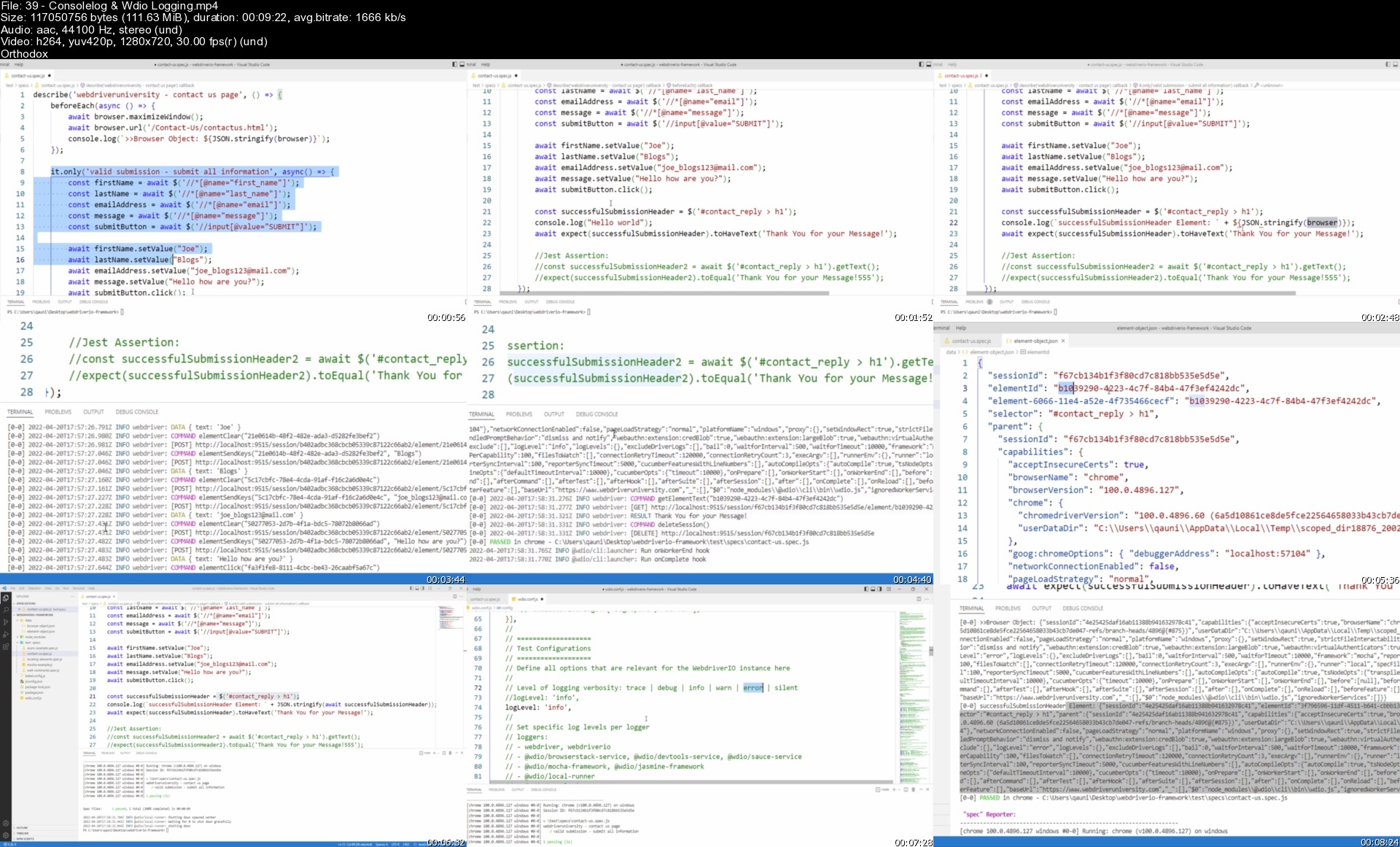
Lecture 39 Console.log & Wdio Logging

Lecture 40 Debug

Lecture 41 REPL

Section 10: Advanced Element Interactions

Lecture 42 Inputs

Lecture 43 Drop-down Lists

Lecture 44 State Commands

Lecture 45 Actions

Lecture 46 Handling Windows

Lecture 47 IFrames

Lecture 48 Alerts

Lecture 49 File Upload

Lecture 50 JS Execute

Section 11: Reporting

Lecture 51 Allure Reports

Lecture 52 Attaching Screenshots

Lecture 53 Autogenerate Reports

Lecture 54 Customising Reports

Section 12: Advanced Real World Example

Lecture 55 System Under Test

Lecture 56 Capturing Test Requirements

Lecture 57 Test Creation - Part 1/8

Lecture 58 Test Creation - Part 2/8

Lecture 59 Test Creation - Part 3/8

Lecture 60 Test Creation - Part 4/8

Lecture 61 Test Creation - Part 5/8

Lecture 62 Test Creation - Part 6/8

Lecture 63 Test Creation - Part 7/8

Lecture 64 Test Creation - Part 8/8

Section 13: Advanced Concepts

Lecture 65 Wdio Hooks

Lecture 66 Retry Flaky Tests

Lecture 67 Custom Commands

Lecture 68 Page Object Modelling - Introduction

Lecture 69 POM - Base Page - Setup

Lecture 70 POM - Sub Page - Setup - Part 1_2

Lecture 71 POM - Sub Page - Setup - Part 2_2

Lecture 72 POM - Real World Example - Part 1_4

Lecture 73 POM - Real World Example - Part 2_4

Lecture 74 POM - Real World Example - Part 3_4

Lecture 75 POM - Real World Example - Part 4_4

Lecture 76 POM - Challenge

Lecture 77 POM - Solution

Lecture 78 Generating Random Data

Lecture 79 Custom Scripts & Test Suites

Lecture 80 Parallel Test Execution - selenium-standalone

Lecture 81 Parallel Test Execution - Browser Drivers

Lecture 82 Browser Options

Lecture 83 Managing Different Environments - Part 1/2

Lecture 84 Managing Different Environments - Part 2/2

Section 14: Other Courses -[**Coupon Codes**]

Lecture 85 Other Course -[**Coupon Codes**]

Section 15: Jenkins CI and More!

Lecture 86 Jenkins - Download

Lecture 87 Java JDK - Setup

Lecture 88 Jenkins - Setup

Lecture 89 Configuring Jenkins

Lecture 90 Job - Creation

Lecture 91 Triggering Custom Scripts

Lecture 92 Triggering Individual Tests

Lecture 93 Log Level - Parameters

Lecture 94 Allure Reports

Lecture 95 Improving Test Robustness

Section 16:[Archived] - Introduction

Lecture 96 Introduction

Lecture 97 Example Test Execution using webdriverIO & webdriveruniveristy.com

Lecture 98 Please Watch!! WebdriverIO v4 & V5 - IMPORTANT

Lecture 99 Free 200+ Page E-book Download - To help you revise

Section 17:[Archived] - Setup & Resources

Lecture 100 Gitbash Setup for Windows

Lecture 101 iTerm2 Setup for Mac

Lecture 102 WebdriverIO API

Lecture 103 IMPORTANT: WebdriverIO v4 & NodeJS

Lecture 104 NodeJS npm Package JSON Setup

Lecture 105 IMPORTANT - note about the following two lectures - Please Read

Lecture 106 Handling Dependencies

Lecture 107 Selenium Standalone Setup

Lecture 108 Sublime Text IDE Setup

Section 18:[Archived] - Creating Our First Tests

Lecture 109 Creating Our First Automation Test

Lecture 110 Creating Our Second Automation Test

Section 19:[Archived] - Wdio

Lecture 111 Wdio - Creation & Review

Lecture 112 Wdio - Triggering Tests

Lecture 113 Wdio - Contact Us & Login Portal Test

Lecture 114 Wdio - Executing Our New & Improved Tests

Lecture 115 Wdio - Reviewing the Wdio File

Section 20:[Archived] - Mocha

Lecture 116 Mocha - Introduction

Lecture 117 Mocha - Structuring & Combining Tests Part 1

Lecture 118 Mocha - Structuring & Combining Tests Part 2

Lecture 119 Mocha - Reviewing & Executing our New & Improved Tests

Section 21:[Archived] - Wdio Sync Mode

Lecture 120 Simplifying Tests and Sync Mode

Lecture 121 Configuring Our Tests to Use Sync Mode

Section 22:[Archived] - Selenium Standalone & NPM Scripts

Lecture 122 Selenium Standalone & NPM Scripts

Section 23:[Archived] - Environments & Base URL

Lecture 123 Base URL Setup

Lecture 124 Handling Multiple Environments During Runtime

Section 24:[Archived] - Logging

Lecture 125 Logging During Runtime

Section 25:[Archived] - Node Assertions

Lecture 126 Implementing Node Assertions

Section 26:[Archived] - Chai

Lecture 127 Chai - Advanced Assertions & Code Example - Part 1

Lecture 128 Chai - Advanced Assertions & Code Example - Part 2

Lecture 129 Chai - Adding Assertions to our Tests

Lecture 130 Chai - Centralizing Assertions Using our wdio File

Section 27:[Archived] - Pause, Debug Mode & Selectors

Lecture 131 Pause Command Part 1

Lecture 132 Pause Command Part 2

Lecture 133 Debug Mode

Lecture 134 Creating Selectors using Ranorex

Section 28:[Archived] - Targeting & Skipping Specific Tests

Lecture 135 Targeting Specific Tests

Lecture 136 Skipping Specific Tests

Section 29:[Archived] - CSS Extraction

Lecture 137 getCssProperty Command

Section 30:[Archived] - Mocha Hooks

Lecture 138 Mocha Hooks Part 1

Lecture 139 Mocha Hooks Part 2

Section 31:[Archived] - Handling Browser Window Tabs

Lecture 140 Tabs Part 1

Lecture 141 Tabs Part 2

Section 32:[Archived] - Verify Elements

Lecture 142 isExisting Part 1

Lecture 143 isExisting Part 2

Lecture 144 isVisible

Lecture 145 hasFocus Part 1

Lecture 146 hasFocus Part 2

Lecture 147 isEnabled Part 1

Lecture 148 isEnabled Part 2

Lecture 149 isSelected Part 1

Lecture 150 isSelected Part 2

Lecture 151 isVisibleWithinViewport Part 1

Lecture 152 isVisibleWithinViewport Part 2

Lecture 153 getText, isVisible, isExisting Part 1

Lecture 154 getText, isVisible, isExisting Part 2

Lecture 155 getText, isVisible, isExisting Part 3

Lecture 156 waitForText Part 1

Lecture 157 waitForText Part 2

Lecture 158 waitForExist, waitForVisible Part 1

Lecture 159 waitForExist, waitForVisible Part 2

Lecture 160 waitUntil

Lecture 161 waitForValue

Section 33:[Archived] - Using External Data (Sync Data Mode)

Lecture 162 Using External Data (Sync Data Mode) - Part 1

Lecture 163 Using External Data (Sync Data Mode) - Part 2

Section 34:[Archived] - Custom Commands (addCommand)

Lecture 164 Custom Commands (addCommand) - Part 1

Lecture 165 Custom Commands (addCommand) - Part 2

Section 35:[Archived] - Injecting JavaScript Code (Execute Command)

Lecture 166 Injecting JavaScript Code (Execute Command) - Part 1

Lecture 167 Injecting JavaScript Code (Execute Command) - Part 2

Lecture 168 Injecting JavaScript Code (Execute Command) - Part 3

Section 36:[Archived] - Page Object Model (POM)

Lecture 169 Page Object Model (POM) - Intro

Lecture 170 Page Object Model (POM) - Phase 1 - Part 1

Lecture 171 Page Object Model (POM) - Phase 1 - Part 2

Lecture 172 Page Object Model (POM) - Phase 1 - Part 3

Lecture 173 Page Object Model (POM) - Phase 1 - Part 4

Lecture 174 Page Object Model (POM) - Phase 1 - Part 5

Lecture 175 Page Object Model (POM) - Phase 2 - Part 1

Lecture 176 Page Object Model (POM) - Phase 2 - Part 2

Lecture 177 Page Object Model (POM) - Phase 2 - Part 3

Lecture 178 Page Object Model (POM) - Phase 2 - Part 4

Lecture 179 Page Object Model (POM) - Phase 2 - Part 5

Lecture 180 Page Object Model (POM) - Phase 2 - Part 6

Lecture 181 Page Object Model (POM) - Phase 3 - Part 1

Lecture 182 Page Object Model (POM) - Phase 3 - Part 2

Lecture 183 Page Object Model (POM) - Phase 3 - Part 3

Lecture 184 Page Object Model (POM) - Phase 3 - Part 4

Lecture 185 Page Object Model (POM) - Phase 3 - Part 5

Lecture 186 Page Object Model (POM) - Phase 3 - Part 6

Section 37:[Archived] - Advanced Reporting

Lecture 187 Advanced Reporting - Intro

Lecture 188 Advanced Reporting - Junit Reports

Lecture 189 Advanced Reporting - JSON Reports

Lecture 190 Advanced Reporting - Allure Reports

Lecture 191 Advanced Reporting - Allure Reports - Attaching Images - Part 1

Lecture 192 Advanced Reporting - Allure Reports - Attaching Images - Part 2

Section 38:[Archived] - Free Up Space - Deleting Files and Folders

Lecture 193 Free Up Space - Deleting Files and Folders

Section 39:[Archived] - Continuous Integration

Lecture 194 Jenkins Introduction and Explanation

Lecture 195 Jenkins Installation And Setup

Lecture 196 Jenkins Installing Plugins And Setting Up NodeJS

Lecture 197 Trigger our Tests using Jenkins

Lecture 198 Jenkins Adding Parameters

Lecture 199 Jenkins Adding Additional Logging Information

Lecture 200 Jenkins Execute Our Tests when Ever We Want

Section 40:[Archived] - Generating Allure Reports within Jenkins

Lecture 201 Generating Allure Reports within Jenkins - Part 1

Lecture 202 Generating Allure Reports within Jenkins - Part 2

Lecture 203 Generating Allure Reports within Jenkins - Part 3

Lecture 204 Generating Allure Reports within Jenkins - Part 4

Lecture 205 Generating Allure Reports within Jenkins - Part 5

Section 41:[Archived] - Upgrading Our Existing WebdrverIO v4 Project to WebDriverIO v5

Lecture 206 Webdriver IO v5 - Introduction

Lecture 207 Preparing our Project for Webdriver IO v5

Lecture 208 Webdriver IO v5 - Instructions

Lecture 209 Downloading Webdriver IO v5 Packages

Lecture 210 Installing New WDIO CLI

Lecture 211 Creating New WDIO CLI File

Lecture 212 Configuring New WDIO CLI File

Lecture 213 Updating our Dependencies

Lecture 214 Downloading Additional Dependencies

Lecture 215 Potential Problem with the .Dot Reporter

Lecture 216 Preparing the Foundations of our Framework

Lecture 217 Modifying our Test to use Async Await

Lecture 218 Customising our Page Object Model Commands

Lecture 219 Custom Commands - waitForDisplayed

Lecture 220 Adding Assertions Directly Inside our Tests

Lecture 221 Triggering our New Webdriver IO v5 Tests

Lecture 222 Incorporating Try Catch Blocks to our Assertions

Lecture 223 Final Project Code

Section 42:[Archived] - WebdriverIO V5 from Scratch!

Lecture 224 Intro

Section 43:[Archived] - Visual Studio Code (IDE)

Lecture 225 Installing and setting up Visual Studio Code

Lecture 226 Setting up Code Runner Extension

Lecture 227 Altering Color Themes

Section 44:[Archived] - Setting Up Our WebdriverIO v5 Project

Lecture 228 Installing latest version of NodeJS

Lecture 229 Package.json Setup

Lecture 230 Downloading Latest WebdriverIO v5 Packages

Section 45:[Archived] - Prettier Setup

Lecture 231 Prettier Setup (Enhanced Code Formatter)

Section 46:[Archived] - Configuring New Wdio File

Lecture 232 Wdio File Setup

Section 47:[Archived] - Babel

Lecture 233 Babel Setup

Section 48:[Archived] - Selenium Server

Lecture 234 Selenium Server Overview

Section 49:[Archived] - Creating Our First WebdriverIO v5 Test!

Lecture 235 Creating Our First Test - Part 1/2

Lecture 236 Creating Our First Test - Part 2/2

Section 50:[Archived] - Selenium Server Extended -[Port Number Modification]

Lecture 237 Altering Selenium Server Port Number

Section 51:[Archived] - ChromeDriver

Lecture 238 ChromeDriver Setup

Section 52:[Archived] - Selectors

Lecture 239 Creating Advanced Selectors - Part 1/2

Lecture 240 Creating Advanced Selectors - Part 2/2

Section 53:[Archived] - Handling Browser Tabs

Lecture 241 Switching Browser Tabs

Lecture 242 Closing Browser Tabs

Section 54:[Archived] - Chai -[Assertions]

Lecture 243 Applying Chai Assertions To Our Tests

Section 55:[Archived] - Custom Commands

Lecture 244 Creating Custom Commands Using: addCommand

Section 56:[Archived] - Handling Timeouts

Lecture 245 waitForExist

Lecture 246 waitForDisplayed

Lecture 247 waitForEnabled

Lecture 248 pause

Section 57:[Archived] - Injecting JavaScript Using execute Command

Lecture 249 execute Command

Section 58:[Archived] - Handling Inputs -[addValue, clearValue, setValue]

Lecture 250 Handling Inputs - Part 1/2

Lecture 251 Handling Inputs - Part 2/2

Section 59:[Archived] - State Commands -[isExisting, isSelected, isDisplayed]

Lecture 252 isExisting, isSelected, isDisplayed

Section 60:[Archived] - Handling IFrame's

Lecture 253 Handling IFrame's The Correct Way!

Section 61:[Archived] - Test Creation - Challenge!

Lecture 254 Challenge Overview

Lecture 255 Challenge Solution - Part 1/3

Lecture 256 Challenge Solution - Part 2/3

Lecture 257 Challenge Solution - Part 3/3

Section 62:[Archived] - Config File Creation (Centralising & Managing Variables)

Lecture 258 Config File Creation & Linking To Tests

Lecture 259 Interlinking Config File With Wdio File

Section 63:[Archived] - Custom Commands -[waitAndClick, waitAndSendkeys]

Lecture 260 waitAndClick

Lecture 261 waitAndSendkeys

Lecture 262 Custom Commands & Test Integration

Section 64:[Archived] - Random Data Generators

Lecture 263 Random Email Generator -[Custom Command Creation]

Lecture 264 Random String Generator -[Custom Command Creation]

Section 65:[Archived] - Page Object Pattern

Lecture 265 Base Page Creation

Lecture 266 Sub Page Creation - Part 1/2

Lecture 267 Sub Page Creation - Part 2/2

Lecture 268 Page Object Pattern & Test Connection - Part 1/3

Lecture 269 Page Object Pattern & Test Connection - Part 2/3

Lecture 270 Page Object Pattern & Test Connection - Part 3/3

Section 66:[Archived] - Framework Improvements

Lecture 271 Making Improvements To The Existing Framework - Part 1/2

Lecture 272 Making Improvements To The Existing Framework - Part 2/2

Section 67:[Archived] - Organizing Test Suite's

Lecture 273 Organizing Test Suite's - Part 1/2

Lecture 274 Organizing Test Suite's - Part 2/2

Lecture 275 Retry Flaky Tests

Beginner automation testers,Intermediate automation testers,Expert automation testers,Anyone interested in Automation Testing,Manual testers (QA's) who want to become an Automation Tester (SDET),Those interested in emerging testing technologies that is rapidly growing in popularity,Anyone interested in the WebdriverIO framework

Homepage

39consolelogwdiologgir3igw.jpg


Learning Python In Unity! Create Awesome Games And Apps!

8wnyyl9tob2z6bi1mrxc34kic9.jpg


Learning Python In Unity! Create Awesome Games And Apps!
Last updated 3/2020
MP4 | Video: h264, 1280x720 | Audio: AAC, 44.1 KHz
Language: English | Size: 47.11 GB | Duration: 93h 41m

Create and Develop projects, apps, and games using Python in The Unity Environment!


What you'll learn
Build a Ninja Survival game for mobile in Unity®.
Use Blender and navigate its interface.
Integrate art from Blender into Unity®.
Build video game levels.
UV map and unwrap your models.
Create your own materials.
Learn the basics of animation.
Learn to code for game development in Unity C#
Learn to make game elements behave like real-life beings
Train an artificial brain to make a game work with Python
And More!

Requirements
Install Python (free)
Install Unity 2017.3.0f3 or higher (free)
A beginner's familiarity with C# programming is recommended
Beginner knowledge on how to use a command line tool

Description
We at Mammoth Interactive value input from students like you. Feel free to leave us your feedback.In this course, you learn how to build a Ninja game for mobile using Unity® and Blender. This course is unique because we make both the code and the art for the game from scratch. ​We teach you the fundamentals of designing, coding, and modeling a mobile game.First you design the game and its functionality in Unity®. You learn how to code in C# and build video game levels. Don't worry if you've never coded before. We ​start simple and add more to the game as the course goes on.Why Unity®?Unity® is one of the most popular platforms in game development. You can use Unity® to build 2D and 3D games. Unity® is cross-platform, which means it is easy to use with other platforms.Then you create the art for the game in Blender. You build all the art assets for the game. You learn how to integrate your art from Blender into Unity®. Why Blender?Blender, like Unity®, is a popular production suite that is free to download. Blender is a revolutionary tool for making 3D art digitally. With Blender, you can make art assets for games, like we do in this course. This course was funded by a wildly successful KickstarterMake an AI Christmas game! Our Unity game will have a holiday setting featuring a sled. Presents will fall from the sky. The goal will be to move the sled to catch the falling present. The game will need no human interaction.Enroll now to study with 5/5 star-rated instructor Glauco Pires.To catch a present present in the game, you as a player will not have to do any work! We will teach the computer to recognize the present's location.While making a simple scene, we will learn many settings and adjust programs. The result will be fantastic.Your teacher makes Unity, HTML5, and Unreal games.Glauco Pires has been working with games since 2010. His experience in the area he will share with you in this course. You will learn one step after the other at a comfortable pace.Besides Unity, we will use Python: a popular programming language for the web.Also now Included in these bundles are our Extra Courses, if you want to learn to use other programs such as Camtasia or Sketch, you get more content than what you paid for this way!We really hope you decide to purchase this course and take your knowledge to the next level!Let's get started!Enroll now to join the Mammoth community!

Overview

Section 1: Intro to Unity

Lecture 1 Introduction

Lecture 2 Unity Editor

Lecture 3 Moving a Cube

Lecture 4 Materials

Lecture 5 Lights

Lecture 6 Particle System

Lecture 7 Applying Physics

Lecture 8 Asset Store

Section 2: Intro to Coding

Lecture 9 Introduction

Lecture 10 Variables

Lecture 11 Methods

Lecture 12 If Blocks

Lecture 13 Loops

Section 3: Intro to Inputs

Lecture 14 Introduction

Lecture 15 Key Presses

Lecture 16 Moving a Player

Lecture 17 Jumping

Lecture 18 Moving Forward

Lecture 19 Cycling Cameras

Section 4: Intro to Prefabs

Lecture 20 Introduction

Lecture 21 Introduction to Prefabs

Lecture 22 Random Angles

Lecture 23 Explosion Effect

Lecture 24 Adding Explosion Effects

Section 5: 2D Mobile Game - Setup

Lecture 25 Ninja Gameplay

Lecture 26 Setting Up Project

Lecture 27 Building a Simple Scene

Lecture 28 Percentage Coordinates

Lecture 29 Clicking Variation

Lecture 30 Player Movement

Lecture 31 Orthographic Camera

Section 6: Jumpers

Lecture 32 Jumping Enemy

Lecture 33 Jumping Enemy Movement

Lecture 34 Killing the Player

Lecture 35 Canvas

Lecture 36 End Game Messages

Section 7: Adding More Functionality

Lecture 37 Reusability

Lecture 38 Dynamically Adding the enemy

Lecture 39 Game Mode Switch

Lecture 40 Setting Up The Rolling Enemy

Lecture 41 Rolling Enemy Movement

Lecture 42 Enemy Positions

Lecture 43 Killing the Player

Lecture 44 Depth Range

Lecture 45 Horizontal Range

Section 8: Enemy Logic

Lecture 46 Creating The boucing Enemy

Lecture 47 Moving the Bouncing Enemy

Lecture 48 Diagonal Movement

Lecture 49 Movement Flip

Lecture 50 Initial Angle

Lecture 51 Enemy x Enemy Collision

Lecture 52 Multiple Bouncer

Lecture 53 Depth Walls

Section 9: Designing the Game

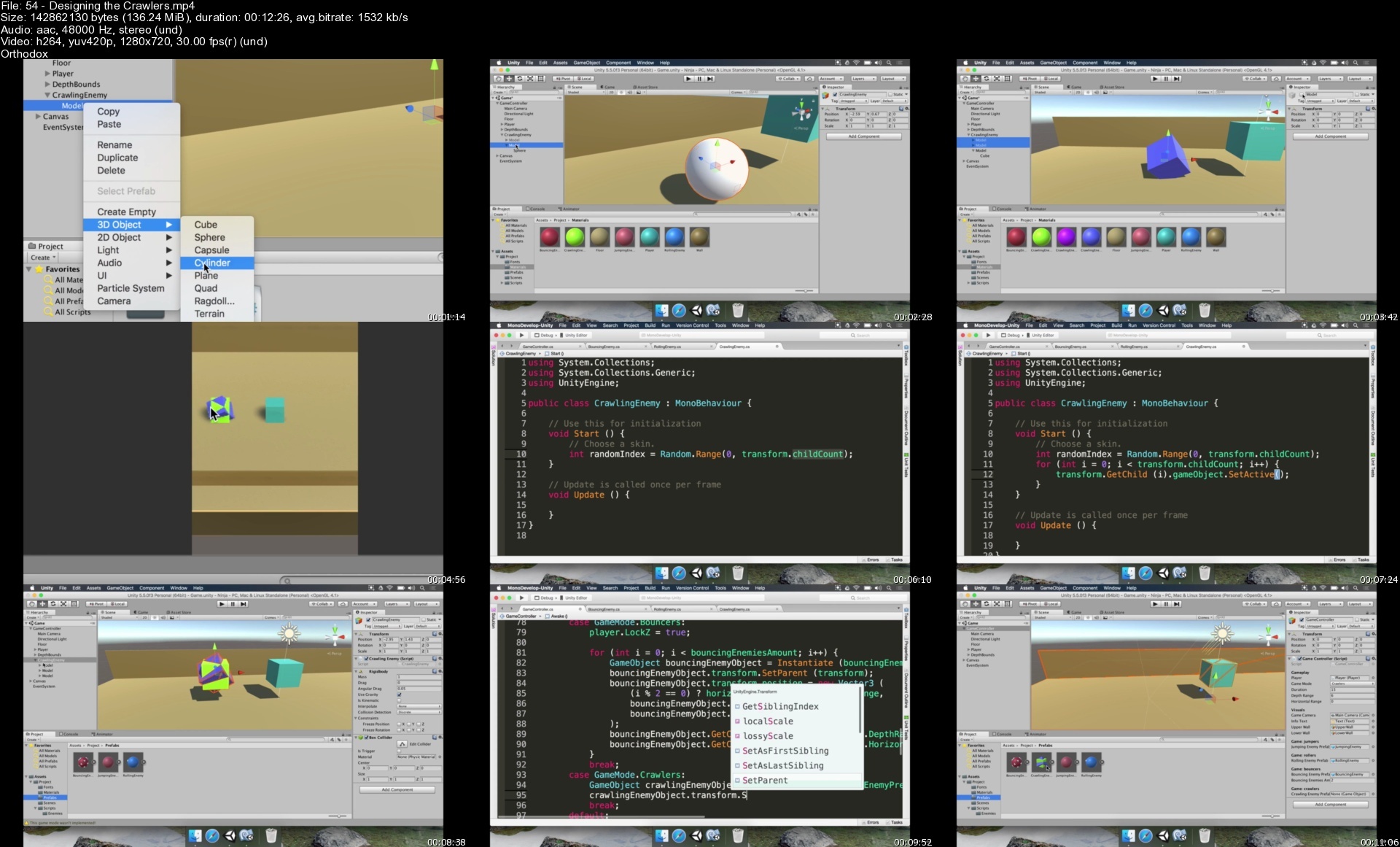
Lecture 54 Designing the Crawlers

Lecture 55 Crawling Enemy Movement

Lecture 56 Player's Rotation

Lecture 57 Jumping Force

Lecture 58 Finishing the Jumping Logic

Lecture 59 Spawning Crawler

Section 10: Turrets

Lecture 60 Designing The Turret

Lecture 61 Turret States

Lecture 62 Turret Movement

Lecture 63 Smooth Aiming

Lecture 64 Aiming

Section 11: Game Logic

Lecture 65 Preparing The Game Logic

Lecture 66 Raycasts

Lecture 67 Shooting Weapons

Lecture 68 Aiming Improvements

Lecture 69 Targets

Lecture 70 Shooting Player

Lecture 71 Destroying the Targets

Section 12: Configuring the Player

Lecture 72 Configuring The Player

Lecture 73 Moving Up

Lecture 74 Jetpack Thrusters

Lecture 75 Designing the Enemy

Lecture 76 Wave Pattern

Lecture 77 Spawning Enemies

Section 13: Endless Mode

Lecture 78 Setting up Endless Mode

Lecture 79 Highschores

Lecture 80 Refactoring The Spawn Logic

Lecture 81 Increasing Difficulty

Lecture 82 Bouncer Difficulty

Lecture 83 Crawler Difficulty

Lecture 84 Turrets Difficulty

Lecture 85 Targets Difficulty

Lecture 86 JetPack Difficulty

Section 14: Menu and Level Design

Lecture 87 Building the Menu Scene

Lecture 88 Level Selection

Lecture 89 Level Picker

Lecture 90 Losing the Game

Lecture 91 Level Parameters

Lecture 92 Setting Difficulties

Lecture 93 Setting Endless Mode

Section 15: Blender Basics

Lecture 94 Intro to Blender

Lecture 95 Blender 2.8 Nav Controls

Lecture 96 Blender 2.8 Object edit Modes

Lecture 97 Blender 2.8 Quality of Life Changes

Lecture 98 X-ray

Lecture 99 Basic Tools

Lecture 100 Mirroring

Lecture 101 Mesh Options

Lecture 102 Snap Mode

Lecture 103 Object Explorer

Lecture 104 Materials

Lecture 105 Combine and Separate

Lecture 106 Object Merge

Lecture 107 UV Editing Basics

Lecture 108 UV Texturing

Section 16: Background Art

Lecture 109 Floors

Lecture 110 Walls

Section 17: Game Assets

Lecture 111 Bouncing Enemy

Lecture 112 Rolling Enemy

Lecture 113 Double Rolling Enemies

Lecture 114 Crawler Enemy

Lecture 115 Turret Enemy 1

Lecture 116 Turret Enemy 2

Lecture 117 Player Ninja Char

Lecture 118 Enemy Ninja Character

Lecture 119 Ninja Stars

Lecture 120 Flight Enemy

Lecture 121 Jet Pack

Section 18: Finalizing the Art

Lecture 122 Assets Toon Shading

Lecture 123 Background

Section 19: Integrating the Art

Lecture 124 Playing from the Game Scene

Lecture 125 Integrating Jumper Art

Lecture 126 Integrating the Roller Art

Lecture 127 Integrating Roller Art (Con't)

Lecture 128 Integrating the Crawler

Lecture 129 Integrating The Turret Model

Lecture 130 Aiming the New Turret

Lecture 131 Integrating the Target Enemies

Lecture 132 Integrating The Flying Enemy Art

Lecture 133 New Player Art

Lecture 134 Integrating the Dojo

Section 20: 2D Mobile Game - Finale

Lecture 135 Adjusting the Interface

Lecture 136 Challenge Time!

Section 21: Source Files - 2D Mobile Game

Lecture 137 Ninja Game Source Code - Mammoth Interactive

Lecture 138 Ninja Art Unity Export - Mammoth Interactive

Section 22: Unity Machine Learning with Python

Lecture 139 Gameplay

Lecture 140 Introduction

Lecture 141 Environment Setup

Lecture 142 Generating a Build for Learning

Lecture 143 Training Process

Lecture 144 Running the Trained Model

Lecture 145 Creating an Academy

Lecture 146 Making a playable scene

Lecture 147 Setting the reward logic

Lecture 148 Training the catcher academy

Lecture 149 External Assets

Lecture 150 Challenge

Lecture 151 Source Code and Art Assets - Mammoth Interactive

Section 23: Sketch

Lecture 152 Course Intro and Sketch Tools

Lecture 153 Sketch Files - Sketch Tools

Lecture 154 Sketch Basics and Online Resources

Lecture 155 Plug-ins and Designing your First Mobile app

Lecture 156 Your First Mobile App Continued

Lecture 157 Sketch Files - Your First Mobile App

Lecture 158 Shortcuts and Extra tips

Lecture 159 Sketch Files - Shortcuts by Mammoth Interactive

Section 24: Learn to Code in HTML

Lecture 160 Intro to HTML

Lecture 161 Writing our first HTML

Lecture 162 Intro to Lists and Comments

Lecture 163 Nested Lists

Lecture 164 Loading Images

Lecture 165 Loading Images in Lists

Lecture 166 Links

Lecture 167 Images as Link

Lecture 168 Mailto Link

Lecture 169 Div Element

Section 25: Learn to Code in CSS

Lecture 170 Introduction

Lecture 171 Introducing the Box Model

Lecture 172 Writing our First CSS

Lecture 173 More CSS Examples

Lecture 174 Inheritance

Lecture 175 More on Type Selectors

Lecture 176 Getting Direct Descendents

Lecture 177 Class Intro

Lecture 178 Multiple Classes

Lecture 179 id Intro

Lecture 180 CSS Specificity

Lecture 181 Selecting Multiple Pseudo Classes and Sibling Matching

Lecture 182 Styling Recipe Page

Lecture 183 Loading External Stylesheet

Section 26: D3.js

Lecture 184 Introduction to Course and D3

Lecture 185 Source Code

Lecture 186 Handling Data and Your First Project

Lecture 187 Source code

Lecture 188 Continuing your First Project

Lecture 189 Understanding Scale

Lecture 190 Source Code

Lecture 191 Complex charts, Animations and Interactivity

Lecture 192 Source Code

Section 27: Introduction to PyCharm

Lecture 193 Downloading and Installing Pycharm and Python

Lecture 194 Support for Python Problems or Questions

Lecture 195 Exploring Pycharm

Lecture 196 Learning Python with Mammoth Interactive

Section 28: Python Language Basics

Lecture 197 Intro to Variables

Lecture 198 Variables Operations and Conversions

Lecture 199 Collection Types

Lecture 200 Collections Operations

Lecture 201 Control Flow If Statements

Lecture 202 While and For Loops

Lecture 203 Functions

Lecture 204 Classes and Objects

Section 29: Flask

Lecture 205 Setting Up and Basic Flask

Lecture 206 Setting up Terminals on Windows 7 and Mac

Lecture 207 Terminal basic commands and symbols

Lecture 208 Source Code - Setting up Flask

Lecture 209 Source Code - Basic Flask HTML & CSS

Lecture 210 Basic Flask Database

Lecture 211 Source Code - Basic Flask Database

Lecture 212 Flask Session and Resources

Lecture 213 Source Code - Flask Session

Lecture 214 Flask Digital Ocean

Lecture 215 Flask Digital Ocean Continued

Section 30: Xcode Fundamentals

Lecture 216 Intro and Demo

Lecture 217 General Interface

Lecture 218 Files System

Lecture 219 ViewController

Lecture 220 Storyboard File

Lecture 221 Connecting Outlets and Actions

Lecture 222 Running an Application

Lecture 223 Debugging an Application

Lecture 224 Source Code and Art Assets

Section 31: Swift 4 Language Basics

Lecture 225 Language Basics Topics List

Section 32: Variable and Constants

Lecture 226 Learning Goals

Lecture 227 Intro to Variables and Constants

Lecture 228 Primitive types

Lecture 229 Strings

Lecture 230 Nil Values

Lecture 231 Tuples

Lecture 232 Type Conversions

Lecture 233 Assignment Operators

Lecture 234 Conditional Operators

Lecture 235 Variables and Constants Text.playground

Section 33: Collection Types

Lecture 236 Topics List and Learning Objectives

Lecture 237 Intro to Collection Types

Lecture 238 Creating Arrays

Lecture 239 Common Array Operations

Lecture 240 Multidimensional Arrays

Lecture 241 Ranges

Lecture 242 Collection Types Text.playground

Section 34: Control flow

Lecture 243 Topics List and Learning Objectives

Lecture 244 Intro to If and Else Statements

Lecture 245 Else If Statements

Lecture 246 Multiple Simultaneous Tests

Lecture 247 Intro To Switch Statements

Lecture 248 Advanced Switch Statement Techniques

Lecture 249 Testing for Nil Values

Lecture 250 Intro to While Loops

Lecture 251 Intro to for...in Loops

Lecture 252 Intro to For...In Loops (Cont'd)

Lecture 253 Complex Loops and Loop Control statements

Lecture 254 Control Flow Text.playground

Section 35: Functions

Lecture 255 Intro to Functions

Lecture 256 Function Parameters

Lecture 257 Return Statements

Lecture 258 Parameter Variations - Argument Labels

Lecture 259 Parameter Variations - Default Values

Lecture 260 Parameters Variations - InOut Parameters

Lecture 261 Parameter Variations - Variadic Parameters

Lecture 262 Returning Multiple Values Simultaneously

Lecture 263 Functions Text.playground

Section 36: Classes, Struct and Enums

Lecture 264 Topics List and Learning Objectives

Lecture 265 Intro to Classes

Lecture 266 Properties as fields - Add to Class Implementation

Lecture 267 Custom Getters and Setters

Lecture 268 Calculated Properties

Lecture 269 Variable Scope and Self

Lecture 270 Lazy and Static Variables

Lecture 271 Behaviour as Instance Methods and Class type Methods

Lecture 272 Behaviour and Instance Methods

Lecture 273 Class Type Methods

Lecture 274 Class Instances as Field Variables

Lecture 275 Inheritance, Subclassing and SuperClassing

Lecture 276 Overriding Initializers

Lecture 277 Overriding Properties

Lecture 278 Overriding Methods

Lecture 279 Structs Overview

Lecture 280 Enumerations

Lecture 281 Comparisons between Classes, Structs and Enums

Lecture 282 Classes, Structs, Enums Text.playground

Section 37: Practical MacOS BootCamps

Lecture 283 Introduction and UI Elements

Lecture 284 Calculator Setup and Tax Calculator

Lecture 285 Calculate Tax And Tip - Mammoth Interactive Source Code

Lecture 286 Tip Calculator and View Controller

Lecture 287 View Controller - Mammoth Interactive Source Code

Lecture 288 Constraints

Lecture 289 Constraints - Mammoth Interactive Source Code

Lecture 290 Constraints Code

Lecture 291 Refactor

Lecture 292 Refactor - Mammoth Interactive Source Code

Lecture 293 MacOsElements - Mammoth Interactive Source Code

Section 38: Data Mining With Python

Lecture 294 Data Wrangling and Section 1

Lecture 295 Project Files - Data Mining with Mammoth Interactive

Lecture 296 Project Files - Data Wrangling with Mammoth Interactive

Lecture 297 Data Mining Fundamentals

Lecture 298 Project Files - Data Mining fundamentals with Mammoth Interactive

Lecture 299 Framework Explained, Taming Big Bank with Data

Lecture 300 Project Files - Frameworks with Mammoth Interactive

Lecture 301 Mining and Storing Data

Lecture 302 Project Files - Mining and Storing with Mammoth Interactive

Lecture 303 NLP (Natural Language Processing)

Lecture 304 Project Files - NLP with Mammoth Interactive

Lecture 305 Summary Challenge

Lecture 306 Conclusion Files - Mammoth Interactive

Section 39: Introduction to Video Editing

Lecture 307 Introduction to the Course

Lecture 308 Installing Camtasia

Lecture 309 Exploring the Interface

Lecture 310 Camtasia Project Files

Section 40: Setting Up a Screen Recording

Lecture 311 Introduction and Tips for Recording

Lecture 312 Creating a Recording Account

Lecture 313 Full Screen vs Window Mode

Lecture 314 Setting the Recording Resolution

Lecture 315 Different Resolutions and their Uses

Lecture 316 Tips to Improve Recording Quality and Summary

Section 41: Camtasia Recording

Lecture 317 Introduction and Workflow

Lecture 318 Tools Options Menu

Lecture 319 Your First Recording

Lecture 320 Viewing your Test

Lecture 321 Challenge - VIDEO GAME NARRATION

Lecture 322 Mic Etiqutte

Lecture 323 Project - Recording Exercise

Lecture 324 Webcam, Telprompter, and Summary

Section 42: Camtasia Screen Layout

Lecture 325 Introduction and Tools Panel

Lecture 326 Canvas

Lecture 327 Zoom N Pan

Lecture 328 Annotations

Lecture 329 Yellow Snap Lines

Lecture 330 TimeLine Basics, Summary and Challenge

Section 43: Camtasia Editing

Lecture 331 Introduction and Importing Media

Lecture 332 Markers

Lecture 333 Split

Lecture 334 Working with Audio

Lecture 335 Clip Speed

Lecture 336 Locking and Disabling tracks

Lecture 337 Transitions

Lecture 338 Working with Images

Lecture 339 Voice Narration

Lecture 340 Noise Removal

Lecture 341 Smart Focus

Lecture 342 Summary and Challenge

Section 44: Advance Editing Introduction

Lecture 343 Advance Editing Introduction

Lecture 344 Zooming Multiple Tracks

Lecture 345 Easing

Lecture 346 Animations

Lecture 347 Behaviors

Lecture 348 Color Adjustment

Lecture 349 Clip Speed

Lecture 350 Remove a Color

Lecture 351 Device Frame

Lecture 352 Theme Manager

Lecture 353 Libraries

Lecture 354 Media and Summary

Section 45: Camtasia Resources and Tips

Lecture 355 Resources and Tips Introduction

Lecture 356 Masking

Lecture 357 Extending Frames

Lecture 358 Working with Video

Section 46: Exporting a Project for Youtube

Lecture 359 Exporting a Project for Youtube

Section 47: Code with C#

Lecture 360 Introduction to Course and Types

Lecture 361 Operator, Classes , and Additional Types

Lecture 362 Statements & Loops

Lecture 363 Arrays, Lists, and Strings

Lecture 364 Files, Directories, and Debugs

Lecture 365 Source code

Section 48: Learn to Code with R

Lecture 366 Intro to R

Lecture 367 Control Flow and Core Concepts

Lecture 368 Matrices, Dataframes, Lists and Data Manipulation

Lecture 369 GGplot and Intro to Machine learning

Lecture 370 Conclusion

Lecture 371 Source Code

Section 49: Advanced R

Lecture 372 Course Overview and Data Setup

Lecture 373 Source Code - Setting Up Data - Mammoth Interactive

Lecture 374 Functions in R

Lecture 375 Source Code - Functions - Mammoth Interactive

Lecture 376 Regression Model

Lecture 377 Source Code - Regression Models - Mammoth Interactive

Lecture 378 Regression Models Continued and Classification Models

Lecture 379 Source Code - Classification Models - Mammoth Interactive

Lecture 380 Classification Models Continued, RMark Down and Excel

Lecture 381 Source Code - RMarkDown And Excel - Mammoth Interactive

Lecture 382 Datasets - Mammoth Interactive

Section 50: Learn to Code with Java

Lecture 383 Introduction and setting up Android Studio

Lecture 384 Introduction - Encryption Source Code

Lecture 385 Setting up Continued

Lecture 386 Java Programming Fundamentals

Lecture 387 Source Code - Java Programming Fundamentals

Lecture 388 Additional Java fundamentals

Lecture 389 Source Code - Additional fundamentals

Lecture 390 Classes

Lecture 391 Source Code - Classes

Lecture 392 Please rate this course

Lecture 393 Bonus Lecture - Mammoth Interactive Deals

Take this course if you want to be a game developer with unique skills,Take this course if you want to make games with smart automated features,Anyone who wants to learn Unity® or Blender.,Anyone who wants to learn game development.,This course assumes you know a little about Unity® and Blender.

Homepage


54designingthecrawlerxjico.jpg


Sculpt A Complex Catacomb Environment Scene With Zbrush

8vsegcqcnn9eyowhvoib7ski2c.jpg


Sculpt A Complex Catacomb Environment Scene With Zbrush
Last updated 3/2019
MP4 | Video: h264, 1280x720 | Audio: AAC, 44.1 KHz
Language: English | Size: 5.20 GB | Duration: 7h 6m

Use ZBrush to sculpt a cinematic horror environment


What you'll learn
Learn to create quick proxy models for scene preview
Be able to quickly create individual environment component pieces
Learn to visualize how to take simple constructs to create a complicated environment scene

Requirements
Access to ZBrush
A basic working understanding of ZBrush is helpful, though beginner topics are covered

Description
Students taking the Catacomb in ZBrush course will learn how to take a basic quick sketch of a scene and create simple geometry to approximate a proxy/temporary version. They'll next learn to create, duplicate within a subtool, and modify their meshes to create several versions of individual items to create interest. They'll create separate component subtools in multiple files for later importing into the final scene. The transpose action line is an invaluable tool to help modify geometry quickly and easily to adjust to the required shapes. Also indisposable is the deformation palette with many key functions that assist in helping to quickly and efficiently create meshes in Zbrush. Creating multiple copies of subtool meshes within those same subtools is paramount in interacting multiple instances of geometry that will quickly 'fill out' spaces needing substance. Boolean operations will also play a deciding factor in taking simple geometry and 'hollowing out' more detailed areas for better atmosphere. Adding text, while using the text as actual booleans, will be important in adding script to the tombstones etc to help make a believable graveyard scene.
Overview
Section 1: Introduction
Lecture 1 Download Source files here!
Lecture 2 Introduction to the Course
Lecture 3 Reviewing Concept and Proxy Modeling
Lecture 4 Creating Fencing
Lecture 5 Positioning and Scaling the Fencing
Lecture 6 Graveyard Crosses
Lecture 7 Tombstones Among Us
Section 2: Sculpting Foliage and the Dam Standard Brush
Lecture 8 Introduction to Section 2
Lecture 9 Building a Tree with ZSpheres
Lecture 10 Extending ZSphere Trees Branches and Roots
Lecture 11 Using Curve Multi Tubes
Lecture 12 Basic Details with ClayBuildup Brush
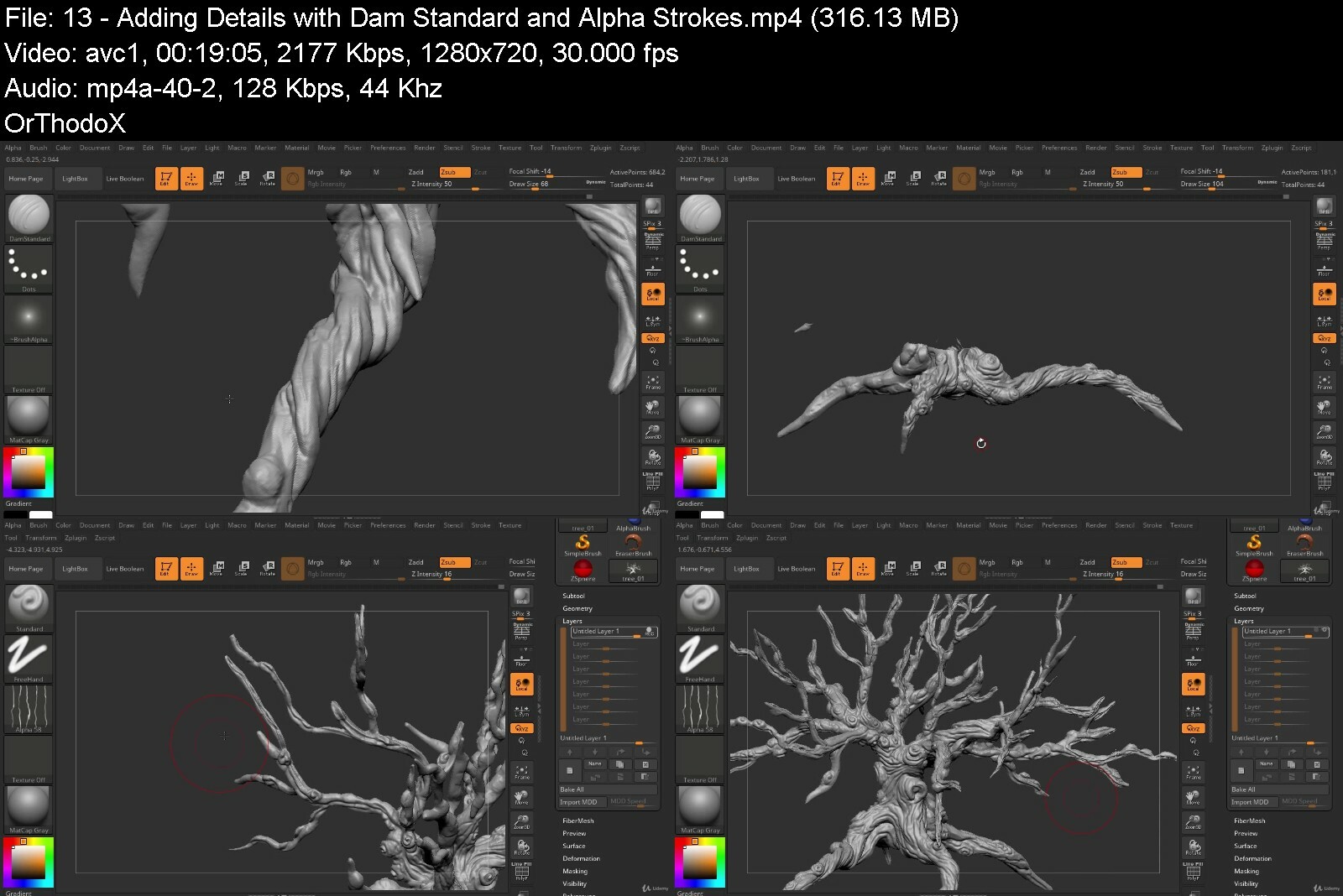
Lecture 13 Adding Details with Dam Standard and Alpha Strokes
Section 3: Refining our Hard Surface Sculpts
Lecture 14 Introduction to Section 3
Lecture 15 Creating the Wall Columns
Lecture 16 Bricks to Make a Wall
Lecture 17 Continuing the Bricks
Lecture 18 Finishing Off the Wall
Lecture 19 Starting the Arch for the Main Entrance
Lecture 20 Finishing the Arch
Lecture 21 Reusing Fence Spikes to Create a Gate
Section 4: Refinement and Final Polish
Lecture 22 Introduction to Section 4
Lecture 23 Importing External Meshes
Lecture 24 New Wall Mesh Duplication and Placement
Lecture 25 Adjusting Fence Spikes
Lecture 26 Placing Tombstones
Lecture 27 Creating Ground Displacement
Lecture 28 Creating Graveyard Grass
Lecture 29 Clumping Grass and Tombstone Booleans
Lecture 30 Starting Surface Details and Cracking Stone
Lecture 31 Finishing Surface Details and Cracking Stone
Lecture 32 Deforming the Main Gates
Lecture 33 Using Booleans to Create Walls and Course Wrapups
Lecture 34 Bonus Lecture: Further Learning with 3dmotive
Students familiar with Zbrush and wishing to understand how to create a complete scene


sculptacomplexcatacomlmi7d.jpg


Download from RapidGator


Download from DDownload


Sketch: How to Use Sketch like a Google UXUI Designer

kvsqdhat6hdtsuumur2vnylfx0.jpg


Sketch: How to Use Sketch like a Google UXUI Designer
Published 08/2022
Genre: eLearning | MP4 | Video: h264, 1280x720 | Audio: AAC, 48.0 KHz
Language: English | Size: 7.4 GB | Duration: 39 lectures • 9h 40m


What you'll learn
Show you sequentially how to create those elements from scratch
Ready to create all kinds of graphic designs for the workplace or your own freelancing career
Teach you to design quickly, efficiently, and precisely so that your work is not only beautiful, but sharp and balanced as well.
Master Sketch to create a strong mobile app design from start to finish

Requirements
Download Sketch and purchase a license or use the free trial

Description
Instructor Credentials
My name is Melissa Strader, and I'll be your instructor for the Sketch course. I've had many different job titles over the years as the UX field has matured, including UI designer, interaction designer, UX researcher. Now that I'm later in my career, I spend more time leading UX teams.
I've worked at both big companies and startups. I led UX teams at both Google and eBay, and I've also worked for multiple startups in Silicon Valley. The first startup I did was in 2010, and I'm currently at a series B life sciences startup.
Although I dabbled in design and art for many years, my first official role doing digital product design was at Google, where I was initially a UI designer and eventually my title changed to interaction designer. It wasn't until I started working at startups in the 2010s, and my second time at Google in 2013, that Sketch came on the scene. Now I'm not particularly tied to one tool - currently I use Figma, Adobe Creative Cloud, and Sketch all for different things.
I'd summarize my career as fusing design and technology to make products better for people. The main disciplines that I've drawn from are psychology, human-computer interaction, and computer science. My favorite business sectors are those that help people live their best lives - healthcare and education are especially important to me because they span the entire human experience.
Teaching Strategies
I'm not a teacher in the traditional sense, but I've managed, coached, and advised many people. Coaching comes back to designing an experience for an individual. I'm helping to design their entry into the field of design.
Three main areas where I find myself working with beginners is first, I try to get beginners practicing on anything, something, and practice talking about their designs and design decisions. There's no substitute for practice and critique.
Secondly, I try to remind beginners that the tools are there to support them. Tools support your inspiration, your creativity, your framing of a problem. You can be a fantastic designer with paper and pencil. It's okay to learn a new tool as you go. There will always be new tools to learn.
Thirdly, I try to remind folks that empathy and problem solving trumps flashiness. It's easy to let your ego leak into your designs, and that's not what we're here for. To me, the glamor is in solving the problem, not in showing off my design skills.
In this course, you will do exercises with me! I'm going to provide you with a file that has finished elements, and I am going to show you sequentially how to create those elements from scratch. There is no substitute for developing the muscle memory to do this yourself. Your practice as a designer can start with this course, so please do open the files and play along.
Course Description
<Sketch, Zeplin, and Marvel: The Synergy> is for beginners who might have wanted to try Sketch but have felt overwhelmed at the idea of picking up a new design tool. We'll start from scratch, and I'll teach you the tool the way I would have wanted someone to explain it to me.
I'm tailoring a lot of the exercises for interaction design and UX design, so we'll cover multiple levels of fidelity which mirrors how it works in the industry. We'll cover artifacts for a whole project, starting with information architecture, moving to wireframes, and then working with high fidelity designs with some assets and a little bit of prototyping. We'll cover handoff workflows and how to work with engineers using the tool.
Throughout the course I'll talk about considerations for your project, your team, and your design practice that are based on my own industry experiences. I hope it will be helpful for envisioning not just what it would look like to use Sketch, but what it would look like to develop a design practice that's faithful to your strengths and your team's needs.
To Students
Once you finish this course, you'll be ready to create all kinds of graphic designs for the workplace or your own freelancing career. Moreover, you will be confident tackling both low and high-fidelity UI designs in Sketch, sketching out an IA for a software application, designing icons and illustrations in Sketch, exporting & sharing designs for feedback, and structuring files and assets to stay organized.
I will teach you to design quickly, efficiently, and precisely so that your work is not only beautiful, but sharp and balanced as well. Plus, I will give you some tips for working with clients and some time-saving tricks that will save you when working under a deadline.
Who this course is for
This course is perfect for web and print designers
This course requires practically no prior design experience


sketchhowtousesketchlgtfn9.jpg


Download from RapidGator


Download from DDownload


Figma: Systematic Designs with an Amazon UX Designer

4840130c12231yfwz.jpg


Figma: Systematic Designs with an Amazon UX Designer
Published 08/2022
MP4 | Video: h264, 1280x720 | Audio: AAC, 44.1 KHz, 2 Ch
Genre: eLearning | Language: English | Duration: 54 lectures (9h 8m) | Size: 7 GB


Learn technical aspects of Figma, such as the basic & advanced skills of creating wireframes and prototyping


What you'll learn
How to begin working as a UX Designer using Figma.
How to use Figma for Essential UX Design & UI Design
Able to use Figma for all sorts of Design Work & Projects
Show how to hand off, collaborate and work with other designers, engineers and partners on your Figma Files
How to create simple wireframes
Requirements
You'll need a copy of Figma.
No previous UX Design/UI Design experience is needed
No previous Figma skills are needed
No previous design skills or experience required
Description
Instructor Credentials
My name is Leon, and I'll be your instructor for the Figma course. I've worked in the industry for almost 5 years now, and I'm currently working as a product design lead at Godaddy.
My first role in the design industry was at an agency located in China where I worked on projects for big tech clients such as Amazon, Mercedes Benz, and BMW. Having accessed all sorts of design tools such as photoshop and illustrator for more than 10 years, I was able to create unique projects and designs which in turn helped me gain an admission to University of Washington's competitive design program. Since then, I've continued my design career as a UX designer at Amazon, Expedia, VR startups, and most recently as a product design lead at Godaddy. One of my favorite works I've done so far using Figma is my project at Expedia. For this project, I took full ownership of the entire design process, from design research, design sketching, user flows, happy path flows, lo-fi, wireframes, high-fi, prototypes for usability studies and to so much more. While taking this course, I'll share with you all the tips and techniques I've gained throughout my entire work experience, and meaningful insights that might help you complete actual designs at your workplace in the future.
As a UX designer, I've had the chance to work on projects for many big companies such as NIO, Google, Amazon, and Expedia. Other than that, I'm also very familiar with designing in the tech start-up space such as an indie VR studio called Iskeai entertainment, where I worked as a lead designer for over 3 years.
Teaching Experience
As a founder member of the organization UXGO, I've never stopped writing articles about design on medium, making presentations, being a guest lecturer at different design schools, and coaching aspiring future designers. Just last year alone, as one of the lead coaches on UXGO, I helped over 30 students from all sorts of backgrounds ranging from stay-at-home moms, and Bootcamp grads, to top design school students and master candidates secure their first job offers at many different FAANG companies.
Aside from guest lecturing and hosting workshops at design schools such as Emily Carr, SCAD, SVA, UW, and RISD to name a few, I've had a few years of in-depth customized 1:1 coaching experience and successfully helped some students get jobs in big companies.
So I encourage you to take this Figma course and connect with me. I want this course to be the solid first step for you to gain valuable UX/UI industry knowledge and experience. I'll make sure to help you improve your UX/UI design skills and better understand how experienced designers use Figma on their day-to-day tasks and projects.
Course Description
<Figma: The Collaborative UX/UI Tool> is for anyone interested in becoming a UX/UI designer, including complete beginners and students who are interested in learning more of the industry-driven skills of Figma. What I'm going to cover in this course will not only be limited to the technical aspects of Figma, such as the basic & advanced skills of creating wireframes, prototyping, and making use of collaborative tools. Rather, I would like to go beyond that stage and make you feel inspired, and help you discover your further career path in UX/UI. Finding success in your design career especially when you are at the starting stage is extremely difficult. However, it's now my job to make you feel proud of your design, be bold about trying some new things, embrace your uniqueness, and make you work hard to get every opportunity that you might face in your future.
To Students
Once you finish this course, you will be able to use Figma for all sorts of design work, projects, and any internship or design role that requires technical Figma knowledge. Since figma at its core is a collaboration-driven tool, I will especially show you how to hand off, collaborate, and work with other designers, engineers, and partners on your Figma files- which will greatly affect the overall quality of your design work. We will also talk about how you can leverage what we learned in these respective disciplines, but the main focus of this course will always be on helping you become a UX/UI or product designer in tech. This course is structured and designed to accommodate and help individuals with no experience, and allow those individuals to excel and flourish. All I require from you is commitment and passion, those two go a long way in learning.
Who this course is for
Anyone who wants to start using Figma in their career & get paid for their user experience design skills
This course is for beginners, newbies & amateurs in the field of UX design
For anyone that needs to add 'UX Design' to their portfolio
Anyone who wants to learn the essentials of UI & UX Design


figmasystematicdesignotdgs.jpg


Download from RapidGator


Download from DDownload


Sculpting Stilized Characters For Videogames | Zbrush 2020

nsg7df1wtc4bxxs9ckvd7ugizy.jpg


Sculpting Stilized Characters For Videogames | Zbrush 2020
Last updated 11/2020
MP4 | Video: h264, 1280x720 | Audio: AAC, 44.1 KHz
Language: English | Size: 7.03 GB | Duration: 7h 40m

Learn Character Sculpting and Creation for Games


What you'll learn
Character Art
Character Sculpting
Zbrush Sculpting
Sculpting & Zbrush Fundamentals

Requirements
Mac or PC capable of running any version of Zbrush
Willigness to work hard and study the concept seen in class

Description
Learning Zbrush and Character Sculpting can be very time-consuming when doing it on your own. I will help you learn all the core concepts and fundamentals of character creation in very detailed videos.In this course, we will create a character suited for mobile and desktop games from scratch. We will start from scratch, with a sphere and a blank canvas. I will cover all the basics to help you grow as a 3D Character Artist.You'll learn tips and shortcuts that will accelerate your workflow and make you understand the fundamentals of 3D Sculpting in Zbrush 2020.I will be available for you through the whole course, feel free to send me a message if you encounter any issue. I will help you solve it and understand why it presented itself.Please, take this course now.
Overview
Section 1: Introducción
Lecture 1 Course Landing Video
Lecture 2 Welcome to the course!
Lecture 3 Brief Overview Of The Class
Lecture 4 Custom Interface Shortcuts & Basic Tools
Lecture 5 Blocking The Head
Lecture 6 Blocking Props & Body
Lecture 7 Blocking Polish
Lecture 8 Blocking Hands & Pose
Lecture 9 Finishing The Blocking
Section 2: 2
Lecture 10 Sculpting The Face
Lecture 11 Sculpting The Hands
Lecture 12 Face Polish & Fingernails
Lecture 13 Fingernails Polish
Section 3: 3
Lecture 14 Robes, Scarf & Folds
Lecture 15 Robes Polish
Lecture 16 Scarf & Robes Polish
Lecture 17 Head Bandana
Section 4: 4
Lecture 18 Staff
Lecture 19 Necklace And Horns
Lecture 20 Horn & Feathers
Lecture 21 Feathers & Leaves
Lecture 22 Feathers
Lecture 23 Feathers & Patterns
Lecture 24 Patterns Finish
Section 5: 5
Lecture 25 Decimation & Export
Lecture 26 Congratulations!
Students that have already some 3D knowledge and want to become a Character Artist,Intermediate Artists that want to keep honing their skills,Aspiring artists that are looking for that next step in their learning


sculptingstilizedcharixeyv.jpg


Download from RapidGator


Download from DDownload


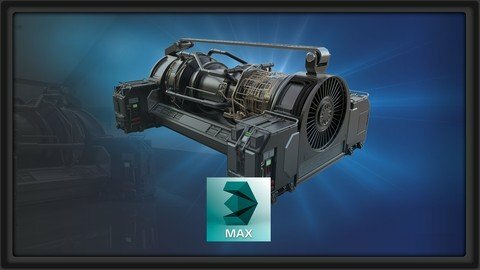
Model A Complex Generator Asset With 3Ds Max And Zbrush

i7vreemsrn3hu1wcobt1b4ldwh.jpg


Model A Complex Generator Asset With 3Ds Max And Zbrush
Last updated 6/2020
MP4 | Video: h264, 1280x720 | Audio: AAC, 44.1 KHz
Language: English | Size: 6.86 GB | Duration: 8h 1m

Create a high resolution, sci-fi generator for use in animation, games, or film.


What you'll learn
Make a high poly model from scratch using 3ds max and ZBrush
Use the fastest and most efficient tools like: Spline Modeling, Modifiers, Booleans and more
Create a high poly model what would also work when turned into a low poly/game model
Render a Nice Looking Asset in Keyshot

Requirements
Access to 3ds Max and Keyshot
Students will need to have a strong knowledge of the basics of 3ds max and ZBrush

Description
In Generator Asset in 3ds Max, students will learn on how to create a high resolution sci-fi generator using only a few reference images. We will go over the best way of thinking when creating something and not just look at an image and re-create it. We will first start with a small part of the generator where we will go over some of the most important techniques used to create this model. These techniques include things like using splines, modifiers and Booleans to create a high poly model fast and efficient. Next to this I will also give a lot of tips on things you need to keep in mind, should prepare for. This way students will learn to think a few steps ahead, For example we will go over on what to do to still be able to turn this model into a game asset. Next to all this we will go over some good ways to fill in a lot of detail fast and easy and after that we will move into Zbrush where we will start by turning this model into a high poly. Once the model is turned into a high poly we will be adding even more detail to it using alphas and masking in Zbrush. Finally, we will optimize the model, prep it in 3ds max and then render the final result in Keyshot.
Overview
Section 1: Introduction to the Course and Blocking in the Shapes
Lecture 1 Introduction to the Course
Lecture 2 Download Source files here!
Lecture 3 Creating the Base of the Generator Feet
Lecture 4 Finishing the base of the generator feet
Lecture 5 Adding Metal Panels
Lecture 6 Creating Front Feet Panels
Lecture 7 Adding Metal Handles
Lecture 8 Adding Side Panels
Lecture 9 Finishing up the Generator Feet
Section 2: Turbine, Pipes, and Connection Hoses
Lecture 10 Intro to Piping
Lecture 11 Starting the Front Turbine
Lecture 12 Creating the Center Base
Lecture 13 Creating the Engine Cylinder
Lecture 14 Creating the Pipe Connectors
Lecture 15 Big Engine Pipes
Lecture 16 Finishing the Engine Pipes
Section 3: More piping polish and framing
Lecture 17 Introduction to Piping Polish
Lecture 18 Start Creating the Pipes Using a Generator
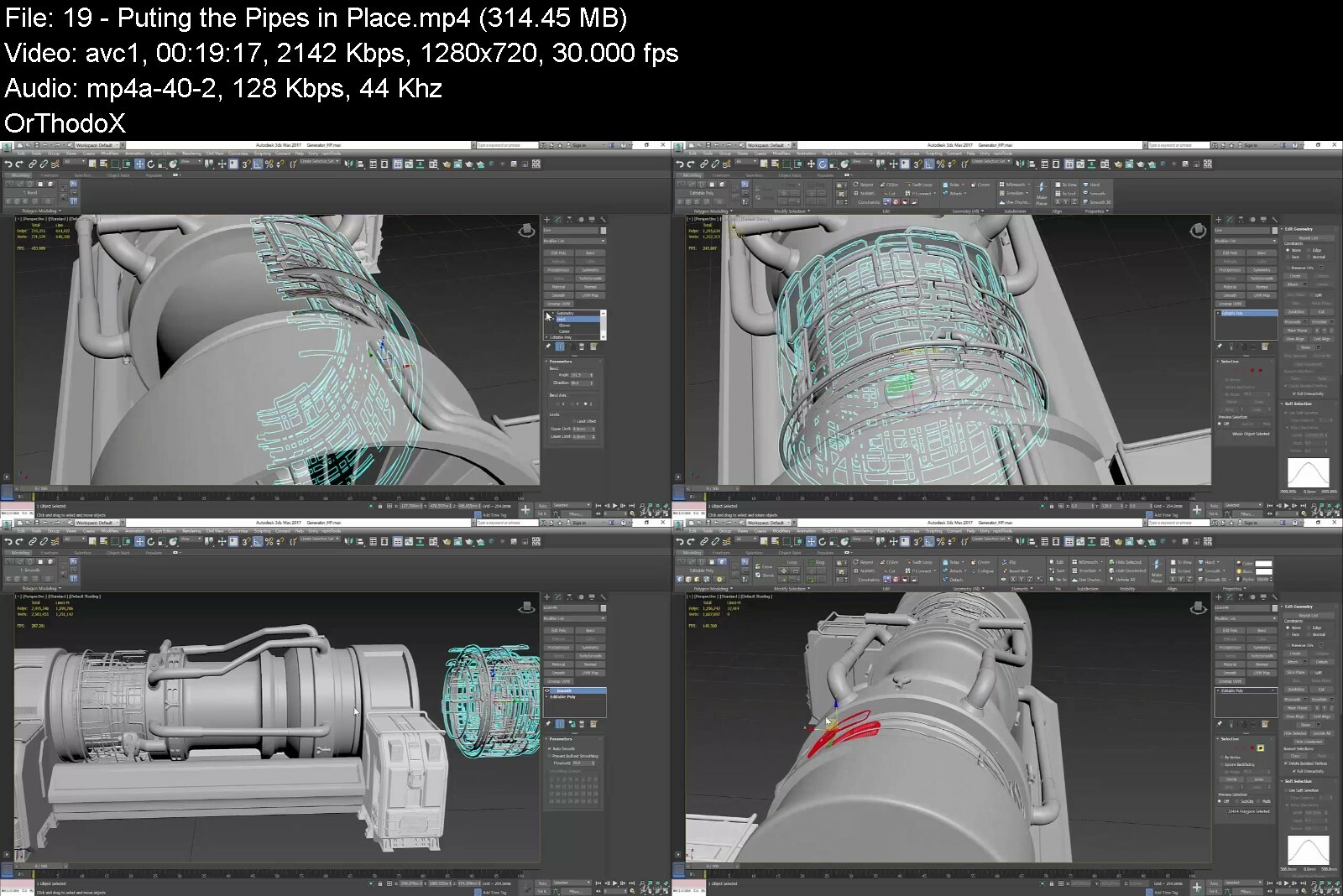
Lecture 19 Puting the Pipes in Place
Lecture 20 Adding More Pipes
Lecture 21 Start Creating the Back of the Generator
Lecture 22 Creating the Center Access Panel
Lecture 23 Creating the Overhead Frame of the Generator
Section 4: Bringing it All Together
Lecture 24 Intro to the Wrapup and Polish
Lecture 25 Prepping the Geo for ZBrush
Lecture 26 Turning the Geo into a High Poly in ZBrush
Lecture 27 Creating Custom Alphas
Lecture 28 Adding Bolts and Screws
Lecture 29 Adding Details Using Alpha Maps
Lecture 30 Prepping the Generator for Keyshot
Lecture 31 Keyshot Rendering Techniques
Lecture 32 Final Renders and Course Closing
Lecture 33 Bonus Lecture: Further Learning with 3dmotive
The target audience is students and professionals that already know how to use the programs but want to go more in-depth


modelacomplexgenerato02i0s.jpg


Download from RapidGator


Download from DDownload


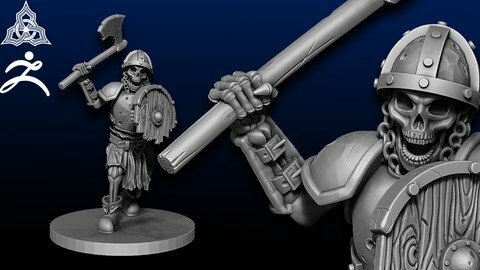
Sculpt 3D Printable Skeleton Warriors In Zbrush

prbhbabg9gmg1jzlwekwx1bf52.jpg


Sculpt 3D Printable Skeleton Warriors In Zbrush
Last updated 3/2020
MP4 | Video: h264, 1280x720 | Audio: AAC, 44.1 KHz
Language: English | Size: 7.86 GB | Duration: 11h 39m

Create an Army of Unique Models


What you'll learn
Learn how to digitally sculpt in the industry leading software: zbrush
Learn how to navigate zbrush
Learn to use many brushes: what each does and when to use them
Learn how to create many various weapons and armors
Learn how to pose your Skeleton Warriors
Learn how to optimize your skeleton for 3d printing

Requirements
Must be able to speak the English Language
Must have a computer with internet access
You will need access to Zbrush free 30 day trial is available for first time users
A drawing tablet is highly recommended

Description
Created with the absolute first timer in mind, this course will teach you to become proficient in many of Zbrush's more complex features - many of which are unknown to more advanced users. By the end of this course, you will have the knowledge and skills to create professional-quality 3D models fit for 3D printing and sales.*This course builds on our previous course: "*Sculpt a 3D printable Skeleton model in Zbrush ", but it is not necessary to have taken that class before this one. This course is completely approachable to a first time beginner using Zbrush. Join our lead 3D Modeler Josh O'hala as he recreates the exact same skeletal Warrior models that we sell to customers. You will be guided through our professional production pipeline:You will learn how to become comfortable navigating Zbrush.You will learn how to add simple geometry to your project which will be used later. Learn to create many weapons and Armors Learn to create various accessories to bring your Warriors to lifeYou will learn how to use many commonly used brushes as well as specialized brushes to create beautiful and accurate sculpts. The lessons learned will be reinforced as Josh guides you through creating the entire skeleton model. You will learn how to pose your skeleton to create many variations of models. You will learn how to optimize your model for 3D printing.You will learn the process of making your model 3D printable.and much more! visit us on youtube (runeforge studios) for examples of our models and tutorials.
Overview
Section 1: Introduction
Lecture 1 Introduction
Lecture 2 What you'll need
Lecture 3 Before we get started
Section 2: Getting Started and Making a Sword
Lecture 4 Opening Zbrush
Lecture 5 General Navigation
Lecture 6 Using ZModeler / Starting a sword
Lecture 7 Z - Modeler Blade part 2
Lecture 8 Continuing the Sword - Hilt
Lecture 9 Finishing the Base Sword
Section 3: Axe
Lecture 10 Starting the axe
Lecture 11 Finishing the Axe
Section 4: Spear
Lecture 12 Creating the Spear
Section 5: Weathering / Aging weapons
Lecture 13 Weathering weapons - part 1
Lecture 14 Weathering weapons - Part 2
Lecture 15 Finishing the weathered weapons
Section 6: Armor
Lecture 16 Pauldrons
Lecture 17 Helmet
Lecture 18 Bracers
Lecture 19 Breastplate
Lecture 20 Breastplate - part 2
Section 7: Shield
Lecture 21 Shield
Lecture 22 Shield - Part 2
Section 8: Enhancing the Armor and Shield
Lecture 23 Adding straps to the Breastplate
Lecture 24 Aging the Armor
Lecture 25 Breaking the Shield
Section 9: Belts, Boots and Coifs
Lecture 26 Creating a belt
Lecture 27 Creating Boots
Lecture 28 Coif
Section 10: Preparing Melee Warriors for Posing
Lecture 29 Posing hands
Lecture 30 "Equipping Weapons and Shields"
Section 11: Creating Skeletal Archer Assets
Lecture 31 Chainmail part 1
Lecture 32 Chainmail - part 2
Lecture 33 Bow
Lecture 34 Arrows
Lecture 35 Finishing Archer Gear
Section 12: Posing
Lecture 36 Posing - Part 1
Lecture 37 Posing - Part 2
Lecture 38 Posing - Part 3
Lecture 39 The First Pose
Lecture 40 The Second Pose
Lecture 41 The Second Pose - part 2
Lecture 42 Third Pose
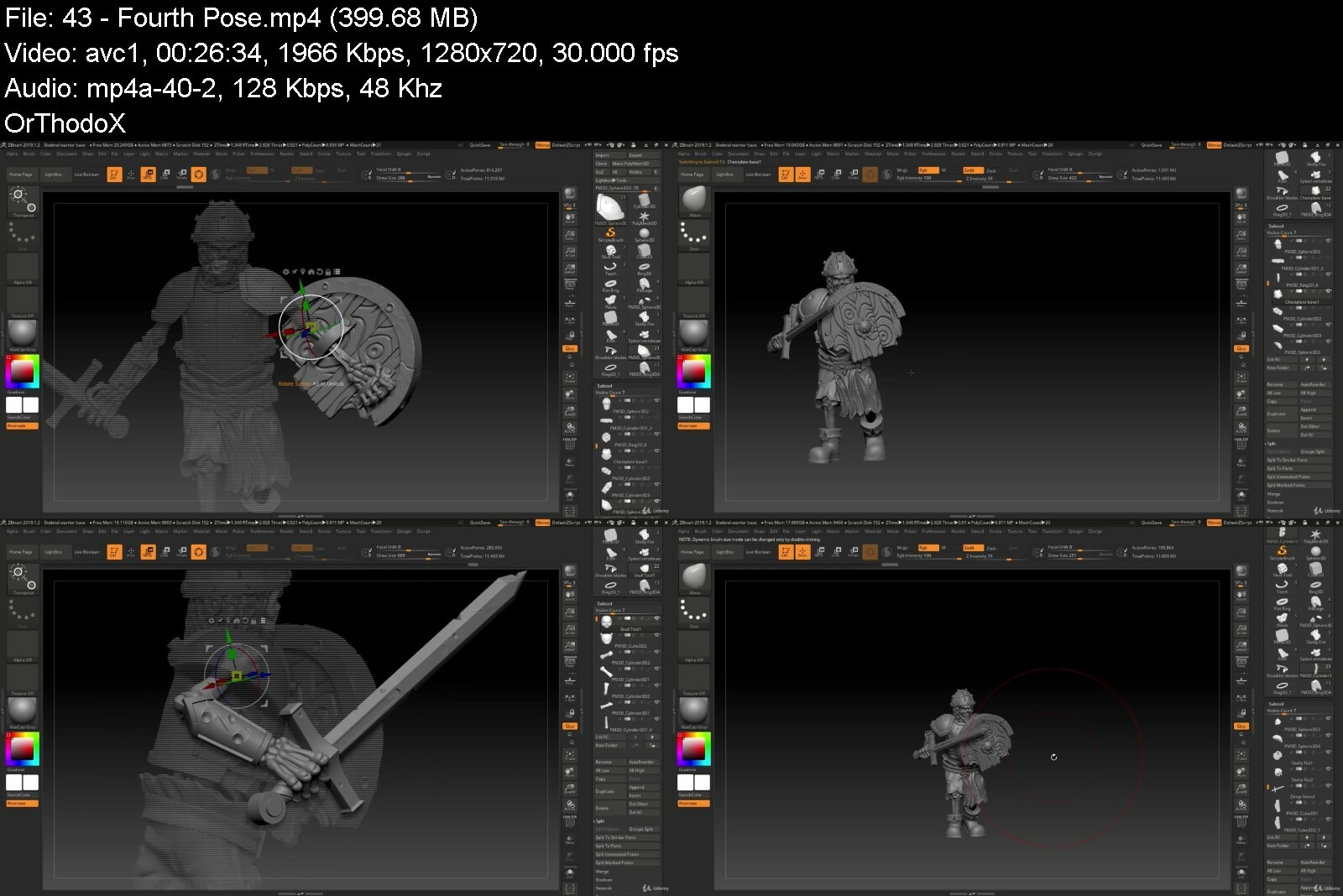
Lecture 43 Fourth Pose
Lecture 44 Dynameshing the Poses
Section 13: Preparing for 3D Printing
Lecture 45 Solidifying areas
Lecture 46 Preparing for 3D Printing
Lecture 47 Repairing your Models for 3D Printing
Section 14: Course Wrapup
Lecture 48 Wrapup
This course is intended for anyone who wants to learn how to create professional quality digital sculptures.,This course is intended for anyone who wants to learn how to create their own models for 3D printing.,This course is intended for anyone who wants to learn how to create their own miniatures for tabletop games.


sculpt3dprintableskelpliey.jpg


Download from RapidGator


Download from DDownload


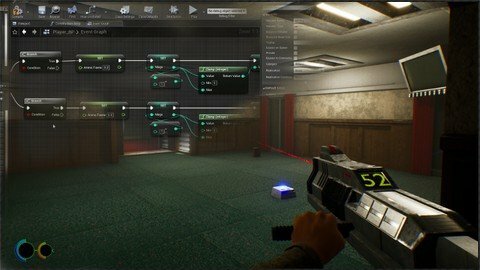
Unreal Engine 4 First Person Shooter: Lifeforce Tenka Clone

e1z13u6lge6do6gg6qwxo92ek9.jpg


Unreal Engine 4 First Person Shooter: Lifeforce Tenka Clone
Last updated 12/2020
MP4 | Video: h264, 1280x720 | Audio: AAC, 44.1 KHz
Language: English | Size: 10.39 GB | Duration: 12h 51m

A clone of the 1997 game "Lifeforce-Tenka" created by Psygnosis.


What you'll learn
Creating enemy AI behaviours using Blackboards, Behaviour trees and tasks.
Sound Implementation.
Unreal's particle system; Cascade.
Pickups.
HUD for radar, ammo count and other useful information.
Player stamina system.
Animation implementation using locomotion and state machines.
Core game loop containing a winning and losing condition.
Level construction, collision and lighting.
Cached Geometry for unusual animations like a chainsaw.
Driving animated textures with Blueprint.
Controlling animated textures in particles.
Player sprint & slide mechanic.
Good old camera shake.
Animated texture creation: turning a physics based simulation or animation into a shader for use in-game.
Handling game pause events.
Blueprint class communication.
Manipulating an armature's bone at runtime using inverse kinematics.
A reusable mechanic where we have a locked door that requires a specific key to open it.

Requirements
Unreal engine 4.25.3 installed and ready to go. Also ensure you have enough space on your hard drive; 8GB should be enough.

Description
In this course, you will be creating a full first person shooter game which will be heavily inspired by one of my childhood favourites, "Lifeforce-Tenka" by Psygnosis. All of the in-game assets will be made available so we can focus more on being creative with the actual game development process.
Overview
Section 1: Getting started
Lecture 1 Creating a new Unreal Engine Project
Lecture 2 Preparing the game assets
Section 2: Setting Up The Player
Lecture 3 Player class setup
Lecture 4 Player class component Setup
Lecture 5 Gun socket attachment and walk animation
Lecture 6 Setting up jumping
Lecture 7 Setting up crouching
Lecture 8 Setting up the sliding
Lecture 9 Setting up the sprinting
Lecture 10 Movement sound implementation
Lecture 11 Setting up the shooting input event
Lecture 12 Setting up the laser sight
Lecture 13 Setting up the firing animation
Lecture 14 Gun surface clipping prevention
Lecture 15 Muzzle flash setup
Lecture 16 Camera shake for movement and firing
Lecture 17 Ammo consumption
Lecture 18 Spawning the impact particle
Lecture 19 Auto reload
Section 3: Setting up the player HUD
Lecture 20 Setting up the player HUD
Lecture 21 Player HUD Logic
Lecture 22 Adding the player HUD to the screen
Lecture 23 Heart rate logic and exhaustion
Section 4: Creating the pickups
Lecture 24 Ammo pickup
Lecture 25 Shield energy pickup
Lecture 26 Security key pickup
Section 5: Creating the security door
Lecture 27 Security door class creation
Section 6: Particle FX
Lecture 28 Electric particle effect
Lecture 29 Explosion particle effect
Section 7: Creating the power core
Lecture 30 Setting up the power core components
Lecture 31 Creating the power core logic
Section 8: Creating the turret
Lecture 32 Turret projectile particle overview
Lecture 33 Turret projectile components setup
Lecture 34 Turret projectile class logic
Lecture 35 Setting up the turret class
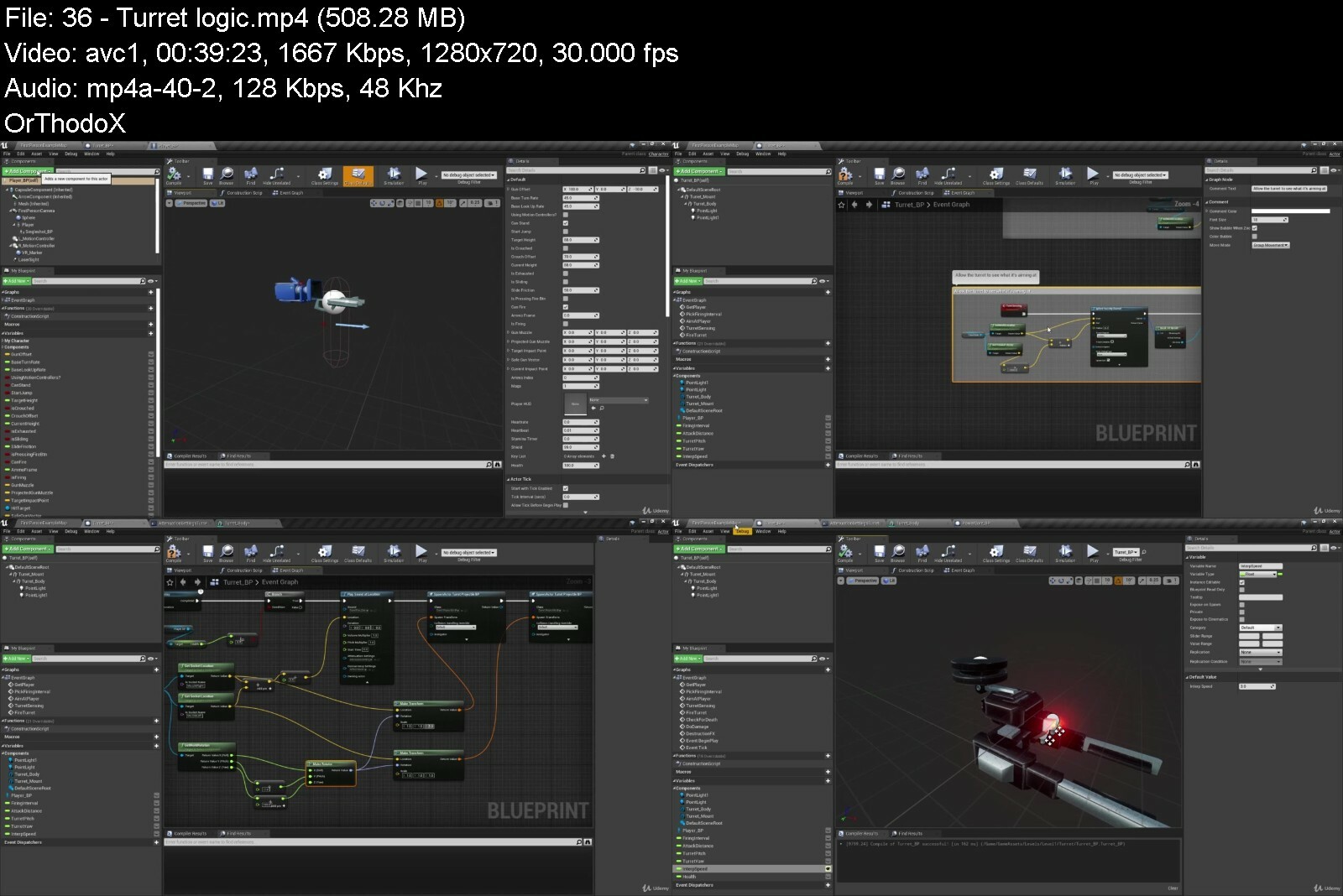
Lecture 36 Turret logic
Section 9: Player damage and death events
Lecture 37 Player damage visual screen HUD events
Lecture 38 Creating the game over HUD
Lecture 39 Game over HUD logic
Lecture 40 Player death events
Section 10: Turret destruction
Lecture 41 Destroying the turret
Section 11: Creating the pause menu
Lecture 42 Creating the pause menu UI
Lecture 43 Creating the pause input
Lecture 44 Pause menu logic
Section 12: Creating the main menu
Lecture 45 Creating the main menu class
Lecture 46 Setting up the main menu part 1
Lecture 47 Setting up the main menu part 2
Section 13: Creating the objective menu
Lecture 48 Setting up the objective HUD
Lecture 49 Objective HUD logic
Section 14: Creating the fade out UI and level complete actor
Lecture 50 Creating the fade out widget
Lecture 51 Creating the level complete class
Section 15: Creating the drone
Lecture 52 Drone class setup
Lecture 53 Creating the drone hover motion values
Lecture 54 Applying the drone's hover motion
Lecture 55 Damaging the drone
Lecture 56 Drone evasive maneuvers
Lecture 57 Drone AI class setup
Lecture 58 Setting up the drone's behaviour tree
Lecture 59 Drone AI state logic part 1
Lecture 60 Drone AI state logic part 2
Lecture 61 Drone damage to player
Lecture 62 Setting the drone target points
Lecture 63 Drone event calls
Lecture 64 Smooth AI rotation
Lecture 65 AI nav link proxy
Lecture 66 Drone seek mode
Lecture 67 Drone door access
Section 16: Creating the radar
Lecture 68 Setting up the radar interface
Lecture 69 Setting up the radar logic
Lecture 70 Calling the radar
Section 17: Creating the vent cover
Lecture 71 The vent cover class
Section 18: Level design your way
Lecture 72 Editing Level 1 part 1
Lecture 73 Editing Level 1 part 2
Lecture 74 Removing debug prints
Section 19: Packaging the game
Lecture 75 Packaging the game
Beginner to intermediate Unreal engine users


unrealengine4firstperpvc5v.jpg


Download from RapidGator


Download from DDownload


How To Draw With Photorealism - Basics & Practice

9rbk5by9mqfumvvetuv4kd8ifw.jpg


How To Draw With Photorealism - Basics & Practice
Last updated 11/2020
MP4 | Video: h264, 1280x720 | Audio: AAC, 44.1 KHz
Language: English | Size: 7.39 GB | Duration: 5h 42m

Easy Drawing & Shading Techniques for the Beginning Artist


What you'll learn
Easy drawing and shading techniques
How to make the drawings look like photographs
To create lifelike textures
To draw from complete scratch

Requirements
High quality paper
Graphite Pencils
Blending stump, Q-tips
A divider tool (optional)
Patience and perseverance

Description
In this course, you will learn to draw realistic cherries, a cat's eye marble, water droplets, a rose, a coconut, and a cat from complete scratch. I will walk you through the process that I use to draw lifelike drawings with graphite pencils. I will show you my drawing and shading techniques, and share a lot of tips and tricks with you. You will learn how to sketch, how to shade, how to blend pencils and how to create photorealistic textures.By following my instructions, you will be able to practice and to learn how to draw objects and more. You can also download printable pencil sketches (same that I use in these videos), so you can draw on. This way, you will be able to compare your results to mine. I have also attached some coloring pages that I've created and the Graphite Tone Value Viewer that you can use when drawing from reference photos.I am convinced that everyone is able to draw. Only patience, right guidance, and inspiration are needed.So, join me, get inspired, and start learning!Jasmina
Overview
Section 1: Shading Techniques - Basics
Lecture 1 Introduction and Tools
Lecture 2 What is a Smooth Gradient?
Lecture 3 Creating the Gradient Transition - the First Method (Cylinder)
Lecture 4 Creating the Gradient Transition - the Second Method (Flower)
Lecture 5 Creating the Gradient Transition - the Third Method (Sphere)
Lecture 6 The Circulism Method
Section 2: Practice - Drawing Tutorials
Lecture 7 Tools
Lecture 8 How to Draw Coconut
Lecture 9 How to Draw a Rose - Part 1
Lecture 10 How to Draw a Rose - Part 2
Lecture 11 How to Draw Water Droplets on a Leaf
Lecture 12 How to Draw a Cat's Eye Marble
Lecture 13 How to Draw Realistic Cherries
Lecture 14 How to Draw a Cat
This course is suitable for anyone who wants to learn to draw


howtodrawwithphotorea37d29.jpg


Download from RapidGator


Download from DDownload


Cinema 4D: How to Model Easily with a Motion Designer

4840104410d5dtdt3.jpg


Cinema 4D: How to Model Easily with a Motion Designer
Published 08/2022
MP4 | Video: h264, 1280x720 | Audio: AAC, 44.1 KHz, 2 Ch
Genre: eLearning | Language: English| Duration: 43 lectures (11h 56m) | Size: 9.6 GB


Learn to model objects, create fun animations using a variety of techniques, and render nice-looking frame


What you'll learn
This course has everything you need to get started with Cinema4D.
All the tools you need to be able to start bringing your ideas to life.
Walk through the practical motion graphic design skills to create impressive and impactful final products that satisfy both needs of your company and the cl
Mainly focus on building solid foundations for your designs
Once you finish this course, you will be able to model simple objects, create pretty animations using a variety of techniques, render and smart frames
General idea of each one of the different disciplines you typically find in a project that involves 3D
This course will serve you as the best gateway to a successful career!
Able to look at your past work and you'll be able to see clear improvement in every process.
Requirements
No requirements
Description
Instructor Credentials
My name is Daniel Ascanio, and I'll be your instructor for the Cinema 4D course. I have been working with Cinema 4D for more than 10 years, I have also worked with other programs such as After Effects. Now I am working as a Senior Motion Designer at Playstation.
During my first job as a video editor, I realized that Motion Design was the right path for me. In 2012, I got a certificate in Visual Effects for Film and TV, 3D Modeling & Visual Effects Production, and Interactive Media Design. With the knowledge gained in receiving these certificates, I had my first few experiences in the field working as a motion graphic artist at Global, one of the biggest national TV stations in Canada. Since 2016, I have worked at a variety of companies including Apple, Facebook, and PlayStation, where I'm currently working as a full-time employee. During my time at PlayStation, I've worked on the marketing campaign for the release of high-profile games like Spiderman, Horizon, and God of War, and many others. As well as the video campaign for the launch of the PlayStation 5 and its accessories. I've also worked on the video content used in major gaming and technology events like E3 and CES.
Course Description
<Cinema 4D: 3D Modeling for Professionals> is for those who are brand-new to Cinema 4D or have had some exposure to it but need to understand it better. This course has everything you need to get started with Cinema4D. I will give you all the tools you need to be able to start bringing your ideas to life. I will show you very basic, but powerful modeling techniques. Moreover, we'll go over the user interface, selection tools, modeling tools, MoGraph, lighting, rendering, materials, animation, and finally how to put everything together in After Effects. It doesn't matter what your background is in the creative industry, if you are a producer, a creative director, an art director, or someone working with a lot of 3D artists, this course will help you to communicate with them and get the basic structure of an idea of modeling, creating animation, adding lighting, or rigging skills for your design.
To Students
Once you finish this course, you will be able to model really simple objects, create fun animations using a variety of techniques, and render nice-looking frames. If you're not clear about what type of work you would like to do in 3D, this course will give you a general idea of each one of the different disciplines you typically find in a project that involves 3D. This course will definitely serve you as the best gateway to a successful career!
Who this course is for
Beginners that are interested in designing with Cinema4d


cinema4dhowtomodeleasrkd10.jpg


Download from RapidGator


Download from DDownload


Modeling A Sci Fi Dreadnought Character With 3Ds Max

jrys6lakznqjhmwte2f1tyien3.jpg


Modeling A Sci Fi Dreadnought Character With 3Ds Max
Last updated 2/2019
MP4 | Video: h264, 1280x720 | Audio: AAC, 44.1 KHz
Language: English | Size: 5.46 GB | Duration: 7h 1m

Learn to Model a weaponized Dreadnought Mech for Games or Animation


What you'll learn
Students will learn to create and understand custom shortcuts and the advantages to utilizing them
Students will learn to explore a variety of techniques to create a moderately polygon-heavy mesh
Students will be able to use shortcuts to make a more efficient workflow.

Requirements
Students need to be familiar with 3ds Max so that they can understand the parameters of custom shortcuts and modeling

Description
Often, creating a hard surface model can be a bit tedious as well as being unfamiliar and intimidating. To create a better workflow, one needs to know and understand the advantages of using as many shortcuts as possible so that one isn't spending an overly long amount of time creating meshes. A smart workflow can become your best friend as well as something you'll use throughout your career. Shortcut hotkeys are an integral component of working smart, not hard. Understanding methodologies helps you to understand when best to use shortcuts and how to use them efficiently. There are tools hidden in 3DS Max that help facilitate the speed at which you can model and this course is designed to help you access them. Using such tools as symmetry can help the artist visual how the whole mesh is looking while literally only working on a single half of the model. Swift loop is another extremely handy tool to use to help easily add edge loops into the meshes. By creating custom shortcut hotkeys that the artist designs for themselves is a boon to the workflow in creating a solid design and, ultimately, a proper mesh.More about the Instructor:Having 25 years of experience in the video game development/entertainment arenas, Stephen G. Wells is well versed in a variety of programs and production pipelines and strives to work as cleanly and efficiently as possible. Having done pretty much everything, he enjoys getting to share his knowledge and experience in the hopes that he can help students gain a better understanding and appreciation of what 3D computer art (in all its varying forms) has to offer.
Overview
Section 1: Interface and 3ds Max Basics
Lecture 1 Download Source files here!
Lecture 2 Introduction
Lecture 3 Interface and Custom UI
Lecture 4 Shortcuts and Begin Modeling
Lecture 5 Creating the Grill
Lecture 6 Booleans and Neck Work
Lecture 7 Creating the Skull
Section 2: Booleans, Splines, Shells, and Details
Lecture 8 Introduction
Lecture 9 The Upper Body and Arm Socket
Lecture 10 Instancing the Upper Arm
Lecture 11 Boolean the Forward Exhaust Ports
Lecture 12 Using Splines to Create the Shoulders
Lecture 13 Shelling and Adding Screws and Spikes
Section 3: Expanding on the Modeled Details
Lecture 14 Introduction
Lecture 15 Creating the Hip Joint
Lecture 16 Creating Legs Bones and Booleans
Lecture 17 Fixing the Upper Leg
Lecture 18 Finishing the Shin
Lecture 19 Toes with Splines
Lecture 20 Finishing Toes and the Foot
Section 4: Refining the Legs, Arms, Back, and Shoulders
Lecture 21 Introduction
Lecture 22 Doubling the Leg to be the Arm
Lecture 23 Building the Inner Supports
Lecture 24 Finishing the Supports for the Spine
Lecture 25 Creating the Backpack and Ammo Drum
Lecture 26 Adjusting the Shoulders to Hinge the Backpack
Section 5: Refining the Weapons and Setting Asset Normals
Lecture 27 Introduction
Lecture 28 Creating the Exhausts with Insetting
Lecture 29 Starting the Gun with Edge Extrusion
Lecture 30 Finishing the Gun and Scaling the Bullet
Lecture 31 Creating the Ammo Band and Refining Elements
Lecture 32 Bullets Following a Path and Spline Hoses
Lecture 33 Face Weighted Normals
Lecture 34 Bonus Lecture: Further Learning with 3dmotive
Intermediate students who want to use a variety of methodologies to create a mechanical monstrosity


modelingascifidreadnopeiw1.jpg


Download from RapidGator


Download from DDownload


Zurück
Oben Unten