




KAMAL
MyBoerse.bz Pro Member
SILKYPIX Developer Studio Pro for FUJIFILM 10.4.7.0 (x64)
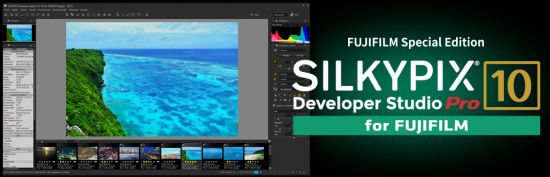
SILKYPIX Developer Studio Pro for FUJIFILM 10.4.7.0 (x64) | 425 MB | Language: English
SILKYPIX Developer Studio Pro10 for FUJIFILM is for a FUJIFILM camera limited special version. The RAW development software "SILKYPIX Developer Studio Pro10 for FUJIFILM" has many functions such as the Compositing function, the Partial correction, and the Dehaze installed in the "SILKYPIX Developer Studio Pro10." These various functions are strongly supports the creation of your work.
Make the specified area bright and vivid
The partial correction tool changes the brightness and saturation partially in the specified area. It is also equipped with a "brush", so free range specification is possible.
Blur the surroundings and highlight the subject
You are now able to blur the periphery of the specified range and apply sharpness.
Exposure compensation can be done freely
It possible to individually adjust the brightness of light and dark areas in the image.
Clear the Haze
Add the "Dehaze" slider to the adjustment item for the mist removement of hazy images caused by atmospheric moisture or vapor.
Ideal finish with simple tasks
- "Automatic adjustment button" that can be adjusted with one click.
- Equipped with adjustable HDR function with 1 photo.
- Fine color controller which can be used to adjust each specific color.
- Easy remove unwanted objects using the Spotting Tool, such as dust that may appear.
- Images to be adjusted can be searched from "shooting information" such as shooting date.
Dehaze function
Adjusting the hazy image with the Dehaze slider removes cloud-like distortions in your image caused by water vapor in the air and leaves the image with just as much clarity as if it were taken on a bright sunny day.
Individual adjustment of brightness of highlight/shadow area of photograph
The Highlight/Shadow sliders in the exposure adjustments allows you to manually adjust the brightness of the bright (highlight) and intensity of dark (shadow) portions of the image. Even when shooting subjects with intense contrast while using exposure compensation, it is sometimes still difficult to control the exposure. Here, simply adjust thehighlight/shadow individually during RAW development to achieve a result suitable for the image of the Photographer.
Partial correction tool
Partial tone correction can be applied to specified area of the image. For example, brightness and White balance can be partially adjusted. The selection methods of the correction area include circular correction filter, gradual correction filter, brush, etc., and can be corrected by carefully specifying the area.
Blurred / Sharp periphery functions
You can blur or sharpen the periphery of the specified range. Blurred periphery produces a close-up effect by blurring the periphery of your subject. In addition, if the image is shot with the aperture opening value of the lens and the resolution of the peripheral area drops, the Sharp periphery can be used to make a good correction.
Auto adjustment button
The Auto adjustment buttons for Auto exposure bias, Auto White Balance Setting, and Automatic Level Correction, which are suitable for the respective images, have been recently added. The Auto adjustment button is recommended for those who are having a first try at RAW Development or say RAW Development has so many adjustment options and do not know what to do. In addition, when making adjustments to a large number of images at a time, you can improve the efficiency of editing workflow by using the Auto adjustment button.
Search in thumbnails
Search in thumbnails is a function for searching and displaying images by specifying a condition such as shooting info such as File name or Date, comments, or ratings from specified folders. You can also specify multiple folders at the same time, which is a very useful feature for locating the desired image within a larger collection.
Other
These include the independent placement of initialization buttons for instantaneously returning images to their pre-adjusted states, the addition of user-mark colors for image selection, and the easy transfer of images from the SILKYPIX to retouching software.
Supported digital cameras
List of supported cameras:
Release Notes
SILKYPIX Developer Studio Pro 10 for FUJIFILM
System requirements:
Microsoft Windows 10 / 8.1 64-bit version
It does not correspond to the Windows 10 tablet mode.
It does not correspond to 32-bit version OS.
Intel Core 2 Duo or higher, or AMD Athlon 64 X2 or higher processor
Graphic board compatible with DirectX 10 or higher
4GB or more RAM (8GB or higher recommended)
10GB of available hard-disk space or more
Display that supports screen resolution of 1,024*768 or higher
Homepage:
DOWNLOAD LINKS:
SILKYPIX Developer Studio Pro for FUJIFILM 10.4.7.0 (x64) | 425 MB | Language: English
SILKYPIX Developer Studio Pro10 for FUJIFILM is for a FUJIFILM camera limited special version. The RAW development software "SILKYPIX Developer Studio Pro10 for FUJIFILM" has many functions such as the Compositing function, the Partial correction, and the Dehaze installed in the "SILKYPIX Developer Studio Pro10." These various functions are strongly supports the creation of your work.
Make the specified area bright and vivid
The partial correction tool changes the brightness and saturation partially in the specified area. It is also equipped with a "brush", so free range specification is possible.
Blur the surroundings and highlight the subject
You are now able to blur the periphery of the specified range and apply sharpness.
Exposure compensation can be done freely
It possible to individually adjust the brightness of light and dark areas in the image.
Clear the Haze
Add the "Dehaze" slider to the adjustment item for the mist removement of hazy images caused by atmospheric moisture or vapor.
Ideal finish with simple tasks
- "Automatic adjustment button" that can be adjusted with one click.
- Equipped with adjustable HDR function with 1 photo.
- Fine color controller which can be used to adjust each specific color.
- Easy remove unwanted objects using the Spotting Tool, such as dust that may appear.
- Images to be adjusted can be searched from "shooting information" such as shooting date.
Dehaze function
Adjusting the hazy image with the Dehaze slider removes cloud-like distortions in your image caused by water vapor in the air and leaves the image with just as much clarity as if it were taken on a bright sunny day.
Individual adjustment of brightness of highlight/shadow area of photograph
The Highlight/Shadow sliders in the exposure adjustments allows you to manually adjust the brightness of the bright (highlight) and intensity of dark (shadow) portions of the image. Even when shooting subjects with intense contrast while using exposure compensation, it is sometimes still difficult to control the exposure. Here, simply adjust thehighlight/shadow individually during RAW development to achieve a result suitable for the image of the Photographer.
Partial correction tool
Partial tone correction can be applied to specified area of the image. For example, brightness and White balance can be partially adjusted. The selection methods of the correction area include circular correction filter, gradual correction filter, brush, etc., and can be corrected by carefully specifying the area.
Blurred / Sharp periphery functions
You can blur or sharpen the periphery of the specified range. Blurred periphery produces a close-up effect by blurring the periphery of your subject. In addition, if the image is shot with the aperture opening value of the lens and the resolution of the peripheral area drops, the Sharp periphery can be used to make a good correction.
Auto adjustment button
The Auto adjustment buttons for Auto exposure bias, Auto White Balance Setting, and Automatic Level Correction, which are suitable for the respective images, have been recently added. The Auto adjustment button is recommended for those who are having a first try at RAW Development or say RAW Development has so many adjustment options and do not know what to do. In addition, when making adjustments to a large number of images at a time, you can improve the efficiency of editing workflow by using the Auto adjustment button.
Search in thumbnails
Search in thumbnails is a function for searching and displaying images by specifying a condition such as shooting info such as File name or Date, comments, or ratings from specified folders. You can also specify multiple folders at the same time, which is a very useful feature for locating the desired image within a larger collection.
Other
These include the independent placement of initialization buttons for instantaneously returning images to their pre-adjusted states, the addition of user-mark colors for image selection, and the easy transfer of images from the SILKYPIX to retouching software.
Supported digital cameras
List of supported cameras:
Release Notes
SILKYPIX Developer Studio Pro 10 for FUJIFILM
System requirements:
Microsoft Windows 10 / 8.1 64-bit version
It does not correspond to the Windows 10 tablet mode.
It does not correspond to 32-bit version OS.
Intel Core 2 Duo or higher, or AMD Athlon 64 X2 or higher processor
Graphic board compatible with DirectX 10 or higher
4GB or more RAM (8GB or higher recommended)
10GB of available hard-disk space or more
Display that supports screen resolution of 1,024*768 or higher
Homepage:
DOWNLOAD LINKS: