



KAMAL
MyBoerse.bz Pro Member
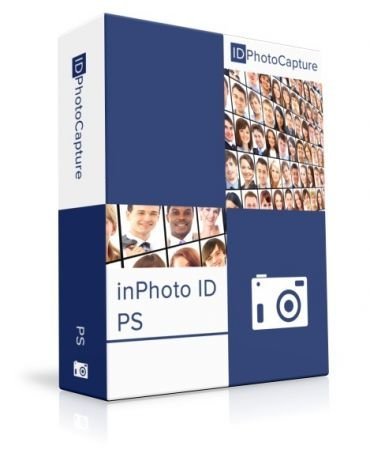
inPhoto ID PS 4.18.20 Multilingual
inPhoto ID PS 4.18.20 Multilingual | 107 MB | Language: Multilanguage
inPhoto ID PS is designed for automatic ID photo with Canon Powershot cameras. inPhoto ID PS provides camera control, live image preview, automatic face detection on live image, automatic face crop, image resizing and enhancement, capture, save or transfer to TWAIN applications. inPhoto ID PS software can work both as stand alone software and as TWAIN driver with all TWAIN compatible ID card applications (Incardex, Asure ID, ID Works, EPISuite, CardFive, ID Flow and others).
inPhoto ID PS features:
- Live image preview, and Image rotation.
- Automatic face detection on live image in the preview window.
- Face crop and enhancement after detection.
- Camera settings control from computer:
- Image export to the applications supporting TWAIN. Time lapse capture option.
- Save ID photo to file: the cropped photo is save to file on the computer disk. Time lapse capture option.
- Ability to work as TWAIN driver
- Ability to work as stand alone application.
- Save all settings to User profiles.
Live image preview, and Image rotation.
Live image preview provides an ability to control the photo quality before capture. All changes made to the Canon SLR camera settings have effect on the previewed photo immediately.
The camera focus is controlled automatically from within inPhoto ID PS.
Working with inPhoto ID PS the user can rotate the photo using Rotate right or Rotate left buttons in the right part of the software window. The rotated image will be captured to a TWAIN compatible application: any standard ID card software including Incardex, Asure ID, ID Works, CardFive, EPISuite, ID Flow, and other. The ability of automatic photo rotation is very useful for ID photo. When the camera is rotated vertically, the previewed image in the live image preview window has album orientation. It is not rotated automatically. Press Rotate right or Rotate left button, and the previewed image will be rotated to the portrait orientation as it is usually required for ID photo.
Automatic face detection on live image in the preview window.
The human face is automatically detected on the live preview image. When the face is found in the live image displayed in the preview window it is outlined by the yellow frame. The green frame outlines the image area to be cropped. The yellow frame / green frame areas ratio is set in inPhoto ID SLR options. If the face is located too close to the image frame and the area to be cropped is cut by the image border, the frame color will change from green to red.
Automatic face crop and enhancement.
After the image is captured the face area is cropped. Upon pressing the Capture to TWAIN button in the image preview window the Image Processing window will open. The Image Processing window provides an ability to crop the face area, and enhance the resulting image if necessary. The face area is automatically outlined by the yellow frame. The green frame outlines the image area to be cropped. The yellow frame / green frame ratio and position are adjusted by Zoom, Vertical Position, and Horizontal Position controls. The Size control is used to set the resulting image size.
If the face is located too close to the image frame and the area to be cropped is cut by the image border, the frame color will change from green to red. In this case the user has three options: ignore, modify the image frame, or press Back button and return back to the image preview window.
The cropped image can be enhanced. It is possible to adjust image brightness, contrast, gamma, and sharpness using the corresponding controls in the right part of the Image Processing window. It is also possible to resize the resulting image. Press Set button in the upper right part of the Image Processing window and set the resizing options (pixel size of the resulting image).
Camera settings control from PC.
Warning! With inPhoto ID SLR you can control limited camera settings important for ID photo application. Press Camera settings button in the right part of the software window to control all available camera settings.
Image export to the TWAIN applications.
inPhoto ID PS can be used as ID photo module with all standard ID card software supporting TWAIN. After the captured photo is automatically cropped in the Image Processing window it is automatically transferred to ID card management software supporting TWAIN (e.g. Incardex from Akond, ID Works and IDCentre from Datacard Group (USA), Asure ID from HID Global (USA), ID Flow from Jolly Technologies (USA), EPI Suite from ImageWare Systems (USA)) and inserted into the photo field. The exported photo is printed on a ready ID card or badge together with other personal information.
Save ID photo to file.
To capture ID photos and save them to disk press Capture to file button. The user can set up the folder to save image files. The Save file tab (Options dialog box) is used to define the save to file settings. It is possible to select the folder to save images to upon pressing Capture to file button and create separate folders for the year / month / day. Check Ask before saving, and you will be prompted to assign a name to the image file before saving to the specified folder.
Ability to work as TWAIN driver
If you use TWAIN compatible ID card software (e.g. Incardex, Asure ID, ID Works, EPISuite, ID Flow and others) you you can use inPhoto ID SLR as TWAIN driver and capture ID photos directly to your ID card software.
Ability to work as Stand Alone application
inPhoto ID PS can be used as stand alone application. If so the Capture to TWAIN option in the image preview section will be disabled.To capture images and save them to disk press Capture to file button. Working in stand alone mode you can use all inPhoto ID PS functions (live image preview, camera settings control, automatic face detection and crop, image capture and save, etc.) You can set up the folder on your PC to automatically save all captured ID photos.
User profiles
Once you select the best camera settings for your specific applications you can save these settings to a profile and use them easily later on without spending time on camera settings adjustment. Moreover, not only camera settings are saved to a profile. You can also save the image processing parameters, folder to save photos, image resolution and size settings. The system Admin can block the profile, and the users will not be able to change it, they will only be able to use it.
The Profile button is located in the software main window in its right part on the Control Panel. Click on the Profile button to get a list of all profiles available, and select the profile required. You will need just two mouse clicks to apply the necessary profile. The last profile used is remembered and loaded automatically when the software is started next time. If you are not planning to use profiles you can remove the Profile button from the Control Panel. The Profiles created are saved in the separate files and can be copied or backed up.
System Requirements:
- Windows XP, Windows Vista, Windows 7 (32 and 64bit), Windows 8 (32 and 64 bit), Windows 10
- Microsoft .NET Framework 3.5 Service Pack 1,
- One free USB 1.0 (or higher) port to connect Canon camera to PC. If the software is supplied with the USB dongle your computer shall have the second free USB port,
- Card reader connected to PC (or built-in),
Canon camera requirements:
- 64Mb - 32GB SD memory card,
- Canon camera shall be used in Automatic (A) or Program (P) mode.
Homepage -
DOWNLOAD LINKS:
inPhoto ID PS 4.18.20 Multilingual | 107 MB | Language: Multilanguage
inPhoto ID PS is designed for automatic ID photo with Canon Powershot cameras. inPhoto ID PS provides camera control, live image preview, automatic face detection on live image, automatic face crop, image resizing and enhancement, capture, save or transfer to TWAIN applications. inPhoto ID PS software can work both as stand alone software and as TWAIN driver with all TWAIN compatible ID card applications (Incardex, Asure ID, ID Works, EPISuite, CardFive, ID Flow and others).
inPhoto ID PS features:
- Live image preview, and Image rotation.
- Automatic face detection on live image in the preview window.
- Face crop and enhancement after detection.
- Camera settings control from computer:
- Image export to the applications supporting TWAIN. Time lapse capture option.
- Save ID photo to file: the cropped photo is save to file on the computer disk. Time lapse capture option.
- Ability to work as TWAIN driver
- Ability to work as stand alone application.
- Save all settings to User profiles.
Live image preview, and Image rotation.
Live image preview provides an ability to control the photo quality before capture. All changes made to the Canon SLR camera settings have effect on the previewed photo immediately.
The camera focus is controlled automatically from within inPhoto ID PS.
Working with inPhoto ID PS the user can rotate the photo using Rotate right or Rotate left buttons in the right part of the software window. The rotated image will be captured to a TWAIN compatible application: any standard ID card software including Incardex, Asure ID, ID Works, CardFive, EPISuite, ID Flow, and other. The ability of automatic photo rotation is very useful for ID photo. When the camera is rotated vertically, the previewed image in the live image preview window has album orientation. It is not rotated automatically. Press Rotate right or Rotate left button, and the previewed image will be rotated to the portrait orientation as it is usually required for ID photo.
Automatic face detection on live image in the preview window.
The human face is automatically detected on the live preview image. When the face is found in the live image displayed in the preview window it is outlined by the yellow frame. The green frame outlines the image area to be cropped. The yellow frame / green frame areas ratio is set in inPhoto ID SLR options. If the face is located too close to the image frame and the area to be cropped is cut by the image border, the frame color will change from green to red.
Automatic face crop and enhancement.
After the image is captured the face area is cropped. Upon pressing the Capture to TWAIN button in the image preview window the Image Processing window will open. The Image Processing window provides an ability to crop the face area, and enhance the resulting image if necessary. The face area is automatically outlined by the yellow frame. The green frame outlines the image area to be cropped. The yellow frame / green frame ratio and position are adjusted by Zoom, Vertical Position, and Horizontal Position controls. The Size control is used to set the resulting image size.
If the face is located too close to the image frame and the area to be cropped is cut by the image border, the frame color will change from green to red. In this case the user has three options: ignore, modify the image frame, or press Back button and return back to the image preview window.
The cropped image can be enhanced. It is possible to adjust image brightness, contrast, gamma, and sharpness using the corresponding controls in the right part of the Image Processing window. It is also possible to resize the resulting image. Press Set button in the upper right part of the Image Processing window and set the resizing options (pixel size of the resulting image).
Camera settings control from PC.
Warning! With inPhoto ID SLR you can control limited camera settings important for ID photo application. Press Camera settings button in the right part of the software window to control all available camera settings.
Image export to the TWAIN applications.
inPhoto ID PS can be used as ID photo module with all standard ID card software supporting TWAIN. After the captured photo is automatically cropped in the Image Processing window it is automatically transferred to ID card management software supporting TWAIN (e.g. Incardex from Akond, ID Works and IDCentre from Datacard Group (USA), Asure ID from HID Global (USA), ID Flow from Jolly Technologies (USA), EPI Suite from ImageWare Systems (USA)) and inserted into the photo field. The exported photo is printed on a ready ID card or badge together with other personal information.
Save ID photo to file.
To capture ID photos and save them to disk press Capture to file button. The user can set up the folder to save image files. The Save file tab (Options dialog box) is used to define the save to file settings. It is possible to select the folder to save images to upon pressing Capture to file button and create separate folders for the year / month / day. Check Ask before saving, and you will be prompted to assign a name to the image file before saving to the specified folder.
Ability to work as TWAIN driver
If you use TWAIN compatible ID card software (e.g. Incardex, Asure ID, ID Works, EPISuite, ID Flow and others) you you can use inPhoto ID SLR as TWAIN driver and capture ID photos directly to your ID card software.
Ability to work as Stand Alone application
inPhoto ID PS can be used as stand alone application. If so the Capture to TWAIN option in the image preview section will be disabled.To capture images and save them to disk press Capture to file button. Working in stand alone mode you can use all inPhoto ID PS functions (live image preview, camera settings control, automatic face detection and crop, image capture and save, etc.) You can set up the folder on your PC to automatically save all captured ID photos.
User profiles
Once you select the best camera settings for your specific applications you can save these settings to a profile and use them easily later on without spending time on camera settings adjustment. Moreover, not only camera settings are saved to a profile. You can also save the image processing parameters, folder to save photos, image resolution and size settings. The system Admin can block the profile, and the users will not be able to change it, they will only be able to use it.
The Profile button is located in the software main window in its right part on the Control Panel. Click on the Profile button to get a list of all profiles available, and select the profile required. You will need just two mouse clicks to apply the necessary profile. The last profile used is remembered and loaded automatically when the software is started next time. If you are not planning to use profiles you can remove the Profile button from the Control Panel. The Profiles created are saved in the separate files and can be copied or backed up.
System Requirements:
- Windows XP, Windows Vista, Windows 7 (32 and 64bit), Windows 8 (32 and 64 bit), Windows 10
- Microsoft .NET Framework 3.5 Service Pack 1,
- One free USB 1.0 (or higher) port to connect Canon camera to PC. If the software is supplied with the USB dongle your computer shall have the second free USB port,
- Card reader connected to PC (or built-in),
Canon camera requirements:
- 64Mb - 32GB SD memory card,
- Canon camera shall be used in Automatic (A) or Program (P) mode.
Homepage -
DOWNLOAD LINKS: