• Regeln für den Video-Bereich:

    In den Börsenbereich gehören nur Angebote die bereits den Allgemeinen Regeln entsprechen.

    Einteilung

    - Folgende Formate gehören in die angegeben Bereiche:
    - Filme: Encodierte Filme von BluRay, DVD, R5, TV, Screener sowie Telesyncs im Format DivX, XviD und x264.
    - DVD: Filme im Format DVD5, DVD9 und HD2DVD.
    - HD: Encodierte Filme mit der Auflösung 720p oder darüber von BluRay, DVD, R5, TV, Screener sowie Telesyncs im Format x264.
    - 3D: Encodierte Filme von BluRay, die in einem 3D Format vorliegen. Dies gilt auch für Dokus, Animation usw.
    - Serien: Cartoon/Zeichentrick, Anime, Tutorials, Dokumentationen, Konzerte/Musik, Sonstiges sind demnach in die entsprechenden Bereiche einzuordnen, auch wenn sie beispielsweise im High Definition-Format oder als DVD5/DVD9/HD2DVD vorliegen. Ausnahme 3D.
    - Bereich Englisch: Englische Releases gehören immer in diesen Bereich.
    - Bereich Talk: Der Bereich, in dem über die Releases diskutiert werden kann, darf, soll und erwünscht ist.


    Angebot/Beitrag erstellen

    - Ein Beitrag darf erst dann erstellt werden, wenn der Upload bei mindestens einem OCH komplett ist. Platzhalter sind untersagt.
    - Bei einem Scenerelease hat der Threadtitel ausschließlich aus dem originalen, unveränderten Releasenamen zu bestehen. Es dürfen keine Veränderungen wie z.B. Sterne, kleine Buchstaben o.ä. vorgenommen werden. Ausnahme Serienbörse:
    - Bei einem Sammelthread für eine Staffel entfällt aus dem Releasename natürlich der Name der Folge. Beispiel: Die Simpsons S21 German DVDRip XviD - ITG
    - Dementsprechend sind also u.a. verboten: Erweiterungen wie "Tipp", "empfehlenswert", "only", "reup", usw. / jegliche andere Zusatzinformation oder Ergänzung, welche nicht in obiger Beschreibung zu finden ist.

    Aufbau des Angebots und Threadtitel

    Der Titel nach folgendem Muster erstellt zu werden. <Name> [3D] [Staffel] [German] <Jahr> <Tonspur> [DL] [Auflösung] <Quelle> <Codec> - <Group>
    Beispiel: The Dark Knight German 2008 AC3 DVDRip XviD - iND
    Beispiel: The Dark Knight 2008 DTS DL BDRip x264 - iND
    Beispiel: The Dark Knight 2008 AC3 DL BDRip XviD - iND
    Beispiel: The Dark Knight German 2008 AC3 720p BluRay x264 iND
    Beispiel: The Dark Knight 2008 DTS DL 1080p BluRay x264 iND
    Beispiel: Die Simpsons S01 German AC3 DVDRip XviD iND
    Beispiel: Die Simpsons S20 German AC3 720p BluRay x264 iND
    Beispiel: Sword Art Online II Ger Sub 2014 AAC 1080p WEBRip x264 - peppermint
    Entsprechend sind also u.a. verboten: Sonderzeichen wie Klammern, Sterne, Ausrufezeichen, Unterstriche, Anführungszeichen / Erweiterungen wie "Tipp", "empfehlenswert", "only", "reup", usw. / jegliche andere Zusatzinformation oder Ergänzung, welche nicht in obiger Beschreibung zu finden ist
    Ausnahmen hiervon können in den Bereichen geregelt sein.

    Die Beiträge sollen wie folgt aufgebaut werden:
    Überschrift entspricht dem Threadtitel
    Cover
    kurze Inhaltsbeschreibung
    Format, Größe, Dauer sind gut lesbar für Downloader außerhalb des Spoilers zu vermerken
    Nfo sind immer Anzugeben und selbige immer im Spoiler in Textform.
    Sind keine Nfo vorhanden z.B. Eigenpublikationen, sind im Spoiler folgende Dateiinformationen zusätzlich anzugeben :
    Quelle
    Video (Auflösung und Bitrate)
    Ton (Sprache, Format und Bitrate der einzelnen Spuren)
    Untertitel (sofern vorhanden)
    Hosterangabe in Textform außerhalb eines Spoiler mit allen enthaltenen Hostern.
    Bei SD kann auf diese zusätzlichen Dateiinformationen verzichtet werden.

    Alle benötigten Passwörter sind, sofern vorhanden, in Textform im Angebot anzugeben.
    Spoiler im Spoiler mit Kommentaren :"Schon Bedankt?" sind unerwünscht.


    Releases

    - Sind Retail-Release verfügbar, sind alle anderen Variationen untersagt. Ausnahmen: Alle deutschen Retail-Release sind CUT, in diesem Fall sind dubbed UNCUT-Release zulässig.
    - Im Serien-Bereich gilt speziell: Wenn ein Retail vor Abschluss einer laufenden Staffel erscheint, darf diese Staffel noch zu Ende gebracht werden.62
    - Gleiche Releases sind unbedingt zusammenzufassen. Das bedeutet, es ist zwingend erforderlich, vor dem Erstellen eines Themas per Suchfunktion zu überprüfen, ob bereits ein Beitrag mit demselben Release besteht. Ist dies der Fall, ist der bereits vorhandene Beitrag zu verwenden.
    - P2P und Scene Releases dürfen nicht verändert oder gar unter einem iND Tag eingestellt werden.


    Support, Diskussionen und Suche

    - Supportanfragen sind entweder per PN oder im Bereich Talk zu stellen.
    - Diskussionen und Bewertungen sind im Talk Bereich zu führen. Fragen an die Uploader haben ausschließlich via PN zu erfolgen, und sind in den Angeboten untersagt.
    - Anfragen zu Upload-Wünschen sind nur im Bereich Suche Video erlaubt. Antworten dürfen nur auf Angebote von MyBoerse.bz verlinkt werden.


    Verbote

    - Untersagt sind mehrere Formate in einem einzigen Angebotsthread, wie beispielsweise das gleichzeitige Anbieten von DivX/XviD, 720p und 1080p in einem Thread. Pro Format, Release und Auflösung ist ein eigener Thread zu eröffnen.
    - Grundsätzlich ebenso verboten sind Dupes. Uploader haben sich an geeigneter Stelle darüber zu informieren, ob es sich bei einem Release um ein Dupe handelt.
    - Gefakte, nur teilweise lauffähige oder unvollständige Angebote sind untersagt. Dies gilt auch für eigene Publikationen, die augenscheinlich nicht selbst von z.B. einer DVD gerippt wurden. Laufende Serien, bei denen noch nicht alle Folgen verfügbar sind, dürfen erstellt und regelmäßig geupdatet werden.
    - Untersagt sind Angebote, welche nur und ausschließlich in einer anderen Sprache als deutsch oder englisch vorliegen. Ausnahmen sind VORHER mit den Moderatoren zu klären.


    Verstoß gegen die Regeln

    - Angebote oder Beiträge, die gegen die Forenregeln verstoßen, sind über den "Melden"-Button im Beitrag zu melden.
  • Bitte registriere dich zunächst um Beiträge zu verfassen und externe Links aufzurufen.

++ Premium IPTV ++ 7000 Live Sender ++ UHD Qualität ++ Mediathek mit 18.000 Inhalten ++


VenneTV


Englische Tutorials

The Absolute Beginners Guide to Cyber Security Part 3

0072076a4qj4a.jpg


The Absolute Beginners Guide to Cyber Security Part 3
Video: .mp4 (1280x720, 30 fps(r)) | Audio: aac, 48000 Hz, 2ch | Size: 907 MB
Genre: eLearning Video | Duration: 5 lectures (2h 6m) | Language: English

Maltego Tool Demo, Cyber kill chain methodology, Security attack vectors & Phishing techniques


What you'll learn

You will start using Maltego Tool after you go through a demo of the Maltego community edition 4.2.4.
You will feel confident and comfortable with cyber kill chain methodology and how a traditional kill chain model works: recon,weaponize, deliver, exploit, install, c2, actions.
You will build your capability in information security attack vectors, phishing techniques, whaling and phishing mitigation.
You will be able to explain on your own the types of ransomwares, how crypto ransomware works and will go through a real world example of a ransomware attack on the Bristol Airport Screens.
You can formulate various mitigation strategies, phishing & firewalls, intrusion detection and prevention systems.
You can give insightful talks on zero-day exploit, malware and its types, man in the middle (mitm) attack and can get conversant with web application security.

Requirements

You should have completed three previous courses, this course is a continuation of the previous courses: a) The Absolute Beginners Guide to Cyber Security and Hacking b)The Absolute Beginners Guide to Cyber Security Part 1 c)The Absolute Beginners Guide to Hacking Part 2


Description

Students will go through a demo of the maltego community edition 4.2.4, they will gain insights on cyber kill chain methodology and how a traditional kill chain model works: recon,weaponize, deliver, exploit, install, c2, actions.

Students will build their capability in information security attack vectors, phishing techniques, whaling and phishing mitigation. They will understand the types of ransom-wares, how crypto ransomware works, they will go through a real world example of a ransomware attack on the Bristol airport screens.

Students will understand the various mitigation strategies, phishing & firewalls, intrusion detection and prevention systems. They will gain knowledge on zero-day exploit, malware and its types, man in the middle (mitm) attack and web application security.


Who this course is for:

Cyber Security Students,IT Security Enthusiasts, Those who are interested in a career in cyber security and ethical hacking domain
This course is for Beginners and not for advanced audience. Hence the faculty explains each concept in detail and demonstrates with relevant tools where required.

0072076bpykpa.jpeg


Stress & Anxiety Management | Guided Mindfulness Meditation

00800553fzkiv.jpg


Stress & Anxiety Management | Guided Mindfulness Meditation
Duration: 7h 38m | .MP4 1280x720, 30 fps(r) | AAC, 44100 Hz, 2ch | 8.19 GB
Genre: eLearning | Language: English

Learn How To Use Professional Guided Mindfulness Meditation For Individual Stress Management & Anxiety Management!


What you'll learn
. How to overcome anxiety!
. How to use guided mindfulness meditation to reduce your stresslevel!
. How to calm down & relax!
. How to use additional meditations to manage your anxiety individually!
. How to balance your self with the help of mindfulness meditation!
. How to manage your stress so that you are more focused and sleep better!

Requirements
No Prerequisites

Description
"Mindfulness means being awake. It means knowing what you are doing." - Jon Kabat-Zinn

_________________________________________

Hello and welcome to my new course "Stress & Anxiety Management | Guided Mindfulness Meditation" :)

Learn How To Use Professional Guided Mindfulness Meditation For Individual Stress Management & Anxiety Management!

_________________________________________

ARE YOU INTERESTED TO MANAGE YOUR STRESS & ANXIETY?

_________________________________________

I am happy to welcome you to this course!

You are interested in the topic of How to meditate with mindfulness for stress management & anxiety management, you are looking for an easy guideline that is giving you a hands-on solution in terms of mindfulness meditation?

And you would like to be inspired with practical input with the topic "Learn How To Use Professional Guided Mindfulness Meditation For Individual Stress Management & Anxiety Management!?"

- If that is the case, then THIS COURSE is the right one for you!

_________________________________________

WHAT IS THE BASIC CONCEPT OF THIS COURSE?

_________________________________________

MINDFULNESS MEDITATION can help you to calmly anticipate the inevitable coming and going of thoughts, emotions, sensations.

The simple meaning of Mindfulness is 'remembering to be aware', so it helps us to observe and learn how our mind works. A good way of describing MINDFULNESS MEDITATION is that the deliberate act of paying attention to the present moment, free of the judgement.

This brings you in a mode of relaxation, balance and inner peace.

The positive effects of MINDFULNESS MEDITATION on mental and overall health are well documented and backed up by hundreds of scientific studies.

In the far east the practical value of MINDFULNESS MEDITATION is known for more than 2000 years, as it is taught in the context of Buddhism. As a non-sectarian philosophy MINDFULNESS MEDITATION is open to all people interested - regardless of their religion or background.

- If that is interesting for you, then THIS COURSE is the right one for you!

_________________________________________

IF YOU WANT TO .

_________________________________________

MANAGE YOUR ANXIETY & STRESS!

CALM DOWN, RELAX AND BALANCE YOURSELF!

GET ACCESS TO ADDITIONAL RELAXATION MUSIC, NATURE SOUNDS & GUIDED MEDITATIONS!

- then THIS COURSE Is the right one for you!

_________________________________________

WHO IS TEACHING YOU?

_________________________________________

The author, Kevin Kockot has a Master of Arts Degree (M.A.) in Prevention & Health Promotion.

He was an online content creator for years in the field of health, healing and relaxation.

He teaches thousands of students on several platforms, including Udemy, Insight Timer and Skillshare.

He worked as an entrepreneur where I give lectures and seminars on topics of prevention and health promotion. For example: He is giving seminars on the topic of relaxation and stress management regularly.

So he was sharing his information to hundreds of people each year on the topics mentioned. Meditation can also be a way to relax, but it is much more!

_______________________________

WHAT IS THE BASIC IDEA OF THIS COURSE?

_______________________________

Several working hours were going into the preparation of this content, that I made for everyone interested to find out more about "Stress & Anxiety Management | Guided Mindfulness Meditation"!

My goal is to help you living a healthy and self-determined life!

I am convinced that meditation can be a great tool to reach that - that is my motivation!

_______________________________

WHICH TOPICS CAN YOU EXPECT IN THIS COURSE?

_______________________________

1. INTRODUCTION | Introduction to this course

2. DEFINITION MEDITATION | What is Meditation?

3. DEFINITION MINDFULNESS | What is Mindfulness?

4. SCIENCE | Scientific studies that show the benefits of meditation

5. EMOTIONS & FEELINGS | How to control your emotions with the help of meditation

6. THOUGHTS | How to manage your thoughts during meditation

7. GUIDED MEDITATION | STRESS & ANXIETY MANAGEMENT

8. ADDITIONAL GUIDED MEDITATIONS | Practical instructions for meditation

9. MEDITATION SOUNDS | Sounds to relax & calm down

10. FAQ | Frequently asked questions about meditation

11. BONUS SECTION | Enter this section if you are curious to find out which present is waiting for you!

_______________________________

WHAT ARE YOU WAITING FOR?

_______________________________

You have nothing to loose! But a lot to learn about "Stress & Anxiety Management | Guided Mindfulness Meditation"!

Enroll now! New insights are waiting for you!

I am happy to meet you in this course! Kevin

_________________________________________

If you have the feeling something is missing - please feel free to contact me on Udemy anytime! I am happy to answer you add lectures based on your recommendations!

As you are my customer your happiness is my highest goal! :)

Please also give me feedback for this course!

That helps me as a course creator a lot to improve the course! :)

Thank you!

See you in the course! :)

Best regards,

Kevin

_______________________________

PS: Thanks to Erokia/JordanPowell - Sound Design Freesoundorg/people/Erokia/ (Commons Attribution 3.0)

PSPS: Here a list of scientifically proven benefits of meditation:


- "Clinicians should be aware that meditation programs can result in small to moderate reductions of multiple negative dimensions of psychological stress.

- JAMA Intern Med. 2014 Mar;174(3):357-68.

- "Increases in mindfulness were found to mediate the relationships between formal mindfulness practice and improvements in psychological functioning, suggesting that the practice of mindfulness meditation leads to increases in mindfulness, which in turn leads to symptom reduction and improved well-being."

- Jounal of Behavioral Medicine 31(1):23-33

- "These results suggest that mindfulness training may improve attention-related behavioral responses by enhancing functioning of specific subcomponents of attention."

- Cognitive, Affective, & Behauvioral Neuroscience June 2007, Volume 7, Issue 2 pp 109-119

- "Increasing evidence shows that mindfulness meditation, delivered either via MBSR or MBTI, can be successfully used for the treatment of insomnia with good patient acceptance and durable results."

- Curr Opin Pulm Med. 2015 Nov;21(6):547-52.

- "Taken together, these data indicate that meditation engages multiple brain mechanisms that alter the construction of the subjectively available pain experience from afferent information."

- J Neurosci. 2011 Apr 6; 31(14): 5540-5548


Who this course is for:
. People that want to know how to manage your stress so that you are more focused and sleep better!
. People that want to know how to balance your self with the help of mindfulness meditation!
. People that want to know how to use additional meditations to manage your anxiety individually!
. People that want to know how to calm down & relax!
. People that want to know how to use guided mindfulness meditation to reduce your stresslevel!
. People that want to know how to overcome anxiety!

More Info

00800554r4j0f.jpg


Simple Yoga for Stressful Times

0fuhszfshhidapjv7bveo8yknd.jpg


Simple Yoga for Stressful Times
Duration: 4h28m| Video: .MP4 1920x1080, 24 fps(r) | Audio: AAC, 48000 Hz, 2ch | Size: 6.36 GB
Genre: eLearning | Language: English + .srt + .vtt

These are truly wild and busy times that tend to wrap our bodies, minds and lives into perpetually tightening knots of stress and dis-ease. However, true freedom and ease are available to you.

You are invited, through any of the six classes in this series with Meg McCraken, to slow way down, take refuge, unwind the body, calm the mind, restore vitality, tap into deep internal wisdom and set your spirit free. Prepare to feel juicy in your body, tranquil in your mind, an overwhelming sense of abiding peace, and empowered to live the magnificent life of love that you were meant.

Homepage

simpleyogaforstressfu0rkm4.jpg


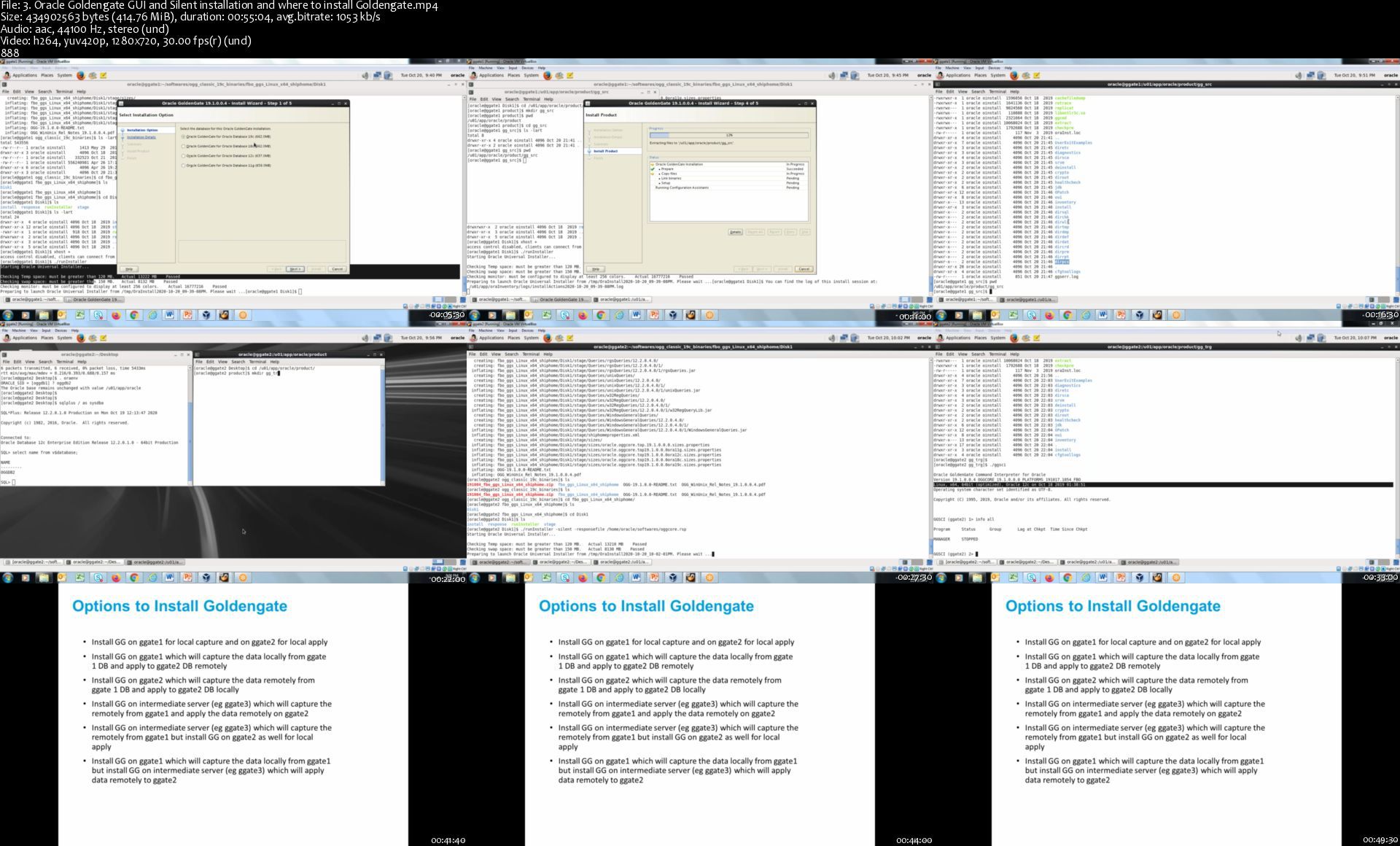
Oracle Goldengate 19c - Learn and Master Oracle Goldengate

absoisqbix6iowyu6ckocvjjd8.jpg


Oracle Goldengate 19c - Learn and Master Oracle Goldengate
MP4 | Video: h264, 1280x720 | Audio: AAC, 44.1 KHz, 2 Ch
Genre: eLearning | Language: English + .srt | Duration: 23 lectures (23h 12m) | Size: 6.41 GB

Professionally learn to design & implement Goldengate setup for ur customer & enterprise

What you'll learn:
Latest and Master Oracle Goldengate Version 19c with practicals and realtime activites
Install and Download Oracle GoldenGate 19c in realtime - Decide where to Install oracle Goldengate
Issue GGSCI commands.
What are the different architectures of Goldengate and how to setup Replication
Realtime Activities to setup Oracle Goldengate processes
Configure, start, stop and monitor Change Capture and Delivery processes in Realtime
Manage Extract trails, Remote trails and files using Data Pump and Replicat
How to design and analyse Oracle Goldengate for your projects - Things to consider and how to do seggregation
Prerequisites to download and setup Oracle Goldengate 19c
How to check Oracle Goldengate Certification matrix
Comprehend and Create Goldengate process parameter files
Different types of extracts and Replicats available for configuration in 19c
Oracle Goldengate how to perform Silent Installation
Setting up Oracle database and preparing source and target database for Goldengate Replication
Oracle Goldengate 19c New features
Oracle Goldengate 19c: Troubleshooting - OGG common issues troubleshooting,approach and strategy
Oracle Goldengate 19c: Tuning - Perform tuning of Manager, Extract and Replicate.
Identify what causes slow startups.
Monitor lag and statistics.
Oracle Goldengate Bidirectional Replication- Setup in realtime with considreations and things to keep in mind
Bidirectional Auto CDR - Oracle Goldengate new feature-
Diagnose and tune the Integrated Extract and Integrated Replicat and usage and benefits
Parallel Replicat - Oracle Goldengate new feature setup in realtime and usage and benefits
Heartbeat Table - Oracle Goldengate new feature setup in realtime and usage and benefits
Performane Matrix server(PMSRVR)- Oracle Goldengate new feature setup in realtime and usage and benefits
DDl Replication setup in realtime and usage and benefits
What is Supplemental logging - benefits and usage
Create Oracle Goldengate Credential Store
Goldengate architecture and Process data flow
Difference between Time since Checkpoint and Lag at Checkpoint
Goldengate process status and trail file switchover scenarios
How to autostart Goldengate processes realtime
Oracle Goldengate concepts and components
Oracle Goldengate Initial Load and File to Replicat initial load in realtime
Zero downtime upgradation and migration Strategy
Realtime usage and benefits to show how GG could be used as business intelligence tool along with informatica/ODI
Data Filteration and transformation
How to add new table into already running OGG configuration
Oracle Goldengatesecurity in realtime and how to perform trail file Encryption
How to read Goldengate trail files using Logdump utility in realtime
How to put description to Oracle Gldengate new and existing processes
Oracle Goldengate Macros,Obey Files and Include Files
Special sessions on project activites, how to HANDLE Collisions and different parameters
Enabling Command Line security

Requirements
Basic knowledge of database architecture
Familiarity with Linux Basics
Familiarity with SQl Basics


Description
Oracle Goldengate 19c is the latest version of Oracle Goldengate with lot of new features and advantages. The new features include robustness,security,performance and loads of new features. This course is complete course which starts from download and installation of Goldengate and covers advanced topics.

I created this course because I want to encourage you to learn and build career in Goldengate. I want you to be an expert in Goldengate. Contrary to what we are being told and even technical "gurus", learning Goldengate is not difficult. Its very easy. Creating this course has been a journey - a journey of delivering my knowledge I've carried about Goldengate for a long time. i want to emphasise learning Goldengate is easy and being a Goldengate expert is not that tough. it just need some guidance,mentorship and practise. This course has all ingredients to make you learn Goldengate and pave your path towards becoming Goldengate expert.

This is the course with realtime activity course focussing on practicals. This course will make you interview ready and job ready. My assurance is at the end of the training you will be able to setup, manage,troubleshoot,configure Goldengate on ur own as well as able to provide solutions related to Goldengate on ur own to ur customer. If you are starting you carerr in Goldengate or new to Goldengate this is the correct course to pursue. Also if u have done my 12c course still there are lot of new topics introduced with this training.It is highly recommended that you enroll for this course. this course has all the topics. This is the best course available related to Goldengate.

The course is designed to meet best learning experience. With each session of the course you get notes/recap of the session and what practical implementaion to follow prior to next session to get you ready. With the course you get step by step activity guides,whatsapp group support and for any technical issues I am just an email away.

The course Oracle GoldenGate 19c training will help you gain a strong foundation as well as expertise in implementing Oracle GoldenGate solutions. The course will deep dive into Oracle Goldengate architecture, parameters, mapping, transformations, and much more with real-time examples. You'll also gain hands-on expertise with the help of Oracle GoldenGate training. There are many new topics included in training:

1. Parallel Replicat

2. Bidirectional auto CDR

3. Heartbeat table

4. PMSRVR

5. Troubleshooting strategies

6. Goldengate security wallet

Who this course is for
Administrator
Database Administrator
Implementer
System Integrator
Systems Administrator
Analyst
Architect
Developer
DBAs
Goldengate Administrators
technologists

Homepage

3.oraclegoldengategui1rjvv.jpg


Motion Picture Film LUTs Pro

fh3cq9dxy7xyiv8dx1je0wpkr2.jpg


Motion Picture Film LUTs Pro
MP4 + Assets | Video: h264, yuv420p, 1920x1080 | Audio: aac, 44100 Hz | Duration: 10m | Size File: 5.53 GB
Genre: eLearning

Hi I'm Denver. Yeah I know like the city and no I wasn't born or conceived there :p In high school I borrowed my grandmother's digital camcorder (the first "MiniDV" camera to the market which technically belonged to the university where she taught) and made extreme sports videos with my friends. luckily we returned it in one piece. She still doesn't know what exactly I was using it for, shhh our little secret ;)
From that moment forward I knew that I was destined to create things with video to either capture experiences or tell powerful stories. When I discovered color grading I felt like it was a powerful extension of what I was capturing on camera. A way to enhance the story and one of the keys to making it look like a big Hollywood production.
And so I decided to pursue a career as a colorist but quickly found there weren't many resources or many people willing to help. It seemed like it was some sort of elitist club where you had pay your dues as an 'assistant' for a decade before you got a crack at the big fancy control surface.
Well the good news is that isn't the only way to do it and I did NOT do it that way. I learned that armed with the right techniques and some practice it can really go a long ways and where it took me years to discover some of the techniques you can start learning them today!
I've had the pleasure of working with various clients and fortune 500 companies, from national commercial spots to feature films, from the U.S. Ski Team to Facebook and Instagram. I've been able to help thousands enjoy what I love and you can trust my experience and my commitment to hold nothing back.
Do something great today and create what you love!

Homepage

quickstartvideolutgalluj81.jpg


Complete iOS Bootcamp

193205412dc37akoq.jpg


Complete iOS Bootcamp
Created by Amir J | Last updated 12/2020
Duration: 35.5 hours | 12 sections | 217 lectures | Video: 1280x720, 44 KHz | 17.8 GB
Genre: eLearning | Language: English + Sub

Beginner to Advanced iPhone / iPad App Development with Swift, Objective-C and Xcode.


What you'll learn
Make real-life iOS Applications using advanced and relevant technology.
Be prepared to take on any iOS development challenges on your own.
Create various iOS applications with advanced User Interfaces, graphics, and animations as well as proper backend and data persistency.
Be prepared for iOS jobs and technical interview questions.
Develop both 2D and 3D games (within iOS and XCode limitations)
Write complex Swift code
Write complex Objective-c Code
Know how to convert Swift and Objective-C code into each other
Be familiar with loads of external libraries
Have hundreds of tiny apps at your disposal to develop larger scale applications
Develop market-ready apps for the industry.
Use Google technologies such as Firebase and Google Maps
Learn how to use Mac Command Line
Know how to use Cocopods to search and implement a variety of libraries and frameworks
Create your own iOS frameworks
Show more
Show less

Requirements
Basic understanding of how computers work.Access to InternetYou would need a MAC OS Enabled computer. i.e. Mac, MacBook, MacBook Pro. iMac, etc.Free IDE that you'll get from Apple's Website (XCode)All programming and development matters will be covered in the course.Preparation for loads and loads of new information

Description
Hi and welcome to the Complete iOS Development Bootcamp. This course is designed to be a one-stop shop for you to become an iOS developer. In designing this course I had the following matters in mind:
Covering the most up-to-date technology and methods.
Delivering everything that you need to know to develop advanced iOS applications ready for the market.
Instilling the attitude of problem-solving and making sure you know how to find your way on your own by the end of the course.
Covering almost all programming libraries related to iOS.
Providing numerous online and offline content to support your learning journey.
Providing tens of exercises and assignments to ensure you have enough practice.
Constantly updating the course based on students' feedback.
Introducing all the best techniques of real developments.
Moving forward in the course and content complexity in a gradual manner that doesn't overwhelm new programmers.

4.swiftoptionalssqxktt.jpg


LiveLessons - CCNP Enterprise Advanced Routing ENARSI 300-410

pjy03y2uovwhjira59ybabijb9.jpg


LiveLessons - CCNP Enterprise Advanced Routing ENARSI 300-410
MP4 | Video: h264, 1280x720 | Audio: AAC, 44.1 KHz, 2 Ch
Genre: eLearning | Language: English | Duration: 106 Lessons (21h 55m) | Size: 10.5 GB

CCNP Enterprise Advanced Routing ENARSI 300-410 Complete Video Course is a comprehensive training course that brings Cisco ENARSI exam topics to life, making learning these foundational networking topics easy and fun.

Expert network engineers Brad Edgeworth and Brad Riapolov walk you through the full range of topics on the Cisco ENARSI exam, including Layer 3 routing, VPN technologies, infrastructure security, and infrastructure services. This unique product gives you the knowledge and skills you need to deploy and troubleshoot advanced routing technologies and services. It combines video instruction with live CLI configuration and troubleshooting demonstrations and provides you with hands-on lab activities. Practicing the lessons that you have learned with hands-on labs helps reinforce the concepts that are being taught. This course includes instructor-developed Cisco Modeling Labs (CML) topology files that correlate with the lab exercises that they demonstrate. This enables you to load the topology files into your CML instance and follow along with the instructor to ensure that you understand the concepts being taught.

Note: To download the CML files, go to and click the Downloads tab.

The videos and exercises contained in this product provide more than 20 hours of instruction. Modules are divided into easy-to-digest lessons and sublessons. Designed to take you inside advanced routing concepts in a unique and interactive way, CCNP Enterprise Advanced Routing ENARSI 300-410 Complete Video Course is guaranteed to help you master the foundational networking topics that will help you succeed on the exam and on the job.

About the Instructors

Brad Edgeworth, CCIE No.31574 (R&S and SP), is a systems architect at Cisco Systems. Brad is a distinguished speaker at Cisco Live, where he has presented on various topics. Before joining Cisco, Brad worked as a network architect and consultant for various Fortune 500 companies. Brad's expertise is based on enterprise and service provider environments, with an emphasis on architectural and operational simplicity. Brad holds a bachelor of arts degree in computer systems management from St. Edward's University in Austin, Texas. Brad can be found on Twitter as @BradEdgeworth.

Brad Riapolov, CCIE No. 18921 (R&S), is a technical solutions architect at Cisco Systems. Before joining Cisco in 2008, Brad designed and operated innovative networking solutions for various Fortune 500 companies. With 20 years of diverse background in successfully implementing technical campaigns, Brad's refreshing no-nonsense approach to Enterprise, Industrial, and Mobility Networking has earned him a credible reputation among customers and peers.

Skill Level

Intermediate Learn How To Configure and Troubleshoot
OSPF
EIGRP
BGP
Route manipulation
Route redistribution
MPLS
DMVPN
IPv6 first-hop security
Cisco router security
Infrastructure security and services
SNMP
DHCP
NetFlow
Cisco DNA Center Assurance
Who Should Take This Course
Anyone interested in obtaining their Cisco Certified Network Professional Enterprise certification (CCNP Enterprise) or CCNP Enterprise Advanced Routing specialty certification
Enterprise network engineers, system engineers, system administrators, and network administrators interested in configuring and troubleshooting advanced routing technologies and services
Course Requirements

Before taking this course, you should have foundational knowledge equivalent to the concepts covered in the CCNA 200-301 and CCNP Enterprise Core ENCOR 350-401 exams, including
General understanding of network fundamentals
Basic knowledge of how to implement LANs
General understanding of how to manage network devices
General understanding of how to secure network devices
Basic knowledge of network automation

506.3regularexpressiouxklz.jpg


Adobe Photoshop - Up to Speed

008005ac4ij4h.jpg


Adobe Photoshop - Up to Speed
Duration: 11h 26m | .MP4 1280x720, 30 fps(r) | AAC, 44100Hz, 2ch | 5.03 GB
Genre: eLearning | Language: English

Edit and Manage Images Like a Pro with Adobe Photoshop


What you'll learn
Adobe Photoshop
How to edit images using Adobe Photoshop
Requirements
Be familiar with Mac or Windows operating system

Description
Welcome to Adobe Photoshop Up to Speed!

This course helps you to get up and running quickly with Apple's powerful photo editing and management system, which comes bundled with every Mac computer and Apple device.

This handy step-by-step class starts from scratch, starting with basics such as getting your images into Photoshop and then moving on to more advanced features designed to help you to become more productive more quickly.

In no time at all you'll be navigating the Photoshop interface, editing and creating Photoshop documents like a pro. You'll delve into working with layers and layer mask; creating selections; adjusting image exposure, clarity, vibrance and saturation; removing haze from images; adjusting shadows and highlights; changing color and adjusting white balance; removing items from photos using Content-Aware technology; using handy tools such as the Adjustment Brush, Graduated Filter and Range Masking tools; cropping and straightening images; fixing perspective problems; creating panoramas and merging photos using HDR; and much more. You'll learn about Photoshop's most popular and handiest tools allowing you to create some truly amazing images.

Who is this course for?

This course was created for people new to image editing as well as well-seasoned photographers and designers looking to learn Adobe's powerful image editing application. This course will also be helpful for those coming from a previous version of Apple Photos or those looking to delve more deeply into the Photos application.

What does this course include?

Step-by-step instructional videos that are easy to follow

Downloadable lesson files allowing you to follow along with the instructor

Support for any questions you may have

What You'll Learn:

The Photoshop Environment. You'll learn how to navigate the Photoshop interface and work with the various panels in the application, how to use the Tools panel, how to create and save Photoshop documents and how to use Photoshop Zoom Tool and Navigator p;anel.

Working with Color and Painting: Next, we'll take a look at the methods of working with color in Photoshop. Change modify color using the Color Picker, the Color Panel and the Swatches panel. You'll also use the Brush tool, the Paint Bucket tool, the Gradient tool and the Eye dropper tool to change the color in a document.

Editing Tools: Then, we'll begin working with some of Photoshop's editing tools, such as the Magic Eraser and Background Eraser Tools, the Clone Stamp and Pattern Stamp Tool, and the Healing Brush and Spot Healing Brush Tools. You'll lighten and darken images using the Dodge and Burn tools and the Sponge Tool. You'll also learn how to repair images and remove items from photos using Adobe's Content-Aware technology.

Working with Selections: In this section, we'll begin working with some of Photoshop's selection tools, which allow you to select an area of an image for editing. We'll work with the Marquee and the Lasso tools, the Magic Wand tool, the Crop Tool as well as the Quick Selection Tool. You'll also learn how to feather and modify selections, make selections by color range and focus area and even save selections so you can use them again in the future.

Working with Selections. Next, we'll drive into photo editing beginning with quick photo adjustments. You'll then learn how to navigate Edit mode where you'll start by applying a variety of filters to your images. You'll learn how to adjust image exposure, contrast and clarity as well as tweak the vibrance and saturation of your photos. We'll discuss how to adjust the blacks and whites, and how to remove blemishes, dust, sensor dots or unwanted items from your photos using the Retouch tool. We'll also go in-depth working with Color in which you'll learn how to set the white balance in an image as well as how to change color using the Selective Color slider. To help you fix those pesky image problems, you'll learn how to crop and straighten photos, remove spots and other image imperfections, fix red-eye and even rotate images.

Working with Layers: We'll then move on to working with one of Photoshop's most powerful feature: Layers. Together, we'll create, select, delete, link, merge and hide layers as well as modify layer opacity and lock layers from editing. Additionally, you'll learn how to add adjustment layers, fill layers and how to align layer contents. You'll color code layers, rename layers, create layer comps and even auto-blend layer contents

Adjusting Images: In this section, we'll begin adjusting images. We'll resize image, scale and rotate them, skew and warp them, adjust image distortion and perspective, replace color in a photo and even convert a photo to black & white. We'll then work with Photoshop tools to adjust the brightness, contrast, hue, saturation, shadows, highlights and the color balance in a photo. We'll also take a look-see at some of Photoshop's more advanced photo editing tools such as Curves and Levels.

Using Type: Next, you'll learn how to add text to your Photoshop documents using type tools. Together, we'll add type to documents, format characters, format paragraphs, warp text and create paragraph type.

Using Filters: Next, we're then going to spend a good amount of time learning how to add special effects to your images using Photoshop's extensive Filters. We'll start out by using some common filters such as the Blur filters, Brush filters, Noise filters, Shake reduction filters and Sharpen filters. We'll then move on to some of the more unusual filters such as the Render filters, Stylize filters, Texture filters and Sketch filters. We'll also look at the highly versatile Liquify tools with which you can push, pull, rotate, pucker and bloat areas of your image, creating some quite interesting effects.

Channels and Masks: Then, we'll work a bit with Channels and Masks. You'll learn how to save a selection as a Channel and load a Channel as a selection. We'll then spend a couple of videos working with Channel Masks. You'll learn how to create them, how to reshape them and how to use them to blend images.

Productivity Tools: We're then going to change course a bit and look at some of Photoshop's productivity tools. We'll add free floating text to our documents using the Notes feature, carry out an automated sequence of steps using Actions, apply actions to all of the files in a specific folder, as well as rename all of the files in a folder. Additionally, we'll use guides, grids and rulers to help us align the objects on our document and we'll work with quickly exporting our Photoshop files to a variety of different formats and dimensions.

Editing Images with Camera Raw: Lastly, we're going to take a deep-dive into Adobe Camera Raw, a filter for post-processing photos which is organized into a logical and intuitive photo editing workflow so you'll always know where to begin. While using Camera raw, you'll with some basic adjustments such as lightening or darkening your images, adjusting contrast and clarity to add some pop to your photos and adjust and even change the color in your photos. You'll learn how to fix image problems and issues by cropping, removing spots and other unwanted items from your photos, fixing white balance problems and correcting perspective problems. You'll learn how to take average photos and turn them into something truly impressive by using Camera Raw's advanced tools and brushes. You'll also learn how to create some professionally looking effects and add stunning finishing touches to your photos.


By the end of this course, you'll be editing your images like a pro, allowing you to effectively and quickly move through your photography or design workflow with confidence.

I'm also here every step along the way for you so don't hesitate to ask me any questions related to Photoshop or to the course content that come up as you journey through the course. You can post your question in the course or fire me off a direct message. Also, let me know if there's any way I can improve this course.

Are you ready to begin your Adobe Photoshop journey? Then, let's get started!

- Roger


Who this course is for:
Beginning to intermediate students who wish to learn how to edit and post-process images

008005aba2joj.jpg


Lynda - Deke's Techniques (001-953) Update 2011-2020

9gqu1rict8ye0hmj0nst280kvz.jpg


Lynda - Deke's Techniques (001-953) Update 2011-2020
Deke McClelland | Duration: 154h 29m | Video: H264 1280x720 | Audio: AAC 44,1 kHz 2ch | 52,79 GB | Language: English

This course is a collection of short Photoshop and Illustrator projects and creative effects that can be completed in ten minutes or less. The series is taught by computer graphics guru Deke McClelland, and presented in his signature step-by-step style. The intent is to reveal how various Photoshop and Illustrator features can be combined and leveraged in real-world examples so that they can be applied to creative projects right away.

Content
001 Creating ice type 002 Branding type on a texture
003 Creating an image-branding machine
004 Capturing effects with layer comps
005 Rendering type in gold
006 Creating a hammered metal background
007 Creating heavy metal type
008 Creating a molten letter effect
009 Setting type on fire
010 Using an anti-edge mask
011 Blending textures onto a face
012 Rendering a face as a cave painting
013 Creating a reflection in shattered glass
014 Creating a face in a tree
015 Building a synthetic star field
016 Making 3D type with Repoussé
017 Casting 3D shadows and reflections
018 Adjusting 3D light sources
019 Masking highlights and shadows
020 Masking glass
021 High key high contrast
022 Simulating sub-pixel rendering
023 Fixing chromatic aberrations in Photoshop
024 Fixing chromatic aberrations in Camera Raw
025 Correcting red-eye like a pro
026 Turning a photo into an ink drawing
027 Turning a photo into a pencil sketch
028 Creating a seamlessly repeating pattern
029 Repairing seams in a repeating pattern
030 Creating a 3D pie chart
031 Splitting and modifying 3D meshes
032 Using the Ground Plane Shadow Catcher
033 Creating a talk show-style curtain
034 Assembling a flawless panorama
035 Removing people with image stacks
036 Creative stacking with Maximum and Range
037 Creating synthetic wood grain
038 Making slats of uniquely textured wood
039 Kerning within a single character
040 Creating a raised bevel effect
041 Putting wings on a horse
042 Creating a classic heart in Illustrator
043 Glossing up a heart in Photoshop
044 Shooting and assembling a stereoscopic photo
045 Extending 3D beyond the screen plane
046 Adding stereo 3D text and shapes
047 Tilting text and shapes toward the viewer
048 Creating a shooting star in Illustrator
049 Using blends to draw path outlines
050 Inventing custom starbursts
051 Making a fictional creature
052 Transforming a creature into a monster
053 Capturing a monster in motion
054 Changing the color of a car
055 Painting a colorful car black
056 Coloring the stripes on a zebra
057 Drawing trendy swirls in Illustrator
058 Creating variable-width and brushed swirls
059 Drawing trendy ornaments in Illustrator
060 Designing a magically updating pattern
061 Automatically collapsing a selection
062 Adding a magnifying glass into a design
063 Healing one eye onto another
064 Creating a giant command key
065 Drawing common symbols part 1
066 Drawing common symbols part 2
067 Filtering images with Camera Raw
068 Creating a vivid HDR effect
069 Creating an ambigram in Illustrator
070 Making a two-word ambigram
071 Drawing a Halloween scareflake
072 Creating true clones in Illustrator
073 Taking your scareflakes into Photoshop
074 Making a faux HDR image in Lab
075 Turning a guy into a zombie
076 Miniaturizing the world in Photoshop
077 Creating a synthetic rainbow
078 Casting an artificial shadow from a layer
079 Rendering a portrait in type
080 Rendering a portrait in tile patterns
081 Rotating a pattern layer in Photoshop
082 Tracing an image with path outlines
083 Turning path outlines into a vector mask
084 Drawing rays of light in Photoshop
085 Drawing concentric glow rings
086 Designing an Indiana Jones-style logo
087 Achieving mitered corners in Photoshop
088 Masking with Blunt Instruments in Photoshop
089 Creating a stained-glass ornament
090 Designing a stained-glass window
091 Removing people from a photo
092 Masking people back into a photo
093 Hand-painting a mask
094 Masking a real-life shadow
095 Turning a photo into line art
096 Adding a crosshatch shading pattern
097 Creating type that inverts anything behind it
098 Creating auto-inverting line art
099 Creating movie poster credits
100 Creating a dual-focus hybrid image
101 Adding text to a hybrid composition
102 Drawing with the reshape tool
103 Hand-drawing a really great letter
104 Creating a vanity frame
105 Adding a frame to a photograph
106 Drawing a highly graphic explosion with Illustrator
107 Drawing a Ninja Turtle nose
108 Mapping a dog face onto a duck
109 Putting a tongue on a duck
110 Making synthetic lightning in Photoshop
111 Creating a driving rain effect in Photoshop
112 Designing a railroad track
113 Bending the railroad track around curves
114 Creating a Star Wars hologram effect
115 Creating leafy letters
116 Creating topiary type
117 Creating type in grass
118 Rendering type in smoke
119 Rendering type in brushed metal
120 Adding brushed copper effect
121 Reflecting type in water
122 Reflecting water back into type
123 Joining type to a circle
124 Making flared type on a circle
125 Making a person emerge from water
126 Creating progressive water ripples
127 Creating an upside-down face effect
128 Achieving silky smooth skin with retouching
129 Pearly white teeth
130 Head-shrinking
131 Getting a big head
132 Adding a photographic texture to vector type
133 Adding strokes in back of photo type
134 Adding a border to an image in Illustrator
135 Two ways to crop in Illustrator
136 Inventing a 3D temple with a depth map
137 Drawing a 3D object with Curves
138 Creating a superhero shield in Illustrator
139 Turning Illustrator paths into Photoshop shapes
140 Creating a photorealistic superhero shield
141 Pimping your ride in Photoshop
142 Masking and blackening a car
143 Drawing a multi-part vector mask
144 Masking and painting a shadow
145 Integrating blades of grass into tires
146 Making a (ridiculously) dramatic sky
147 Adding flame stripes to a car
148 Creating interlocking octagons in Illustrator
149 Hand-coloring line art
150 Creating a custom wave pattern
151 Simulating a screen print
152 Drawing a perfect linear spiral in Illustrator
153 Drawing a spiraling nautilus shell
154 Designing a hex pattern in Illustrator CS6
155 Making a hex pattern in Illustrator CS5 and earlier
156 Creating a Facebook cover in Photoshop
157 Matching a profile picture to your cover
158 Cloning yourself in Photoshop
159 Lighting the clone party
160 Hand-carving letters into wood
161 Creating a Spirograph-like pattern
162 Tracing scalloped gear teeth around a circle
163 Applying custom carve and shadow styles to type
164 Turning a pencil sketch into digital ink
165 Adding a graph-paper background
166 Creating a continuous single-line Spirograph
167 Scaling circles into complex patterns
168 Creating a money-like design
169 Attack of the killer pumpkin
170 Simulating a glowing Jack-o-lantern
171 The headless stranger in the mist
172 Creating 3D punched letters
173 Designing a double-wave line pattern
174 Assembling a seamless pattern brush
175 Creating a hand turkey in Photoshop
176 Creating a depth-of-field cast shadow
177 Creating a lustrous round jewel
178 Cutting and brushing light on a gem
179 Creating a shiny button with inset text
180 Creating a jaunty six-sided star
181 Interweaving star shapes and adding gradients
182 Casting shadows between interwoven shapes
183 Creating a Hobbit-like text effect
184 Enhancing a landscape photo in Camera Raw 7
185 Creating a custom 2013 calendar in Illustrator
186 Adding dates to a calendar using tables
187 Branding your calendar with a field of logos
188 Crafting an Infinity symbol to match a specific font
189 Op art experiment 1a- Inflated checkers
190 Op art experiment 1b- Rounded windows
191 Building a universal ISOTYPE man with strokes
192 Building a universal ISOTYPE woman with strokes
193 Drawing an ISOTYPE couple in love
194 Creating a Warhol-style silkscreen effect
195 Creating a series of Warhol-style variations
196 Adding Warhol-style background variations
197 Creating opaque colored shadows
198 Assembling multiple variations into a single comp
199 Creating a pattern of unique inset circles
200 Changing a static blended color scheme
201 Op art experiment 2a- Undulating pattern
202 Op art experiment 2b- Concentric rings
203 Developing a dramatic castle in Camera Raw
204 Artificially coloring a photo in Camera Raw
205 Creating an antique photo effect in Camera Raw
206 Adding a weathered old-photo frame effect
207 Drawing an Angry Birds-like character
208 Stroking an entire layer in Illustrator
209 Drawing a classic snarling cartoon face
210 Drawing a radiant, cheerful cartoon background
211 Stroking any kind of type in Illustrator
212 Creating synthetic water droplets
213 Simulating liquid reflections with effect
214 Simulating liquid refractions with a dmap
215 Creating an eye-catching splatter effect
216 Defringing purples and greens in Camera Raw 7
217 Making a danger sign more dangerous
218 Using texture and depth to add realism
219 Precisely aligning artwork to the bleed
220 Creating and importing a tracing template
221 Drawing a distinctive 2D video game character
222 Adding features to the face of a 2D character
223 Creating a vivid aura around an entire character
224 Adding variable-width strokes in Illustrator
225 Animating bird wings with Puppet Warp
226 Animating text by onion skinning in Photoshop
227 Creating an animated movie in Photoshop
228 Exporting an animation to QuickTime and GIF
229 Correcting an underwater photograph
230 Making a photo razor-sharp and porcelain-smooth
231 Reducing noise in a high-ISO shot with Camera Raw
232 Creating highly reflective sunglasses
233 Adding drama to an outdoor portrait shot
234 Creating volumetric forms with shape layers
235 Creating a bloodshot eye effect
236 Shading an image with shapes and layer masks
237 Creating fabric textures with pattern layers
238 Colorize any layer with Color Overlay
239 Turning a portrait into a dot drawing
240 Creating a full-color dot drawing
241 Drawing an orthogonal cube with the line tool
242 Creating a cube of differently colored cubes
243 Recreating the Creative Cloud Logo in Illustrator
244 Creating a psychedelic fabric texture
245 Turning psychedelic fabric into rock letters
246 Creating a more finely rendered dot drawing
247 Converting from RGB to CMYK via Multichannel
248 Creating printer-safe CMYK shadows
249 Creating bright, golden motion trails
250 Creating schematic art with grid
251 Drawing precisely aligned arrowhead
252 Adding arrowheads around a closed path
253 Drawing the Pen tool without touching the Pen tool
254 Merging frames for the best possible UAV photo
255 Retouching details in an aerial landscape
256 Editing a video and adding transitions in Photoshop
257 Importing the quadcopter crash sequences
258 Color correcting a video and adding a soundtrack
259 Adding precisely timed titles to your video
260 Hand-painting an image with a Wacom Cintiq
261 Blending the final false-color artwork
262 Creating a honeycomb pattern in Illustrator
263 Building up strokes to create 3D honeycomb
264 Turning yourself into a zombie
265 Enhancing an ambience environment for the undead
266 Creating dripping, gooey ghost letters
267 Turning type into gooey green slime
268 Creating heavy metal type (updated for Photoshop CS6 and CC)
269 Cleaning up a crummy product shot
270 Scaling and rotating photographic objects
271 Tracing a line drawing with uniform strokes
272 Coloring line art using Live Paint Bucket
273 Creating a pigture using shapes and letters
274 Integrating a cartoon into a photograph
275 Converting a photo into a Lichtenstein drawing
276 Adding bring Ben-Day dots and a talk balloon
277 Painting an eye using a custom brush
278 Painting and smoothing straight-sided brushstrokes
279 Simulating pressure with path outlines
280 Developing a 32-bit HDR image in Camera Raw
281 Converting from 32-bit to the more flexible 8-bit mode
282 Ringing in the New Year with dynamic effects in Illustrator
283 Dynamically transforming fills and strokes
284 Tracing an avatar from a photograph in Photoshop
285 Drawing a vector-based avatar in Illustrator
286 Coloring and shading your avatar
287 Exporting an illustration as a universally supported PNG file
288 Upsampling a layered composition with great results
289 Rebuilding a pattern at a higher resolution
290 Painting happy little trees
291 Shading and lighting the happy forest
292 Enlarging a low-res photograph in Photoshop
293 Enlarging a photo by tracing it in Illustrator
294 Mastering Exposure in Camera Raw
295 Super smooth and unflinchingly sharp
296 Deleting an inadvertent photo bomber
297 Correcting a distorted panorama
298 Rebuilding bad stitching in a panorama
299 Nondestructive dodge and burn
300 Blending a shadow into any background
301 Saving a PNG image with a translucent shadow
302 Cleaning up a smart phone photo
303 Using Photoshop 1.0
304 Creating your own Chinese seal (or chop)
305 Simulating hand lettering with art brushes
306 Adding texture to your hand stamp
307 Creating a black chop on red paper
308 Auto-hiding iconic panels in Photoshop
309 Creating a custom toolbox in Illustrator CC
310 Creating the perfect passport photo
311 Retouching your passport photo
312 Turning a photo into a giant mural
313 Enhancing the reality of your mural
314 Creating a 3D bump map
315 UV overlay and 3D bump paint
316 Using Lens Flare for good (not evil)
317 Using the Perspective Crop tool
318 Reducing real-world camera shake
319 Reducing glare in a photograph
320 Restoring repeating details
321 Integrating a detail captured with a phone
322 Blending two exposures of a single scene
323 Masking mountains away from sky
324 Creating a photographic caricature in Photoshop
325 Exaggerating facial features with Liquify
326 Masking a caricature against a new background
327 Shading and sharpening a caricature
328 Drawing a Möbius strip in Illustrator
329 Shading the Möbius strip with gradients
330 Adding twisting edges to the Möbius strip
331 Creating an impossible Penrose triangle
332 Shading the cubes in your Penrose triangle
333 Selectively converting a photo to black & white
334 Straightening and "uncropping" a photo
335 Restoring a missing photograph detail
336 Drawing a hand (clenched in a fist)
337 Cleaning up a sketch captured with a phone
338 Four hands united in brotherhood, solidarity, and teamwork
339 Swapping out colors in existing gradients in Illustrator
340 Select - Focus Area and the pseudo engraving effect
341 Integrating 3D art into a 2D scene in Photoshop
342 Creating a 3D shark in Photoshop
343 Creating a 3D doughnut in Illustrator
344 Creating a golden 3D ring in Illustrator
345 Mapping Elven runes (or text) onto a 3D ring
346 Hand-drawing custom-made letters in Illustrator
347 Drawing letters with curves and holes
348 Enhancing your hand-drawn text in Photoshop
349 Mixing a low-color photo with Camera Raw
350 Mixing a low-color photo with adjustment layers
351 Saving your effect as a color lookup table
352 Extracting a classic painting from its frame
353 Extracting that same painting nondestructively
354 Archiving and enhancing a child's art
355 Combining a child's art with a real classic
356 Developing the perfect sunset in Camera Raw
357 Lush landscapes- The real green is yellow
358 Painting away Camera Raw "Clarity halos"
359 Selectively sharpening a stressed photograph
360 Transforming yourself into a Dark Elf
361 Hand-masking the elf against a vivid background
362 Making the Dark Elf that much darker
363 Developing a photograph of The Joker
364 Carving expression lines into The Joker's face
365 Creating a campaign poster in Illustrator
366 Creating a Prohibition (or Universal No) symbol
367 Using Photoshop CC's new Flame Generator
368 Creating cool Flame Generator art
369 Setting type on fire with the Flame Generator
370 Blending synthetic flames with type
371 Creating secret-message type in Photoshop
372 Animating a continuously morphing message
373 Creating a piece of Minecraft-inspired art
374 Extruding your Minecraft art into 3D space
375 Adding a big-pixel, Minecraft background
376 Developing the perfect holiday portrait
377 Two ways to create center guides in Photoshop
378 A new way to create center guides in Photoshop CC
379 Two ways to create center guides in Illustrator
380 Clearing the list of recently used fonts in InDesign
381 Two ways to search fonts in InDesign CC
382 Drawing flowering vectors in Illustrator
383 Stroking the petals to create a lattice effect
384 Creating a flowering origami effect
385 Painting shapes with transitional gradients
386 Correcting the brightness and banding of a printed image
387 Further reducing banding with a gradient layer
388 Smoothing away noise with the Mean stack mode
389 Developing a sweetly romantic tropical island
390 Creating a Caribbean blue sea with Photo Filter
391 Creating letters chiseled into stone
392 Adding a chiseled border
393 Assembling MRI slices into a 3D volume
394 Assigning multiple strokes to gradient type in Illustrator
395 Filling in the gaps between stroked letters
396 Fragmenting a photo through ribbed glass
397 Applying a displacement map with the Glass filter
398 Infusing an image with vivid nightclub colors
399 Adding MDNA-inspired bands of color
400 Patching badly displaced edges
401 Styling type with a pattern of vertical lines
402 Reshaping letterforms to match the intervals of a pattern
403 Swapping one image for another with smart objects
404 Forging a million-dollar stamp in Photoshop
405 Masking graphic frames and natural edges
406 Matching a real-world paper texture
407 Casting multiple drop shadows in Photoshop
408 Developing an awesome angelfish in Camera Raw
409 Tweaking a fish photo to perfection
410 Assigning spot colors to a logo in Photoshop
411 Blending spot colors inside a logo
412 Exporting spot-color separations from Photoshop
413 Exporting spot-color separations from Illustrator
414 The latest and greatest 2015 Facebook image specifications
415 Creating the perfect Facebook cover photo 2015
416 Extending your profile picture into your Facebook cover photo
417 Preparing images for your Facebook timeline
418 Converting all corner points in a drawing to smooth points
419 Adding field blurs to a vector-based illustration
420 Great uses for Color and Gradient Overlay
421 Easter Island
422 Creating a string of pearls in Illustrator
423 Drawing a letter to match a dingbat font
424 Assembling an interior, vertical panorama
425 Developing a dark and stormy photo in Photoshop
426 Developing a dark and stormy photo in Lightroom
427 Sharpening your dark and stormy photo for print
428 Auto-blending multiple depths of field
429 Assigning multiple strokes in Photoshop CC 2015
430 Combining multiple drop shadows to create faux-3D type
431 Combining multiple Color and Gradient Overlay effects
432 Removing unwanted perspective from a photo
433 Correcting the perspective of a single image element
434 Extracting an unmodified photo from a Smart Object
435 Extracting a raw photo from a Smart Object
436 Orthogonal pattern 1- The boxed towers
437 Repeating a tile pattern Brick by Row
438 Refining the color scheme of your tile pattern
439 Orthogonal pattern 2- Which way is up-
440 Upping the number of colors in a dynamic pattern
441 Achieving real pointillism with the Pointillize filter
442 Adding Emboss to give your painting depth
443 Blending multiple motion photos
444 Creating a wildly colorful High Pass effect
445 Correct in Lab and leave a smooth histogram
446 Combining the best of Lab and Camera Raw
447 Wrapping a gradient around a circle in Illustrator
448 Blending gradients with the Saturation blend mode
449 Using the Join tool in Illustrator CC
450 Using Illustrator's Shape Builder tool
451 Wrapping text around a graphic in Illustrator
452 Curly quotes and the Smart Punctuation command
453 Creating the perfect smartphone home-lock screen
454 Creating a smartphone graphic in Photoshop
455 Islamic design 1- Flirting with geometric genius
456 Islamic design 2- The eight eight-pointed stars
457 Islamic design 3- Connecting the pieces
458 Islamic design 4- Completing the corners
459 Islamic design 5- Coloring and sculpting
460 Islamic design 6- Photoshopping the pattern
461 Creating a bat-faced moon in Photoshop
462 Cartoon bat 1- Drawing the head
463 Cartoon bat 2- Drawing the bodies
464 Cartooning the moon!
465 Changing a daytime scene to night
466 Lighting up the windows of a dark mansion
467 Adding a moon to a nighttime sky
468 Adding a ghost to your haunted mansion
469 Creating a custom Dual Brush in Photoshop
470 Adding texture to your custom brush
471 Framing a photo with a custom brush
472 Creating place cards for your holiday dinner
473 Tracing your guests with the new Pencil tool
474 Coloring your guests with the Live Paint Bucket
475 Drawing a custom coloring-book place card
476 Drawing a generic male place card
477 Coloring your cartoon place cards in Illustrator
478 Removing power lines from a photo
479 Turning a utility pole into a tree trunk
480 Creating candy cane type in Photoshop
481 The seamlessly repeating candy cane pattern
482 Adding snow to your holiday design
483 Making a little boy fly in Photoshop
484 Creating blast trails with Motion Blur
485 Masking clouds with the Quick Selection tool
486 Creating high-resolution ice type in Photoshop
487 Editing type inside a nested smart object
488 Introducing PixelSquid- 3D for 2D designers
489 Creating your own Jurassic Park in Photoshop
490 Lighting up a dinosaur's eyes and teeth
491 Combining Field Blur with a depth mask
492 Helping your dinosaur escape to the big city
493 War of the Worlds- The sun attacks!
494 Weaving tendrils of lightning into a cloud
495 Turning off Live Rectangle widgets in Illustrator CC
496 More Live Shapes- ellipses and polygons
497 Turning off the new CC Start screen
498 Correcting shadows with Dehaze
499 Creating an infrared-snow effect in Photoshop
500 Creating a custom angry emoji in Illustrator
501 Adjusting your emoji to match Apple's style
502 Exporting your emoji as a device-compatible PNG file
503 Elongating a snake in Photoshop
504 Blackening an animal to create a silhouette
505 Two ways to select a silhouette in Photoshop
506 Moving and scaling a selection outline
507 Auto-tracing a masterpiece in Illustrator
508 Drawing a dynamic atom symbol in Illustrator
509 Rotating your atom with electrons intact
510 Applying Knockout Group to a dynamic path
511 Solving the world's problems with Illustrator's Rasterize effect
512 Blending multiple shots to better frame a photo
513 Rebuilding an octopus's garden
514 Turning a logo into a star in Illustrator
515 Dressing up your logo star
516 Using chromatic-style fonts in Illustrator
517 Using chromatic-style fonts in Photoshop
518 Casting 3D font shadows in Illustrator
519 Creating a pattern in Adobe Capture
520 Bringing Capture patterns into Photoshop
521 Creating an authentic Möbius strip in Illustrator
522 Coloring the Möbius strip with Live Paint
523 Shading your authentic Möbius strip with gradients
524 Masking a Tilt-Shift landscape in Photoshop
525 Combining Multiple Group Photos
526 Introducing Adobe Photoshop Sketch
527 More fun with Adobe Sketch
528 Tracing a photograph in Adobe Sketch
529 Tracing facial features with the Ink Pen
530 Painting with the Blend and Combine modes
531 Lips, eyes, and specular highlights
532 Painting hair with Pencil and Marker Brush
533 Blending a photo with your Sketch art
534 Tweening a layer's position and opacity
535 Tweening new layers across existing frames
536 Turning the world upside-down in Photoshop
537 Zooming thru the universe with Photoshop
538 Turning a panorama into a tiny planet
539 Adding depth and shading to your tiny planet
540 Rendering a person in chrome
541 Creating a fiery blast in Photoshop
542 Rendering a person in liquid metal
543 Creating a better screen shot
544 Recording a screen shot action
545 Drawing a bacterium with Gradient Mesh
546 Drawing randomly waving pili (or hairs)
547 How Bézier curves really truly work
548 Drawing Bézier time and tangent lines
549 Drawing a complex network of lattice lines
550 How many dots can you see at once-
551 Creating a scintillating grid in Illustrator
552 The two-thirds rule of Bézier curves
553 Creating a classic neon sign in Illustrator
554 Adding real-world neon light fluctuations
555 Connecting neon letters with dark blockouts
556 Creating photorealistic neon in Photoshop
557 Photoshop CC's top-secret banana tool
558 Toast and transient witticisms (Easter eggs)
559 Creating a hovering head in Photoshop
560 Connecting head and neck with a grisly spine
561 Projecting simple shapes into 3D perspective
562 Creating an American flag in Photoshop
563 Creating a field of 50 evenly spaced stars
564 Designing an M.C. Escher-like tessellation
565 Completing your Escher-inspired creature
566 Making an M.C. Escher-inspired hex pattern
567 Designing matching pattern variations
568 Creating a Doctor Strange-like mirror world
569 Replacing one mirror world with others
570 Creating wildly purple supervillain eyes
571 Adding ominous crystallized skin texture
572 Creating embroidered type in Photoshop
573 Stitching the letters in a script font
574 Cheerful holiday trees in Photoshop CC
575 Lighting your holiday trees in Photoshop CC
576 Creating a two-way portrait in Photoshop CC
577 Quick-and-dirty chalk type in Photoshop
578 Creating spray-painted stencil type
579 Adding drips to your spray-paint type
580 Symbols and spaces in Illustrator CC 2017
581 The wacky world of live polygons
582 Creating custom arrowheads in Illustrator
583 Creating custom line caps in Illustrator
584 Creating tinted arrowheads in Illustrator
585 Designing multicolor arrowheads
586 Multicolor arrowheads emojis
587 Customizing a new document in Illustrator
588 Creating trendy Twirl art in Photoshop
589 Creating symmetrical Twirl art
590 Turning a face into a piece of Twirl art
591 Increasing the resolution of your Twirl art
592 Capturing a screen that can't be captured
593 Adding color and grid lines to a histogram
594 Creating an LCD screen effect in Photoshop
595 Mastering Adobe Illustrator 88
596 Fixing jagged Illustrator art in Photoshop
597 Fixing problems with an AI smart object
598 Center-stroking letters in Illustrator
599 Hand-drawing inline character strokes
600 Cropping inline strokes with an opacity mask
601 Oodles of differently angled screw heads
602 Creating dynamic inlines using Offset Path
603 Drawing a half circle in Keynote
604 Using the Pen tool in Keynote
605 Auto-stitching scanned artwork in Photoshop
606 Auto-trimming without clipping artwork
607 Creating crinkled paper with Clouds
608 Making your crinkled paper even crinklier
609 Bringing back Refine Mask in Photoshop CC
610 Power up with dekeKeys for Photoshop CC
611 Creating your own shortcuts in Photoshop
612 Every keyboard shortcut for Photoshop CC
613 Creating a multipage doc in Photoshop CC
614 Photoshop CC artboard tips and tricks
615 Exporting a multipage PDF from Photoshop CC
616 Seamless patterns with the Clouds filter
617 Photoshop Clouds pattern variations
618 Healing with a pattern in Photoshop
619 Creating a vector-based gradient mask in Photoshop
620 Creating a multicolor vignette in Photoshop
621 Excluding elements from your custom vignette
622 Masking like a pro with Photoshop's Pen tool
623 Contrast- bright image, dark background
624 Tattoo your face in Photoshop
625 Drawing tattoos with the Pen tool
626 Selecting and masking eyes in Photoshop
627 Selecting and masking ruby-red lips
628 Pasting Photoshop paths into Illustrator
629 Drawing a kern-perfect logo in Illustrator
630 More kern-perfect, now with overlap
631 The 2017 American Solar Eclipse
632 Smoothing out a noisy universe in Photoshop
633 Designing an intriguing cube logo
634 Stroking your logo with mitered corners
635 Turning an orthogonal cube into a pattern
636 Turning a photo into a Chuck Close effect
637 Making a seamless pattern of paint splotches
638 Imbuing your Chuck Close effect with color
639 Infusing more colors into the midtones
640 Creating a wrapped logo in Illustrator
641 Enhancing your wrapped logo
642 Creating a gently blanketed logo
643 Completing your gently blanketed logo
644 Modify a TIFF clipping path in Illustrator
645 Modify an EPS clipping path in Illustrator
646 The best way to mask an image in Illustrator
647 Dr. Frankenstein's monstrous emoji
648 Frankenstein's emoji's eyelids and brow
649 Frankenstein's emoji's rippling hair
650 Frankenstein's emoji's mouth and scar
651 Frankenstein's emoji's iconic neck bolts
652 Drawing HAL 9000 from 2001- A Space Odyssey
653 Adding realistic reflections to HAL's eye
654 Op art experiment 3a- Volumetric waves
655 Op art experiment 3b- Rolling windows
656 Create a concentric ring logo in Illustrator
657 Create an octagon of concentric rings
658 Automatically converting circles to diamonds
659 Drawing a perfect snowflake in Illustrator
660 Adding lines to your snowflake pattern
661 Enhancing a perfect snowflake in Photoshop
662 Editing a smart snowflake in Illustrator
663 Creating a gradient sunset in Photoshop
664 Simulate a total solar eclipse in Camera Raw
665 Celebrating the winter solstice at Carhenge
666 Adding a time lapse of partial eclipses
667 Oh Illustrator, where is your Control panel-
668 Downsizing the massive Properties panel
669 Customizing a QR code in Photoshop
670 Adding more color to your QR code
671 Coffer illusion and the hidden circles
672 Filling out the hidden circles illusion
673 Shading the panels in a Coffer illusion
674 Drawing a classic "café wall" illusion
675 Skewing your crazy café walls in Illustrator
676 Creating a "magical checkers" illusion
677 Swapping magical checkers for dots
678 Reversing the direction of your illusion
679 Decorating your illusion
680 Adding more and more gizmos
681 Connecting the gizmos wirelessly
682 Drawing a Wi-Fi symbol in Illustrator
683 Drawing the official Bluetooth logo
684 Introducing Trajan Color Concept
685 Trajan Color Concept in Illustrator CC
686 Using stylistic sets in Photoshop CC
687 Using stylistic sets in Illustrator CC
688 Creating gradient molecules in Photoshop
689 Sharpening your very soft molecules
690 Editing your smart-filtered molecules
691 Exploring regular molecule patterns
692 Blending opposing rows of colorful molecules
693 Sharpening molecules with High Pass
694 Creating shimmering cells in Illustrator
695 Turning regular hexagons into organic cells
696 Enhancing your organic cells in Photoshop
697 Making dead cells spring to life
698 Creating letters with accordion extrusions
699 Combining object blends with skews
700 Making one object blend cut through another
701 Making one object blend slice across another
702 Object blends and dynamic distortions in Illustrator
703 Another random distortion- Roughen
704 Dynamic warp distortions- Fish and Twist
705 Adding a dynamic background, part 1
706 Adding a dynamic background, part 2
707 "Quieting down" an overly elaborate design
708 The Marvel disintegration effect
709 Building up more flakes and ashes
710 Enhancing and masking your disintegration
711 Turning your flakes into dull, dead ash
712 Jogging your memory with the Note tool
713 Contour mapping with Distort - Displace
714 Contour map + gradient map
715 Contour map + arbitrary map
716 Riffing on a contour map in Photoshop
717 Smoothing out jagged contour lines
718 Contour mapping for cash in Photoshop
719 Infusing an image with the color of money
720 Simulating an adjustment layer in Illustrator
721 Drawing a stylish computer key
722 Spelling a word in computer keys
723 Creating a faux hedcut in Photoshop
724 Tracing outlines around your hedcut
725 Creating a full-color hedcut effect
726 Creating an E.T. moon in Photoshop
727 Adding a forest of trees for your E.T. moon
728 Combining the best of E.T. and Jurassic Park
729 Tracing vectors with a universal glow
730 Creative uses for Content-Aware Fill
731 Creating a porthole to a far-away galaxy
732 Enhancing your crazy space porthole
733 Creating a galaxy of rushing stars
734 Using the Puppet Warp tool in Illustrator CC
735 Illustrator Puppet Warp tips and tricks
736 Puppet-Warping very complicated selections
737 Shift-P for Puppet Warp!
738 Introducing the Pentagon Patterns
739 Types 1-5- The Reinhardt pentagons
740 Types 6-8- The Kershner pentagons
741 Type 10- The James pentagon
742 Types 9, 11, 12, and 13- The Rice pentagons
743 Type 14- The Stein pentagon
744 Creating a type 15 pentagon in Illustrator
745 Tessellating your type 15 pentagon
746 Expressing pentagons as proper tile patterns
747 Applying and modifying a tile pattern
748 Combining complementary patterns
749 Combining a tile pattern with a photograph
750 Adjusting a tile pattern to fit its photo
751 Creating a creepy Candy Keeper in Photoshop
752 Enhancing the Candy Keeper text
753 Creating an old monster movie poster
754 Adding a monochrome halftone effect
755 Enhancing a special word, such as "Haunted"
756 Cheating letters into an ancient border
757 Naming an adjustment layer as you create it
758 Under the sea in strict monochrome
759 Backscatter and split toning
760 Sampling any color outside Photoshop
761 Designing a vector-based logo in Photoshop
762 Free-transforming shape layers
763 Adding a photo element to your vector logo
764 High-resolution snowflakes in Photoshop
765 Enhancing your big, juicy snowflakes
766 Adding a snowflake bokeh "on the lens"
767 Mandala patterns in Photoshop CC 2019
768 Painting a free-form mandala pattern
769 Painting mandala-style dot patterns
770 Coloring your mandala pattern
771 The final full-color mandala
772 Illustrator CC 2019 new preview mode
773 Illustrator CC 2019 presentation mode
774 Global edit in Illustrator CC 2019
775 Applying a global edit from the control panel
776 Freeform gradients in Illustrator CC 2019
777 Freeform gradients- Points versus lines
778 Freeform gradient limitations
779 Crop and develop a great white shark
780 Sharpening your great white shark
781 Low vibrance and high saturation
782 Vibrance, saturation, and sharpness
783 Actioning a full-color hedcut in Photoshop
784 Recording an action to play all actions
785 Draw something, color the outlines
786 Combining multiple works of line art
787 Group your line art, clip to the group
788 Coloring outside your line art in Photoshop
789 Flip horizontal view in Photoshop CC 2019
790 Creating a White Walker in Photoshop
791 The White Walker begins
792 Giving a guy a digital shave in Photoshop
793 Carving deep wrinkles or scars into skin
794 Shading the White Walker's deep-set brows
795 Creating pale, lifeless lips in Photoshop
796 Giving your White Walker glowing blue eyes
797 Adding some creepy lifeless pupils
798 Adding a cold and gloomy background
799 Adding cold and brittle snowflakes
800 Using the Transparency Shapes Layer option
801 Combining a radial filter with a range mask
802 Flipping a photograph in Camera Raw
803 An actual dream effect, in Photoshop
804 Augmenting your Photoshop dream
805 Applying distortions as Smart Filters
806 Combining distortions with blend modes
807 Drawing a 24-sided star in negative space
808 Making your star a repeating hex pattern
809 Shading your star pattern in Illustrator
810 Creating a gradient pattern in Illustrator
811 Making one pattern fade into another
812 Welcome to my seamlessly repeating summer
813 Drawing a cubical gobstopper in Illustrator
814 Creating a pattern of gobstoppers
815 Aligning your many gobstoppers
816 Blending line textures in Illustrator
817 Combining object blends with a pattern
818 Carving cubical holes into cubical objects
819 Nesting gradients inside a pattern
820 Drawing 3D isometric arrows in Illustrator
821 Positioning the tips of your arrows
822 Filling in the gaps in a repeating pattern
823 Drawing cartoon teeth aligned to the hair
824 Drawing a triangular cartoon eye
825 Adding windows to the houses pattern
826 Creating a perfectly tessellating pattern
827 Op art experiment 4- Triangle tunnels
828 Expressing your triangles as a hex pattern
829 Adding color to your triangle tunnels
830 Recoloring your triangle tunnels
831 Creating rainbow gradients with blends
832 The downside of using blends in patterns
833 Drawing an impossible trident in Illustrator
834 Shading an impossible trident with gradients
835 Painting paths with opposing gradients
836 Adding impossible shadows in Illustrator
837 Drawing an impossible hex object
838 Creating impossible latticework
839 Painting like Joan Miró in Adobe Sketch
840 Painting a watercolor wash background
841 Signing your artwork like Joan Miró
842 Opening your Sketch artwork in Photoshop
843 Enlarging your Miró to poster size
844 What if Joan Miró had met Jordan Peele-
845 Coloring your terrifying Miró_"Us" scene
846 Painting a Rorschach background
847 Finishing your "Us" artwork in Photoshop
848 What to do when Content-Aware Fill fails-
849 Hand turkey 2019
850 Tracing your actual hand on an iPad
851 Drawing a highly articulated hand
852 Adding color to your hand-drawn hand
853 Painting your hand-drawn fingernails
854 A hand becomes a Thanksgiving hand turkey
855 Painting the turkey's tail feathers
856 What's wrong with this drop shadow-
857 Introducing Photoshop for the iPad
858 Photoshop for the iPad- Part 2
859 Photoshop for the iPad- Part 3
860 Using an iPad as a Sidecar drawing tablet
861 Introducing Adobe Fresco for the iPad
862 Adobe Fresco paints halftone patterns
863 Live brushes in Adobe Fresco
864 Using oil brushes in Adobe Fresco
865 Masking layers in Adobe Fresco
866 Repurposing and inverting masks
867 Vector brushes in Adobe Fresco
868 Opening Fresco art in Photoshop
869 Customizing the Auto Color command
870 Camera Raw 12- Panoramas with fill edges
871 Developing your panorama in Camera Raw
872 Healing with Clone Source plus Diffusion
873 The improved Simplify command in Illustrator 2020
874 Filling in any post-Simplify gaps
875 Posterizing colors, in the style of -Hair-
876 Recoloring art with the Paint Bucket tool
877 Posterizing colors nondestructively
878 Adjusting your poster art dynamically
879 Hiding the Filmstrip in Camera Raw
880 Making an awful photograph awesome
881 What if Rembrandt had painted sea lions-
882 Recolor a freeform gradient in Illustrator
883 Recoloring a gradient using a color group
884 Faking a GoPro over-under shot
885 Developing your over-under in Camera Raw
886 Drawing a 3D metal star in Illustrator
887 Rendering the 3D star in heavy metal
888 Creating a Wonder Woman 1984 poster effect
889 Creating the Wonder Woman displacement map
890 Masking your Wonder Woman
891 Creating a metadata template in Bridge
892 Streamlining a multi-use metadata template
893 The Photoshop 2020 freeform Warp enhancements
894 Applying a freeform Warp to a Smart Object
895 Rescuing a frame from a GoPro movie
896 Filling gaps with Content-Aware Fill
897 Two images are better than one
898 Blending images with a hand-drawn vignette
899 Creating a photographic painting
900 Drawing a gradient sphere as a 2D shape
901 Turning a sphere into a colorful pool ball
902 Changing a pool ball from solid to stripes
903 Rotate versus Transform Each in Illustrator
904 Recoloring your pool balls
905 Drawing a pool cue in Illustrator
906 Rotating with precision accuracy
907 Repeating a face so it shares a common eye
908 Continuous rainbow faces in Photoshop
909 Masking in the natural colors of the lips
910 Flipping a face to create new identities
911 Hand painting a symmetrical layer mask
912 Two ways to colorize with gradients
913 Two ways to mask gradient effects
914 Lantern tile- Type 1, onion
915 Lantern tile- Type 2, traditional
916 Lantern tile- Type 3, scallop
917 Quickly change the number of steps in Illustrator
918 Creating a blend inside a blend
919 Reversing the stacking order in Illustrator
920 Turning a blend into a repeating pattern
921 Recoloring a blended pattern
922 Precisely sizing any polygon in Illustrator
923 Creating a beveled, equilateral triangle
924 Turning a triangle into a Mercedes star
925 Adding a ring around the Mercedes star
926 Precisely sizing stars in Illustrator
927 Let's review that star technique
928 Creating real artwork with basic shapes
929 Making a face of triangles in Illustrator
930 Painting with gradients and translucency
931 More advanced gradients in Illustrator
932 Combining translucent vectors with a photo
933 Using the dynamic Free Distort filter
934 Combining dynamic effects in Illustrator
935 Creating a Halloween cat's eye in Illustrator
936 Combining multiple gradient fills and effects
937 Tracing a photo with primitives in Illustrator
938 Halftone pattern and Zig Zag in Illustrator
939 Adding dynamic highlights to your cat's eye
940 Blending reptile-like scales in Illustrator
941 Shading to your cat's eye in Illustrator
942 Shading with variable-width strokes
943 Turning your cat's eye into a dragon's eye
944 Clearing the Photoshop Home screen
945 Hiding a single Home screen thumbnail
946 Clearing the Illustrator Home screen
947 A new way to unlock stuff in Illustrator
948 Another way to unlock stuff in Illustrator
949 The new Line tool in Photoshop 2021
950 Fixing a broken candy cane pattern
951 Creating a candy cane rhinoceros in Photoshop
952 Warping a pattern around an object
953 Adding some rippling, reflective ice shadows

Homepage

emx121muu5ay8o1448kt4kpjd6.jpg


Surface Modelling with Rhino 3D V6 ( or V5 ) Level 1 & 2

ofi5jm72ubixjalqee59xyjj16.jpg


Surface Modelling with Rhino 3D V6 ( or V5 ) Level 1 & 2
MP4 | Video: h264, 1280x720 | Audio: AAC, 44.1 KHz, 2 Ch
Genre: eLearning | Language: English + .srt | Duration: 47 lectures (9h 30m) | Size: 7.64 GB

Develop your Rhino 3D surfacing skills on 3 different bottle designs.

What you'll learn:
Any design students or rhino user who's interested in learning Rhino 3D
Surfacing Design, Prototyping, Rendering with Vray and Rhino Render

Requirements
Ideally the student is more or less familiar with some of the basic Rhino commands, if you're completely new maybe try my other tutorials for beginners.


Description
In this course, I will create 3 bottle designs , each example increasing in complexity. The purpose is to show how to surface properly on a typical project. In this case I will use a Jerry can , a detergent bottle and a motor oil bottle as subjects for my demos. This tutorial is more intended for those who have some basic familiarity with the Rhino environment as I will delve more on the surfacing and design aspect rather than understanding Rhino's basic commands.

After this course who will have an understanding on how to surface and get your model ready for prototyping.

Who this course is for
Anyone interested in surfacing design and prototyping.

Homepage

11.chapter1lesson11sx1k24.jpg


Rhino 3D tutorials with Rhino V6 ( updated version )

oogsdbdpqkgcq4mjpfrjwfejks.jpg


Rhino 3D tutorials with Rhino V6 ( updated version )
MP4 | Video: h264, 1280x720 | Audio: AAC, 44.1 KHz, 2 Ch
Genre: eLearning | Language: English + .srt | Duration: 80 lectures (21h 56m) | Size: 14.2 GB

Updated version from the best seller Rhino 3D tutorials V5 & V6 Beginner Level to Advanced Level

What you'll learn:
Learn from the ground up the skills needed to make surfacing designs. Whether you're a designer, engineer, architect or hobbyist.
You'll develop the necessary skills to create anything you can imagine as a digital model , ready to be rendered and prototyped.

Requirements
No requirements for this course, only have Rhino V6 ( or V5 ) to follow along. You can get a demo copy on Rhino 3D's official web site.


Description
This course is the updated version of the best seller Rhino 3D v5 &v6 Beginner Level to Advanced Level.

I wanted to keep make an updated version with some new insights about Rhino 3D V6 version. Since Rhino V6 came out for Mac and Windows this learning tool should prove useful for new Rhino users. If you happen to be a v5 user, you will have no problems following along as well.

Who this course is for
Beginner & intermediate levels
Even as an intermediate level you can pick up some new interesting techniques.

Homepage

78.lesson77demowatchs16jrg.jpg


Secrets of Creative Editing

007fdfeckpjk6.jpg


Film Editing Pro - Secrets of Creative Editing
Duration: 2h 38m | .MP4 1920x1080, 30 fps(r) | AAC, 48000 Hz, 2ch | 18.6 GB
Genre: eLearning | Language: English

Some other topics in the course include.
Four important jobs that every creative editor will need to fill
How to build conversational structure in a scene
A step-by-step method for setting up the perfect timeline
Layering sound design, foley and music to create an invisible narrative
How to use off-screen sound to tell rich and compelling stories
5 essential dialogue editing skills every editor should know
Tips for editing and shaping actor performances
And a lot more!

More Info

007fdfedzjj3s.jpg


Zurück
Oben Unten