

• Regeln für den Video-Bereich:

    In den Börsenbereich gehören nur Angebote die bereits den Allgemeinen Regeln entsprechen.

    Einteilung

    - Folgende Formate gehören in die angegeben Bereiche:
    - Filme: Encodierte Filme von BluRay, DVD, R5, TV, Screener sowie Telesyncs im Format DivX, XviD und x264.
    - DVD: Filme im Format DVD5, DVD9 und HD2DVD.
    - HD: Encodierte Filme mit der Auflösung 720p oder darüber von BluRay, DVD, R5, TV, Screener sowie Telesyncs im Format x264.
    - 3D: Encodierte Filme von BluRay, die in einem 3D Format vorliegen. Dies gilt auch für Dokus, Animation usw.
    - Serien: Cartoon/Zeichentrick, Anime, Tutorials, Dokumentationen, Konzerte/Musik, Sonstiges sind demnach in die entsprechenden Bereiche einzuordnen, auch wenn sie beispielsweise im High Definition-Format oder als DVD5/DVD9/HD2DVD vorliegen. Ausnahme 3D.
    - Bereich Englisch: Englische Releases gehören immer in diesen Bereich.
    - Bereich Talk: Der Bereich, in dem über die Releases diskutiert werden kann, darf, soll und erwünscht ist.


    Angebot/Beitrag erstellen

    - Ein Beitrag darf erst dann erstellt werden, wenn der Upload bei mindestens einem OCH komplett ist. Platzhalter sind untersagt.
    - Bei einem Scenerelease hat der Threadtitel ausschließlich aus dem originalen, unveränderten Releasenamen zu bestehen. Es dürfen keine Veränderungen wie z.B. Sterne, kleine Buchstaben o.ä. vorgenommen werden. Ausnahme Serienbörse:
    - Bei einem Sammelthread für eine Staffel entfällt aus dem Releasename natürlich der Name der Folge. Beispiel: Die Simpsons S21 German DVDRip XviD - ITG
    - Dementsprechend sind also u.a. verboten: Erweiterungen wie "Tipp", "empfehlenswert", "only", "reup", usw. / jegliche andere Zusatzinformation oder Ergänzung, welche nicht in obiger Beschreibung zu finden ist.

    Aufbau des Angebots und Threadtitel

    Der Titel nach folgendem Muster erstellt zu werden. <Name> [3D] [Staffel] [German] <Jahr> <Tonspur> [DL] [Auflösung] <Quelle> <Codec> - <Group>
    Beispiel: The Dark Knight German 2008 AC3 DVDRip XviD - iND
    Beispiel: The Dark Knight 2008 DTS DL BDRip x264 - iND
    Beispiel: The Dark Knight 2008 AC3 DL BDRip XviD - iND
    Beispiel: The Dark Knight German 2008 AC3 720p BluRay x264 iND
    Beispiel: The Dark Knight 2008 DTS DL 1080p BluRay x264 iND
    Beispiel: Die Simpsons S01 German AC3 DVDRip XviD iND
    Beispiel: Die Simpsons S20 German AC3 720p BluRay x264 iND
    Beispiel: Sword Art Online II Ger Sub 2014 AAC 1080p WEBRip x264 - peppermint
    Entsprechend sind also u.a. verboten: Sonderzeichen wie Klammern, Sterne, Ausrufezeichen, Unterstriche, Anführungszeichen / Erweiterungen wie "Tipp", "empfehlenswert", "only", "reup", usw. / jegliche andere Zusatzinformation oder Ergänzung, welche nicht in obiger Beschreibung zu finden ist
    Ausnahmen hiervon können in den Bereichen geregelt sein.

    Die Beiträge sollen wie folgt aufgebaut werden:
    Überschrift entspricht dem Threadtitel
    Cover
    kurze Inhaltsbeschreibung
    Format, Größe, Dauer sind gut lesbar für Downloader außerhalb des Spoilers zu vermerken
    Nfo sind immer Anzugeben und selbige immer im Spoiler in Textform.
    Sind keine Nfo vorhanden z.B. Eigenpublikationen, sind im Spoiler folgende Dateiinformationen zusätzlich anzugeben :
    Quelle
    Video (Auflösung und Bitrate)
    Ton (Sprache, Format und Bitrate der einzelnen Spuren)
    Untertitel (sofern vorhanden)
    Hosterangabe in Textform außerhalb eines Spoiler mit allen enthaltenen Hostern.
    Bei SD kann auf diese zusätzlichen Dateiinformationen verzichtet werden.

    Alle benötigten Passwörter sind, sofern vorhanden, in Textform im Angebot anzugeben.
    Spoiler im Spoiler mit Kommentaren :"Schon Bedankt?" sind unerwünscht.


    Releases

    - Sind Retail-Release verfügbar, sind alle anderen Variationen untersagt. Ausnahmen: Alle deutschen Retail-Release sind CUT, in diesem Fall sind dubbed UNCUT-Release zulässig.
    - Im Serien-Bereich gilt speziell: Wenn ein Retail vor Abschluss einer laufenden Staffel erscheint, darf diese Staffel noch zu Ende gebracht werden.62
    - Gleiche Releases sind unbedingt zusammenzufassen. Das bedeutet, es ist zwingend erforderlich, vor dem Erstellen eines Themas per Suchfunktion zu überprüfen, ob bereits ein Beitrag mit demselben Release besteht. Ist dies der Fall, ist der bereits vorhandene Beitrag zu verwenden.
    - P2P und Scene Releases dürfen nicht verändert oder gar unter einem iND Tag eingestellt werden.


    Support, Diskussionen und Suche

    - Supportanfragen sind entweder per PN oder im Bereich Talk zu stellen.
    - Diskussionen und Bewertungen sind im Talk Bereich zu führen. Fragen an die Uploader haben ausschließlich via PN zu erfolgen, und sind in den Angeboten untersagt.
    - Anfragen zu Upload-Wünschen sind nur im Bereich Suche Video erlaubt. Antworten dürfen nur auf Angebote von MyBoerse.bz verlinkt werden.


    Verbote

    - Untersagt sind mehrere Formate in einem einzigen Angebotsthread, wie beispielsweise das gleichzeitige Anbieten von DivX/XviD, 720p und 1080p in einem Thread. Pro Format, Release und Auflösung ist ein eigener Thread zu eröffnen.
    - Grundsätzlich ebenso verboten sind Dupes. Uploader haben sich an geeigneter Stelle darüber zu informieren, ob es sich bei einem Release um ein Dupe handelt.
    - Gefakte, nur teilweise lauffähige oder unvollständige Angebote sind untersagt. Dies gilt auch für eigene Publikationen, die augenscheinlich nicht selbst von z.B. einer DVD gerippt wurden. Laufende Serien, bei denen noch nicht alle Folgen verfügbar sind, dürfen erstellt und regelmäßig geupdatet werden.
    - Untersagt sind Angebote, welche nur und ausschließlich in einer anderen Sprache als deutsch oder englisch vorliegen. Ausnahmen sind VORHER mit den Moderatoren zu klären.


    Verstoß gegen die Regeln

    - Angebote oder Beiträge, die gegen die Forenregeln verstoßen, sind über den "Melden"-Button im Beitrag zu melden.
  • Bitte registriere dich zunächst um Beiträge zu verfassen und externe Links aufzurufen.

*** Bestes IPTV *** bester Preis *** gratis Test ***


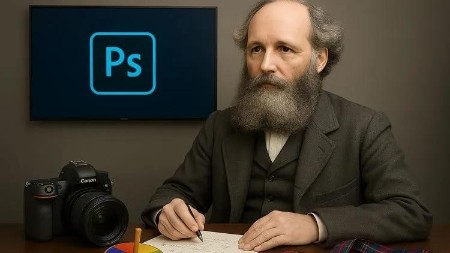
Choosing The Right Monitor And Graphics Card For Photoshop

babymore87

MyBoerse.bz Pro Member

b2656786179779e8c4af6dffb9502712.webp

Free Download Choosing The Right Monitor And Graphics Card For Photoshop
Published 11/2025
MP4 | Video: h264, 1920x1080 | Audio: AAC, 44.1 KHz
Language: English | Size: 1.29 GB | Duration: 1h 48m
Choosing Monitors And GPUs For Photoshop Design work and Photo Editing with Color Accurate Workflows

What you'll learn
Pick sensible GPU options across Intel Arc, Radeon and NVIDIA RTX families for different budgets and editing styles.
Build a practical hardware checklist to guide your next upgrade and avoid wasting money on specs that do not matter.
Compare real world monitor tiers from budget screens to movie, photo and professional grade displays and know which level you need.
Choose the right monitor for Photoshop by understanding panel type, color space, bit depth and brightness, not just brand names.
Requirements
No prior knowledge of monitors, color management or GPUs is required.
A computer that already runs Photoshop in some form, even if it feels slow or limited.
Description
This course contains the use of artificial intelligence.Stop Guessing Your Hardware. Start Trusting Your Screen.This course shows photographers and Photoshop users how to choose the right monitor and GPU, step by step, using clear levels of hardware from basic to reference grade.What You Will LearnHow monitors and GPUs actually affect what you see in PhotoshopThe real minimum requirements for photo editing that does not feel painfulHow to read monitor specs like panel type, color space, bit depth and brightnessWhy color temperature targets such as 5000 K and 6500 K matter for printsHow to use simple tests like the EIZO monitor test to judge any screen you ownWhat makes a monitor a true photo or reference display instead of a general office screenWhat Photoshop really uses the GPU for, including AI assisted featuresHow to compare GPU tiers across Intel Arc, Radeon and NVIDIA RTX cards for photo workHow the Course Is StructuredIntro LevelOrientation, minimum specs, and upgrade paths from your current system.Monitor Level 1: Everyday and Budget Photo ScreensConsumer IPS displays, sRGB workflows, brightness, contrast and buying traps.Monitor Level 2: Dedicated Photo Monitors4K editing, wide gamut modes, calibration options and case studies such as BenQ PhotoVue.Monitor Level 3: Reference Grade DisplaysWhat EIZO ColorEdge and similar monitors offer, and who actually needs that precision.GPU Fundamentals and LevelsGPU acceleration in Photoshop, VRAM and drivers, then concrete card tiers from entry level to stronger RTX 60 class and comparable Radeon options.What You Will Be Able To Do By The EndRead monitor and GPU specifications with confidence instead of guessingTest and tune the monitor you already own for more reliable colorDecide when it is worth moving from a basic screen to a dedicated photo or reference monitorChoose a GPU that matches your Photoshop workload and budget, not just gaming benchmarksBuild a practical checklist for your next upgrade so your edits look consistent on screen, on the web and in print, with a workstation that feels smooth and responsive during real projects.
Hobbyist and serious photographers who want their Photoshop edits to match across screens and prints.,Freelance retouchers, designers and content creators who are planning a new monitor or GPU purchase.,Working professionals who already own "good" gear but are not sure they are getting the best from it.,Students and enthusiasts building or upgrading a PC for Photoshop and photo centric workflows, not gaming.,Anyone tired of confusing spec sheets who wants a clear, honest roadmap from basic hardware to pro level setups.
Homepage


Recommend Download Link Hight Speed | Please Say Thanks Keep Topic Live
No Password - Links are Interchangeable

 

bc717402739b924fd87bbcadbe9fe37b.jpg

Choosing the right Monitor and Graphics Card for Photoshop
Published 11/2025
Duration: 1h 48m | .MP4 1920x1080 30fps(r) | AAC, 44100Hz, 2ch | 1.29 GB
Genre: eLearning | Language: English​

Choosing Monitors And GPUs For Photoshop Design work and Photo Editing with Color Accurate Workflows

What you'll learn
- Pick sensible GPU options across Intel Arc, Radeon and NVIDIA RTX families for different budgets and editing styles.
- Build a practical hardware checklist to guide your next upgrade and avoid wasting money on specs that do not matter.
- Compare real world monitor tiers from budget screens to movie, photo and professional grade displays and know which level you need.
- Choose the right monitor for Photoshop by understanding panel type, color space, bit depth and brightness, not just brand names.

Requirements
- No prior knowledge of monitors, color management or GPUs is required.
- A computer that already runs Photoshop in some form, even if it feels slow or limited.

Description
This course contains the use of artificial intelligence.

Stop Guessing Your Hardware. Start Trusting Your Screen.This course shows photographers and Photoshop users how to choose the right monitor and GPU, step by step, using clear levels of hardware from basic to reference grade.

What You Will Learn

How monitors and GPUs actually affect what you see in Photoshop

The real minimum requirements for photo editing that does not feel painful

How to read monitor specs like panel type, color space, bit depth and brightness

Why color temperature targets such as 5000 K and 6500 K matter for prints

How to use simple tests like the EIZO monitor test to judge any screen you own

What makes a monitor a true photo or reference display instead of a general office screen

What Photoshop really uses the GPU for, including AI assisted features

How to compare GPU tiers across Intel Arc, Radeon and NVIDIA RTX cards for photo work

How the Course Is Structured

Intro LevelOrientation, minimum specs, and upgrade paths from your current system.

Monitor Level 1: Everyday and Budget Photo ScreensConsumer IPS displays, sRGB workflows, brightness, contrast and buying traps.

Monitor Level 2: Dedicated Photo Monitors4K editing, wide gamut modes, calibration options and case studies such as BenQ PhotoVue.

Monitor Level 3: Reference Grade DisplaysWhat EIZO ColorEdge and similar monitors offer, and who actually needs that precision.

GPU Fundamentals and LevelsGPU acceleration in Photoshop, VRAM and drivers, then concrete card tiers from entry level to stronger RTX 60 class and comparable Radeon options.

What You Will Be Able To Do By The End

Read monitor and GPU specifications with confidence instead of guessing

Test and tune the monitor you already own for more reliable color

Decide when it is worth moving from a basic screen to a dedicated photo or reference monitor

Choose a GPU that matches your Photoshop workload and budget, not just gaming benchmarks

Build a practical checklist for your next upgrade so your edits look consistent on screen, on the web and in print, with a workstation that feels smooth and responsive during real projects.

Who this course is for:
- Hobbyist and serious photographers who want their Photoshop edits to match across screens and prints.
- Freelance retouchers, designers and content creators who are planning a new monitor or GPU purchase.
- Working professionals who already own "good" gear but are not sure they are getting the best from it.
- Students and enthusiasts building or upgrading a PC for Photoshop and photo centric workflows, not gaming.
- Anyone tired of confusing spec sheets who wants a clear, honest roadmap from basic hardware to pro level setups.


Z2ZwrPgX_o.jpg


bc717402739b924fd87bbcadbe9fe37b.jpg

Choosing the right Monitor and Graphics Card for Photoshop
Published 11/2025
Duration: 1h 48m | .MP4 1920x1080 30fps(r) | AAC, 44100Hz, 2ch | 1.29 GB
Genre: eLearning | Language: English​

Choosing Monitors And GPUs For Photoshop Design work and Photo Editing with Color Accurate Workflows

What you'll learn
- Pick sensible GPU options across Intel Arc, Radeon and NVIDIA RTX families for different budgets and editing styles.
- Build a practical hardware checklist to guide your next upgrade and avoid wasting money on specs that do not matter.
- Compare real world monitor tiers from budget screens to movie, photo and professional grade displays and know which level you need.
- Choose the right monitor for Photoshop by understanding panel type, color space, bit depth and brightness, not just brand names.

Requirements
- No prior knowledge of monitors, color management or GPUs is required.
- A computer that already runs Photoshop in some form, even if it feels slow or limited.

Description
This course contains the use of artificial intelligence.

Stop Guessing Your Hardware. Start Trusting Your Screen.This course shows photographers and Photoshop users how to choose the right monitor and GPU, step by step, using clear levels of hardware from basic to reference grade.

What You Will Learn

How monitors and GPUs actually affect what you see in Photoshop

The real minimum requirements for photo editing that does not feel painful

How to read monitor specs like panel type, color space, bit depth and brightness

Why color temperature targets such as 5000 K and 6500 K matter for prints

How to use simple tests like the EIZO monitor test to judge any screen you own

What makes a monitor a true photo or reference display instead of a general office screen

What Photoshop really uses the GPU for, including AI assisted features

How to compare GPU tiers across Intel Arc, Radeon and NVIDIA RTX cards for photo work

How the Course Is Structured

Intro LevelOrientation, minimum specs, and upgrade paths from your current system.

Monitor Level 1: Everyday and Budget Photo ScreensConsumer IPS displays, sRGB workflows, brightness, contrast and buying traps.

Monitor Level 2: Dedicated Photo Monitors4K editing, wide gamut modes, calibration options and case studies such as BenQ PhotoVue.

Monitor Level 3: Reference Grade DisplaysWhat EIZO ColorEdge and similar monitors offer, and who actually needs that precision.

GPU Fundamentals and LevelsGPU acceleration in Photoshop, VRAM and drivers, then concrete card tiers from entry level to stronger RTX 60 class and comparable Radeon options.

What You Will Be Able To Do By The End

Read monitor and GPU specifications with confidence instead of guessing

Test and tune the monitor you already own for more reliable color

Decide when it is worth moving from a basic screen to a dedicated photo or reference monitor

Choose a GPU that matches your Photoshop workload and budget, not just gaming benchmarks

Build a practical checklist for your next upgrade so your edits look consistent on screen, on the web and in print, with a workstation that feels smooth and responsive during real projects.

Who this course is for:
- Hobbyist and serious photographers who want their Photoshop edits to match across screens and prints.
- Freelance retouchers, designers and content creators who are planning a new monitor or GPU purchase.
- Working professionals who already own "good" gear but are not sure they are getting the best from it.
- Students and enthusiasts building or upgrading a PC for Photoshop and photo centric workflows, not gaming.
- Anyone tired of confusing spec sheets who wants a clear, honest roadmap from basic hardware to pro level setups.


Z2ZwrPgX_o.jpg

 
Zurück
Oben Unten